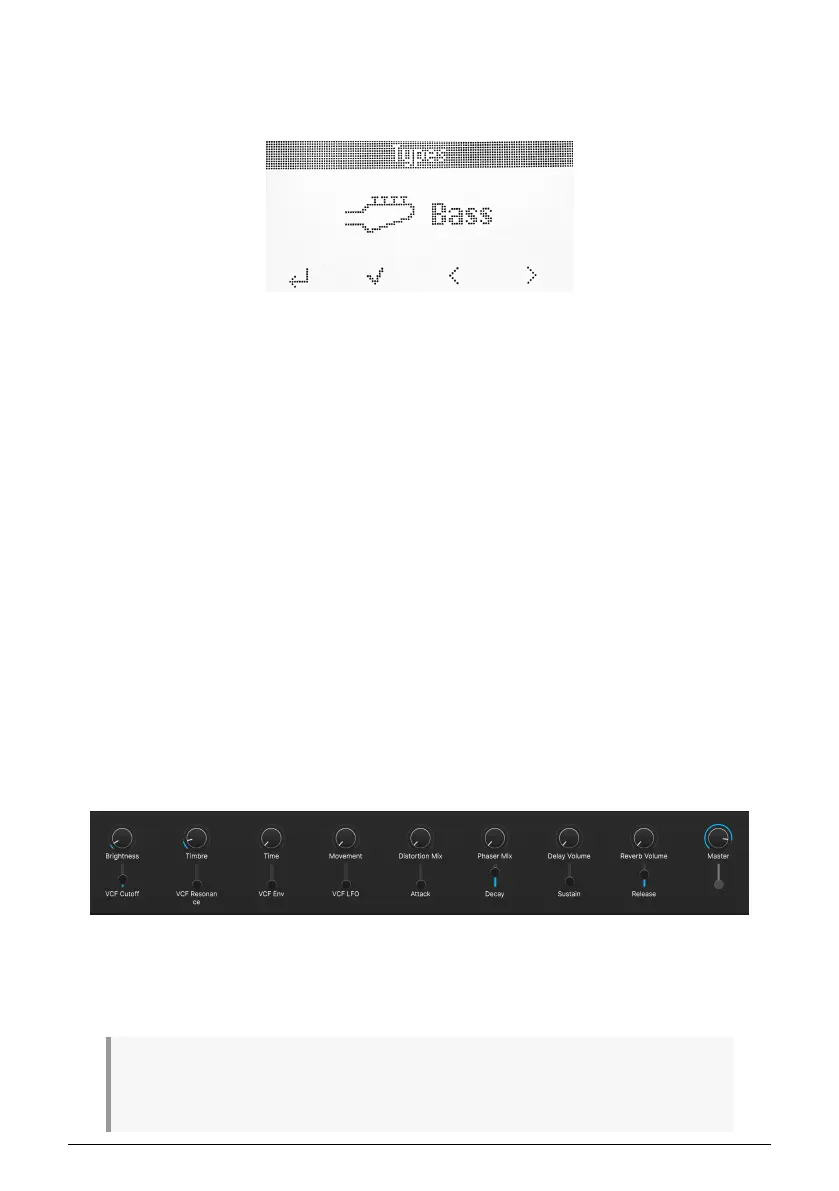
5.3.1. Browsing Within Types
You can also drill partway down into the “tree structure” of Analog Lab V’s Preset hierarchy,
specifically the categories of Presets known as Types.
Turn the main encoder (the one below the display) to browse through the different
instrument Types. Press the encoder to select that Type. You can now turn the encoder to
scroll through subtypes only within the chosen Type.
To go back up one level in the hierarchy when browsing Presets within a Type (i.e. to the
level where you’re selecting Types), press the button below Types
5.3.1.1. Navigating Types
• To browse between Types: Turn the Main encoder knob.
• To select a Type: Press encoder.
• To display all Presets within a Type: Click on the button below the Tick icon. All
Presets within that Type are now listed on your computer screen.
• To access subtypes, click on the main encoder.
• If you are in a subtypes list, clicking on the main encoder will enter the subtypes
preset list.
5.4. Knobs and Faders
With KeyLab Essential in ARTURIA mode (press Prog until you get there) and
KeyLab
Essential
selected as the MIDI controller in the MIDI settings [p.35], the knobs and faders
are dedicated to parameters in a way intended to make your live performances and studio
tweaking super smooth.
The Knobs and Faders are assigned to the Arturia instrument’s Macros. Since you can assign
multiple parameters to a Macro, you can get a lot of mileage out of twisting a single knob on
KeyLab Essential. This is even more true if you own full versions of V Collection instruments,
which you can then open inside of Analog Lab V to map their internal parameters to Macros.
! Please make sure to select KL Essential 3 as your MIDI Controller under the cogwheel in Analog
Lab V's upper right corner. You can edit exactly what every Knob and Fader does in the MIDI Control
Center app.
38 Arturia - User Manual KeyLab Essential mk3 - KeyLab Essential and Analog Lab V


 To Next Page