3. HARDWARE OVERVIEW
3.1. Connecting KeyLab Essential
First of all, we recommend that you install the Analog Lab V and MIDI Control Center and
be sure to register and authorize them. Connect KeyLab Essential to your computer using
the included USB cable. Power and data is supplied through this connection.
You are strongly recommended to download the MCC and let it install KeyLab Essential's
custom driver. Without this specific driver under Windows, you won't be able to use MIDI
with multiple instances that use MIDI protocol on your computer.
3.2. Front Panel
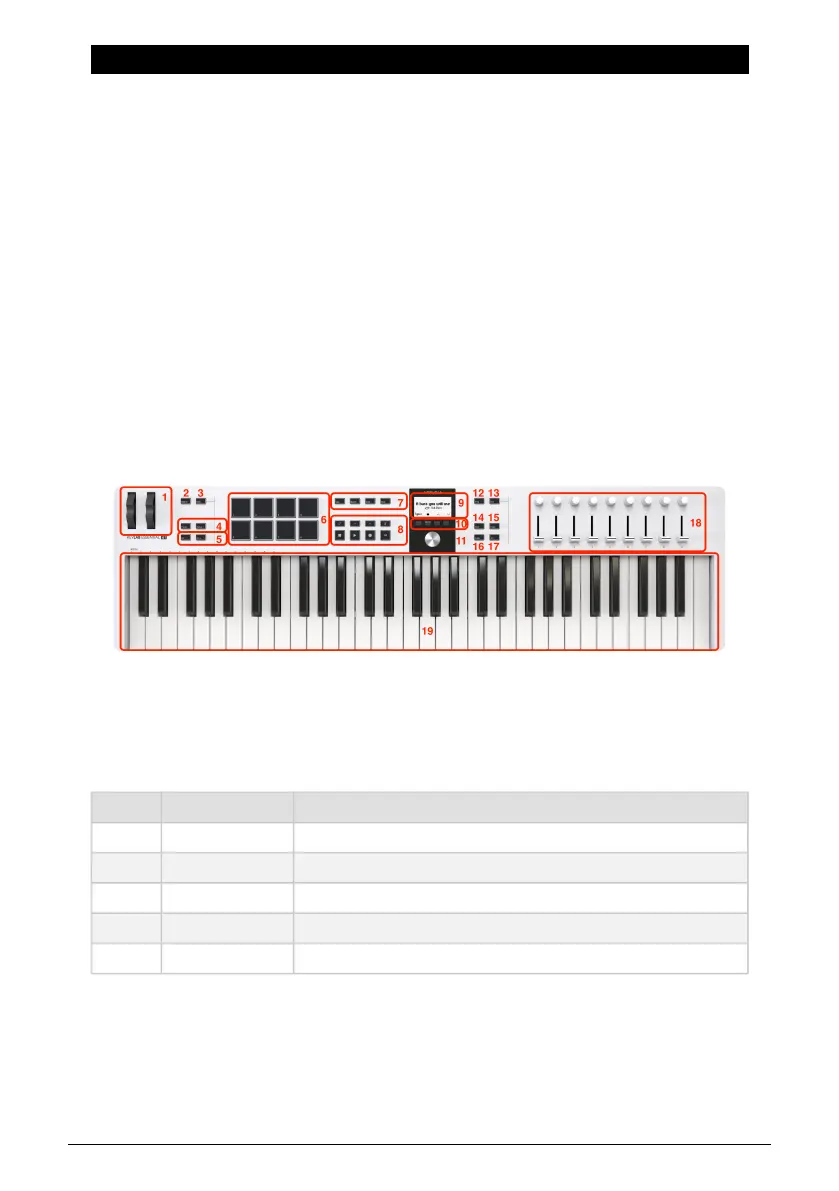
The controls on the front panel of KeyLab Essential are as follows.
Number Name Description
1. Wheels [p.9] These easy-to-reach controllers act as pitch-bend and modulation wheels.
2. MIDI Ch button This button lets you select MIDI out channel.
3. Bank button Choose to use Bank A or B for the Performance Pads.
4. Transp –/+ buttons Transpose the keyboard in semitone steps.
5. Octave –/+ buttons Transpose the keyboard up or down an octave.
6 Arturia - User Manual KeyLab Essential mk3 - Hardware Overview


 To Next Page