4. KEYLAB ESSENTIAL OPERATIONS
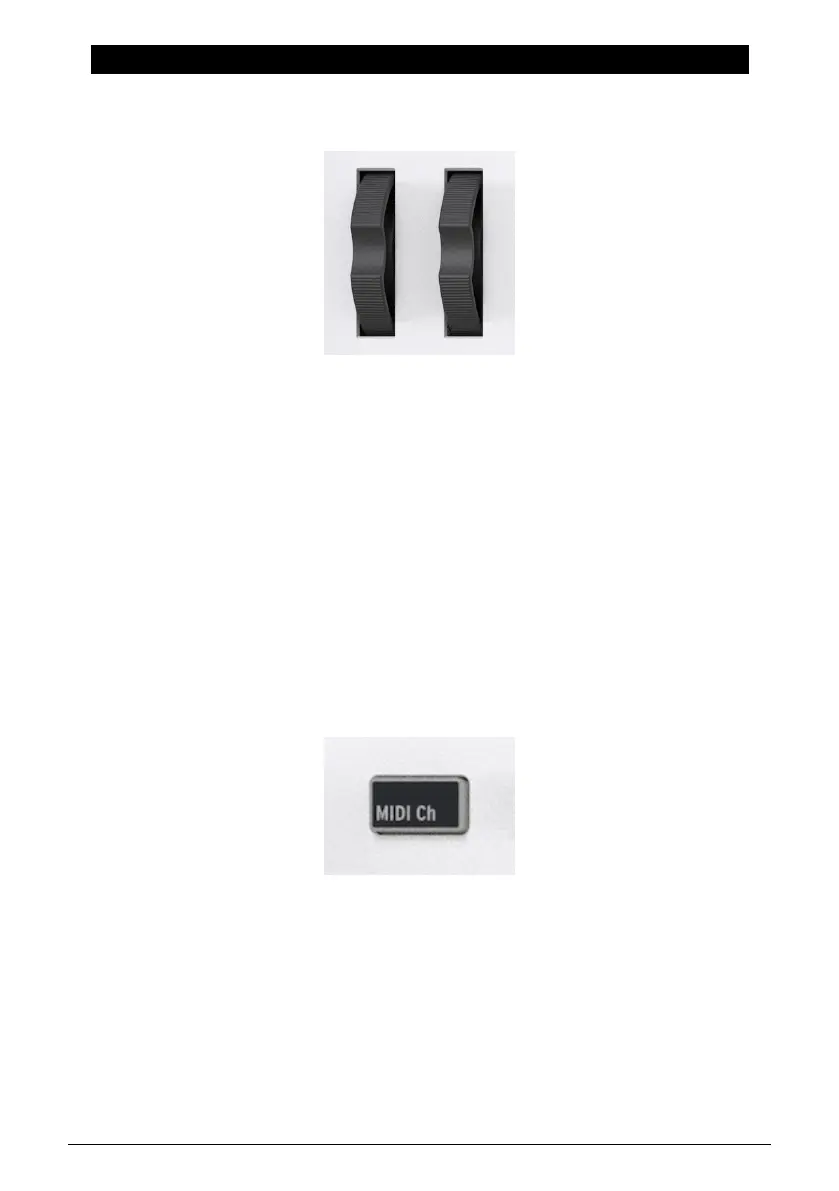
4.1. Wheels
To the left is the pitch-bend wheel. It is spring-loaded: If you push it in one direction and
then remove your finger, the wheel snaps back to its center position. The bend range can
be adjusted in the MIDI Control Center software (see separate manual). In fact, the MIDI
Control Center app allows you to customize the function of almost every physical control of
your KeyLab Essential or other Arturia controller.
Pushing the modulation wheel on the right increases the modulation amount. As with a
modulation wheel on any synth, the wheel and its current value stays where you leave it
when you remove your finger, until you manually move the modulation wheel again.
The modulation wheel by default sends MIDI CC 1 (the usual control number for
modulation), but this control number can also be changed in the MIDI Control Center app.
If you want to control the Volume or Filter Cutoff Frequency or any other parameter of your
sound device, this can be done.
Movements of these wheels will be reflected in the Display.
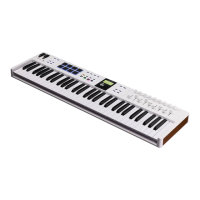
4.2. MIDI Channel
When working in a DAW or multiple hard- or software instruments, you may want to decide
what MIDI channel KeyLab Essential uses to send notes and controller data. You can easily
change that channel number by holding the MIDI Channel button and pressing the correct
key on the keyboard.
The notes from the lowest C to D# (Eb) in the second octave set MIDI channels to 1–16.
Example: If you want to transmit on channel 10, hold the MIDI Channel button and hit the
lowest A key.
Arturia - User Manual KeyLab Essential mk3 - KeyLab Essential operations 9


 To Next Page