4.11. Scale
You enter Scale Edit mode by long-pressing the Scale button.
You leave Scale Edit mode by pressing the leftmost contextual button (under the down-left
pointing arrow).
The Scale function helps you stay in the right key and tonality when playing. Scale works by
simply redirecting those notes that don't belong to the scale selected. As a result, every note
you play on the KeyLab Essential will "sound right".
You activate Scale mode by pressing the Scale button. Whatever scale and key was last
selected, will now be activated.
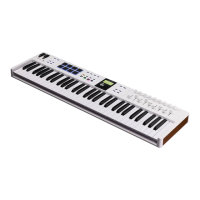
By long-pressing Scale, you will be presented with the Scale page. Press the button below
Root and use the large Encoder Knob to select the key you want to use. Press the fourth
button, under Type, to choose the preferred type of scale.
There are a number of scales to choose from:
• Chromatic: Standard scale used on every western keyboard instrument.
• Major: Major scale.
• Minor: Natural minor.
• Dorian: Dorian (or doric) mode.
• Phrygian: Phrygian mode.
• Lydian: Lydian mode.
• Mixolydian: Mixolydian mode.
• Locrian: Locrian mode.,
• Harmonic Minor: Harmonic minor.
• Blues: Blues scale with only 6 notes.
• Pentatonic Major: 5 note pentatonic scale.
• Pentatonic Minor: 5 note pentatonic, also a simplified blues scale.
• Japanese: 5 note pentatonic scale.
• Gypsy: One of several Gypsy scales.
• Arabic: Arabic or double harmonic scale.
• Freygish: Freygish or Phrygian dominant scale.
22 Arturia - User Manual KeyLab Essential mk3 - KeyLab Essential operations


 To Next Page