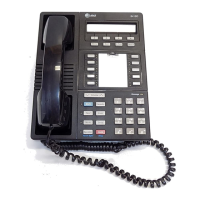
8410D User’s Guide
16 of 37
Note: Each AD button will hold one complete phone number or feature
access code.
2 Pick up the handset [dial tone]
Note: If you are using the built-in speakerphone, you must either press
a call appearance button or press
Speaker before you begin Step 3.
3 If you are using an 8410 with a display, press Menu and then press
the softkey below Prog If your 8410 does not have a display or if Prog
is not available on your display, press
Program
or Dial the AD Program access code * 0
[dial tone]
4 Press the AD xxxx to be programmed [dial tone]
5 Dial the outside number, extension, or feature access code you want
to store
Notes: If the programmed number is associated with a list, it can be up
to 24 digits. If the stored number is NOT associated with a list (that is,
an Automatic Dialing button), it can be up to 16 digits. See your system
manager if you need help.
If your 8410 has a display, you may be able to use the softkeys to add
special functions such as Pause, Mark, or Wait into the telephone
numbers programmed on the AD button.
If you are programming an outside number, be sure to include a trunk
code [9], if applicable.
6 Press # [confirmation tone]
• Number is stored
• Repeat Steps 4 through 6 to program additional buttons
7
Hang up or press Drop to end programming
To place an AD call
1 Press the selected AD xxxx [ringback tone]
• Call is automatically dialed
To program/reprogram
an outside number,
extension, or feature
access code into a
personal list
1
On a separate sheet of paper, write down the outside numbers,
extensions, and/or feature access codes you want to program as items
on your personal lists(s).
Note: Each phone number or feature access code is stored as a separate
item.
2
Pick up the handset [dial tone]
Note: If you are using the built-in speakerphone, you must either press
a call appearance button or press
Speaker before you begin Step 3.
3
If you are using an 8410 with a display, press Menu and then press
the softkey below Prog


 To Next Page