AVerMedia Technologies Inc.
68
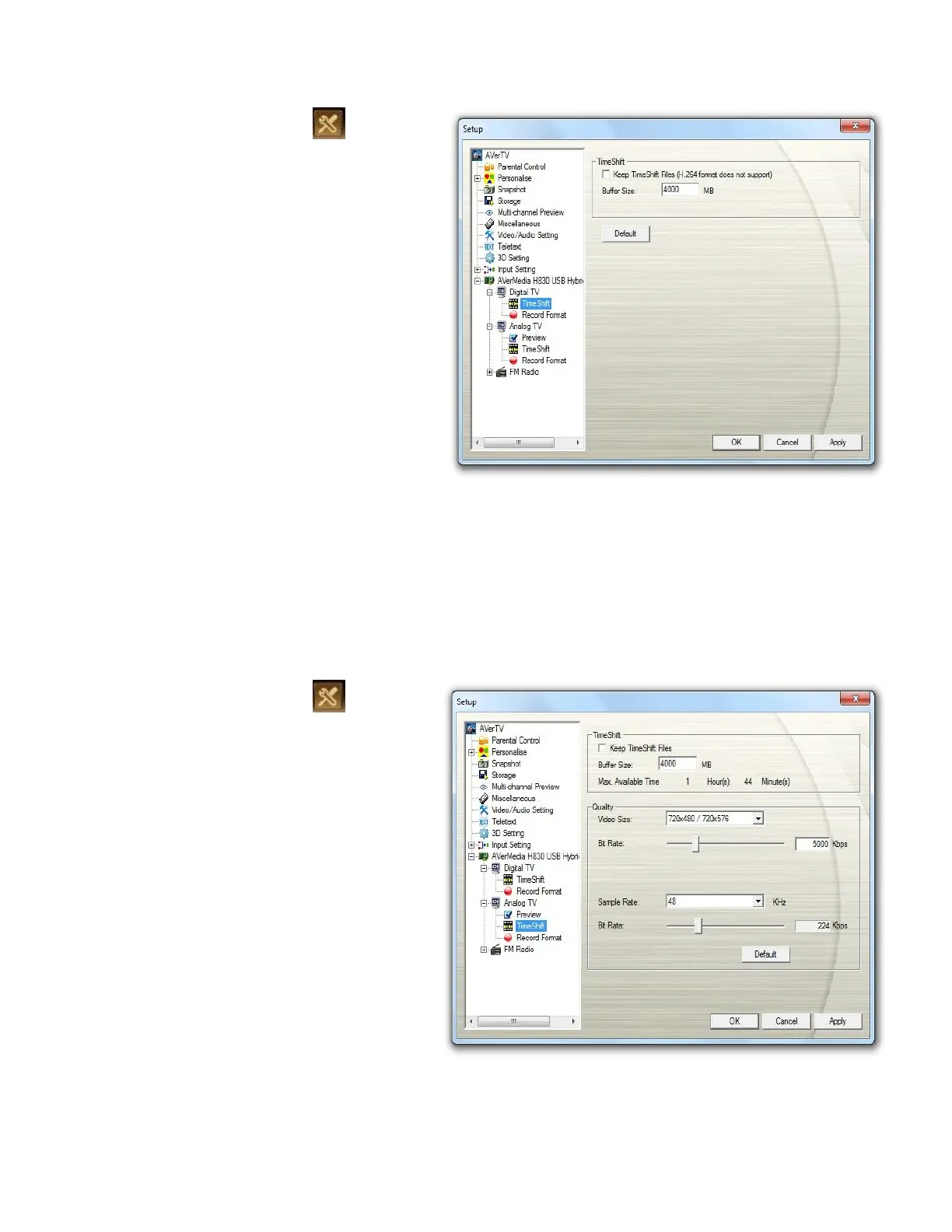
Keeping Timeshift Files
1. Click the Setup button and
select Setup. Then choose your
desired signal input on the left pane.
2. Select Digital TV.
3. Select Timeshift.
4. If you want to save the video file,
select the Keep TimeShift Files check
box.
5. Here you can determine the buffer
size.
6. Please be noted the items may vary
depending on the device you use.
7. Click Default if you want to revert to
the factory settings.
Customizing TimeShift Video Quality Settings (Analog TV only)
To customize video and audio quality settings
1. Click the Setup button and
select Setup. Then choose your
desired signal input on the left pane.
2. Select Analog TV.
3. Select Timeshift.
4. Determine the video and audio quality
for timeshifting.
5. If you want to revert to default
settings, please click Default.
6. Click Apply to save the new settings
and click OK to exit the current dialog
box. Or, click Cancel to use the
original settings.



 To Next Page