1. Click the Add button .
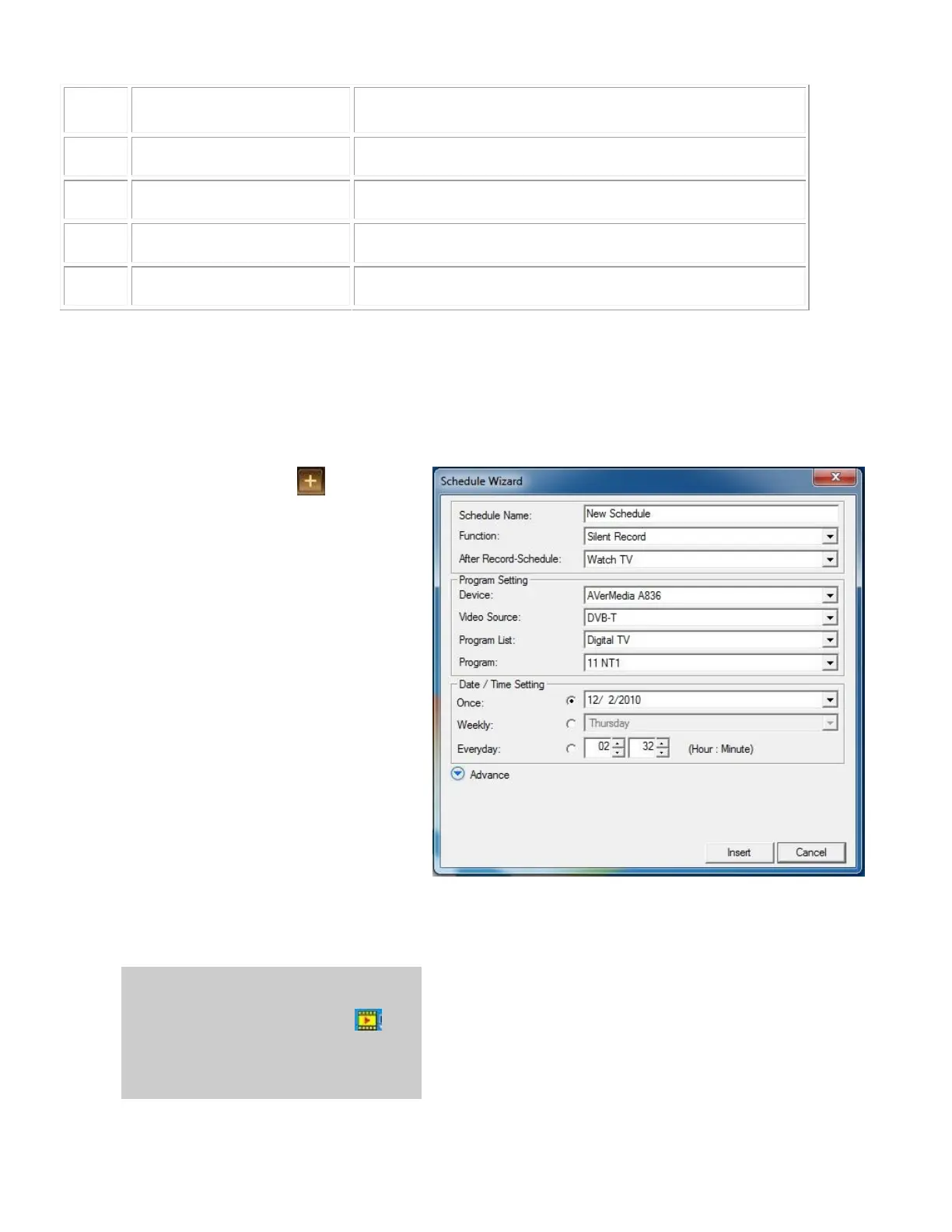
2. The Schedule Wizard dialog box
appears.
3. Type the desired name in
the Schedule Name text box.
4. From the Function drop-down
menu, select the action to be
scheduled.
Activate AVerTV : Watch a
TV program or listen to a
radio broadcast.
Record : Save a TV/Radio
program for future
viewing/listening.
Silent Record : Perform
background recording
instead of activating the
TV/Radio program.
Timeshift : Schedule a task
to enable Timeshift function.
Note: If you select Silent Record,
when the application is performing
the recording task, the icon will
appear on the task bar (the lower
right corner of the screen). To
immediately watch or listen to the



 To Next Page