TV/FM program which is being
recorded, just double-click this
icon.
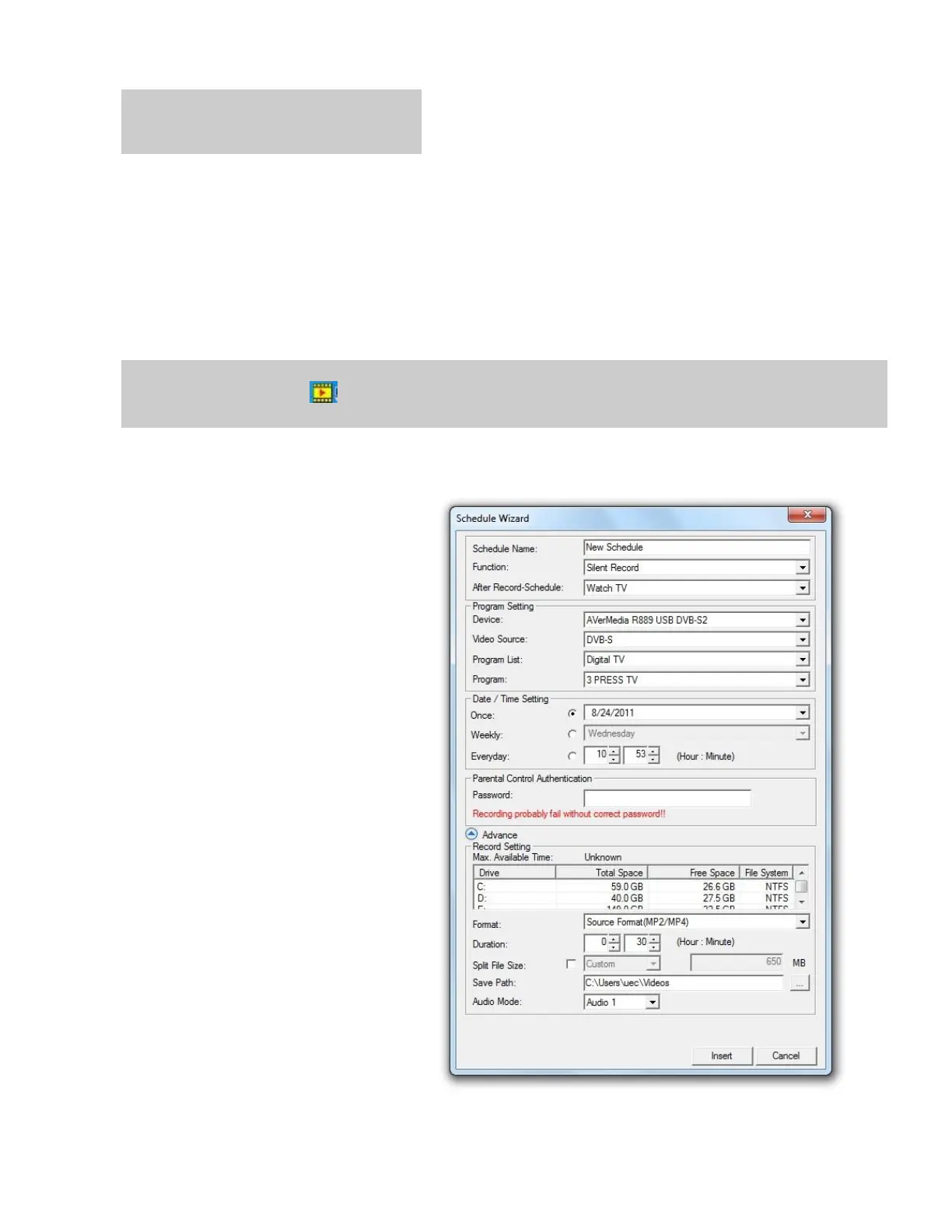
5. In the After Record-Schedule, select a power control status after the scheduled recording
is completed.
Watch TV: Switch to real-time TV mode.
Exit: Turn off the AVerTV Application.
Stand By: Turn off your monitor and hard disks.
Hibernate: Save everything and then turn off your computer.
Shut Down: Turn off your computer.
Note: If you choose Watch TV from the drop-down menu, after completing the Silent
Record task, the icon will appear on the task bar (the lower right corner of the screen).
Just double-click this icon, you can immediately watch live TV or listen to the radio.
6. In the Program Setting section,
select the desired device, video
source, group and channel you
want.
7. In the Date/ Time section, select
the frequency for your recording:
Once, Weekly, or Everyday.
Once : Perform schedule at
a preset day and a preset
time.
Weekly : Perform schedule
every week, at a preset day
and time.
Everyday : Perform
schedule everyday at a
preset time.
8. If you choose Activate AVerTV in
step 4, click Insert to complete the
settings.
9. If you choose Record or Silent
Record, you need to do the
followings.
10. Click the Advance icon.
11. In the Record Setting section, you



 To Next Page