AVerMedia Technologies Inc.
40
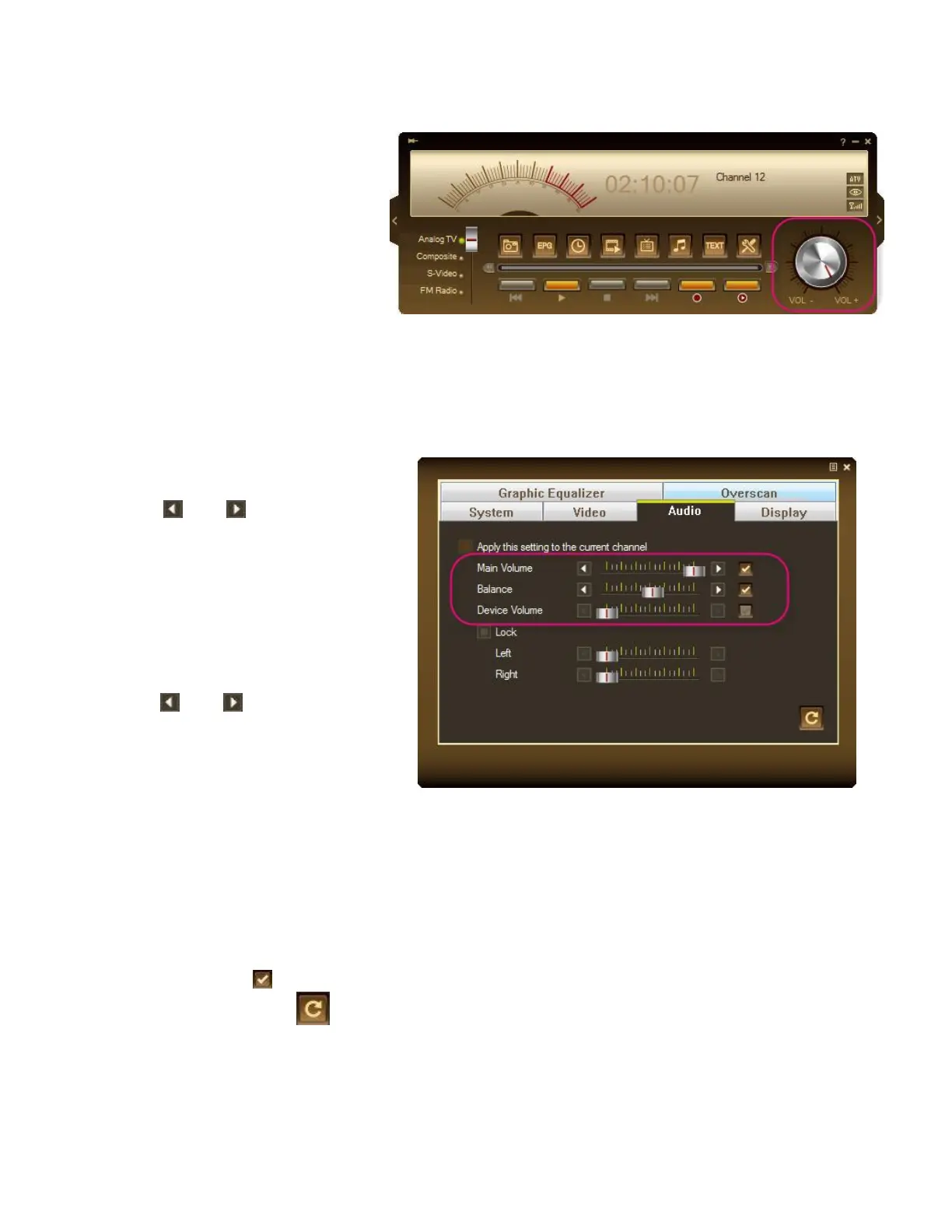
Adjusting Volume
On the Control Panel, click
and drag your mouse over
the Volume knob to increase
or decrease the volume level.
You can also press the + / –
keys on the numeric keypad
to adjust the volume.
or
1. Right click on the TV monitor.
When a pop-up menu
appears, select Individual
Channel Setting.
2. When a dialog box appears,
select Audio tab.
3. Use and or drag the
slider bar to adjust the system
volume, the audio balance or
the device volume.
4. By default, the right and left
volume levels are the same. If
you want to adjust right and
left volume individually, clear
the Lock check box and
use and to adjust the
volume.
5. If you just want to adjust
individual volume level,
select Apply this setting to
the current channel and
repeat the previous steps to
increase or decrease volume.
6. To apply the converted
settings to all channels,
click Apply All .
7. Click Default button if
you want to revert the factory
settings.



 To Next Page