AVerMedia Technologies Inc.
71
Using the Recording Function
To record a program
1. Click the Record button on the Control Panel.
2. You can click the Stop button to terminate the recording and return to live TV
program.
Playing a Recorded Program
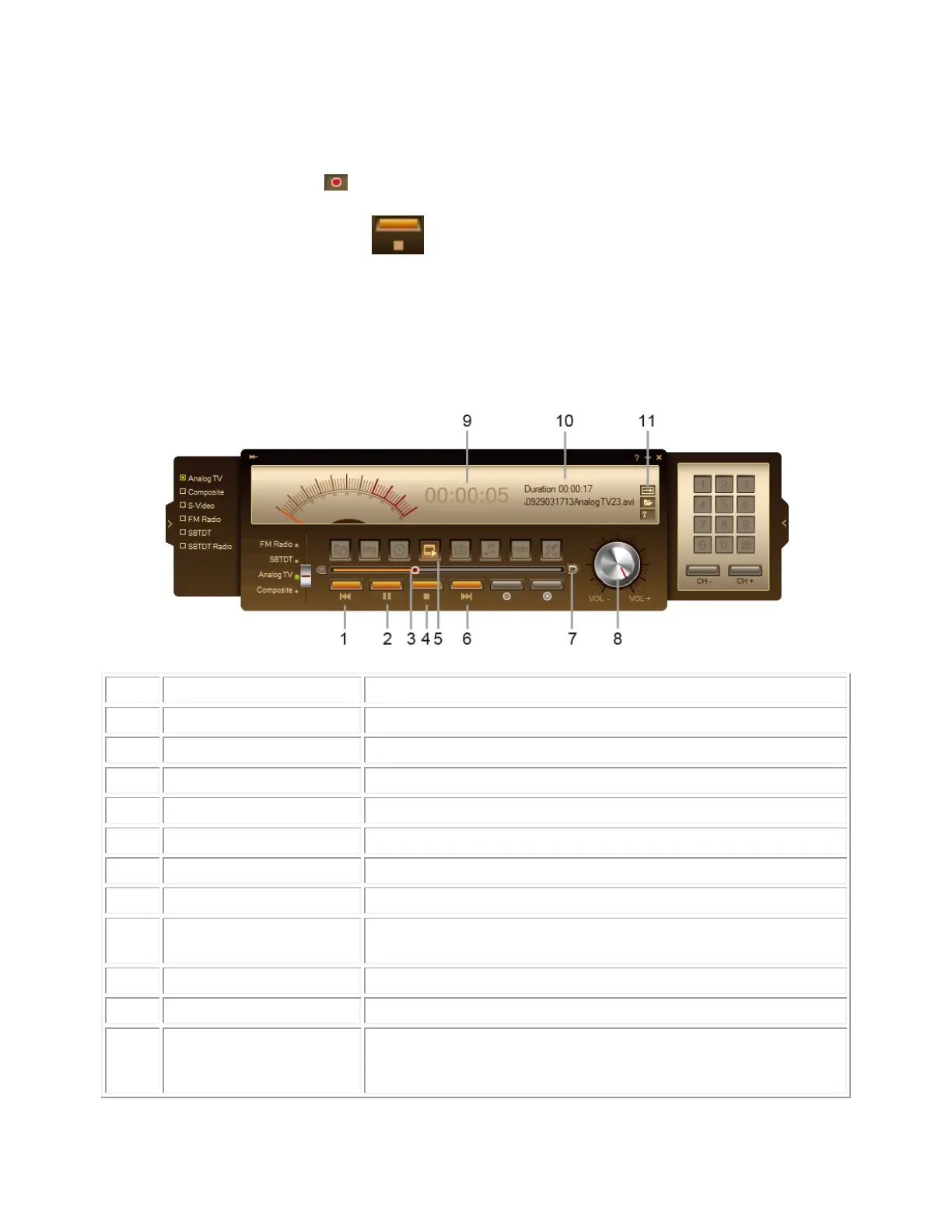
Each TV program that you recorded will be saved as a video file in the assigned destination folder.
Click to go to the previous video file in the playlist.
Click to play back / Click to temporarily freeze the playback.
Drag the slider tab to move to any part of the recorded file.
Click to stop recording or playback.
Click to create a playlist of video files to play back.
Click to go to the next video file in the playlist.
Click to switch to the next playback speed level.
Drag your mouse up/down to increase/decrease the volume
level.
Show backward duration time during playback.
Show playback file information.
Right click on the repeat icon on the control panel to enable
the repeat function. The system will continuously playback the
files in the playlist.



 To Next Page