41
Fitting the image to your screen
Keystone
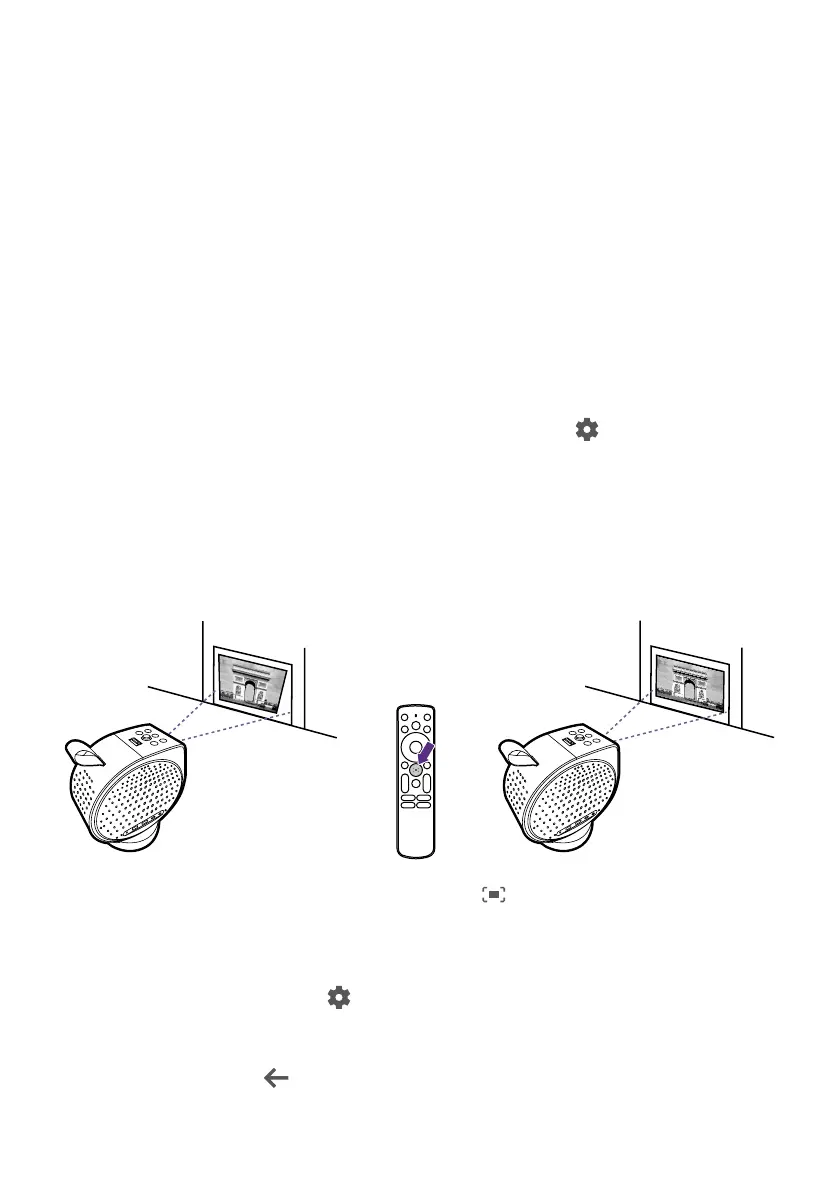
The keystone effect refers to the situation where the projected image
is noticeably wider at the top / bottom / left / right. It occurs when the
projector is not perpendicular to the screen. The screen automatically
performs keystone correction after the projector moves. Make sure the
keystone pattern is completely visible on the screen to ensure a successful
correction.
• Real-time focus & keystone correction: Your projector adjusts focus
and keystone automatically at startup if enabled. This function will
be performed automatically as well when the projector is moved.
To check/change the auto keystone setting, go to
> All settings >
Projector > Image Correction > Advanced. The effective range of auto
keystone is as follows:
• Vertical: ± 20 degrees
• Horizontal: ± 30 degrees
• Rotation: ± 30 degrees
• Distance from lens to wall: 2 meters
• One-click screen adjustment: Press the button on the remote
control and the projector will automatically focus the image and adjust
keystone. Make sure the full keystone pattern is displayed on the
screen to ensure a successful correction.
• Manual keystone: Go to
> All settings > Projector >
Image Correction > Manual Keystone Correction. Simply follow the
on-screen instructions to make adjustments. When the adjustment is
completed, press
to save your changes and return to the previous


 To Next Page