53
Projection
Wireless projection (screen casting)
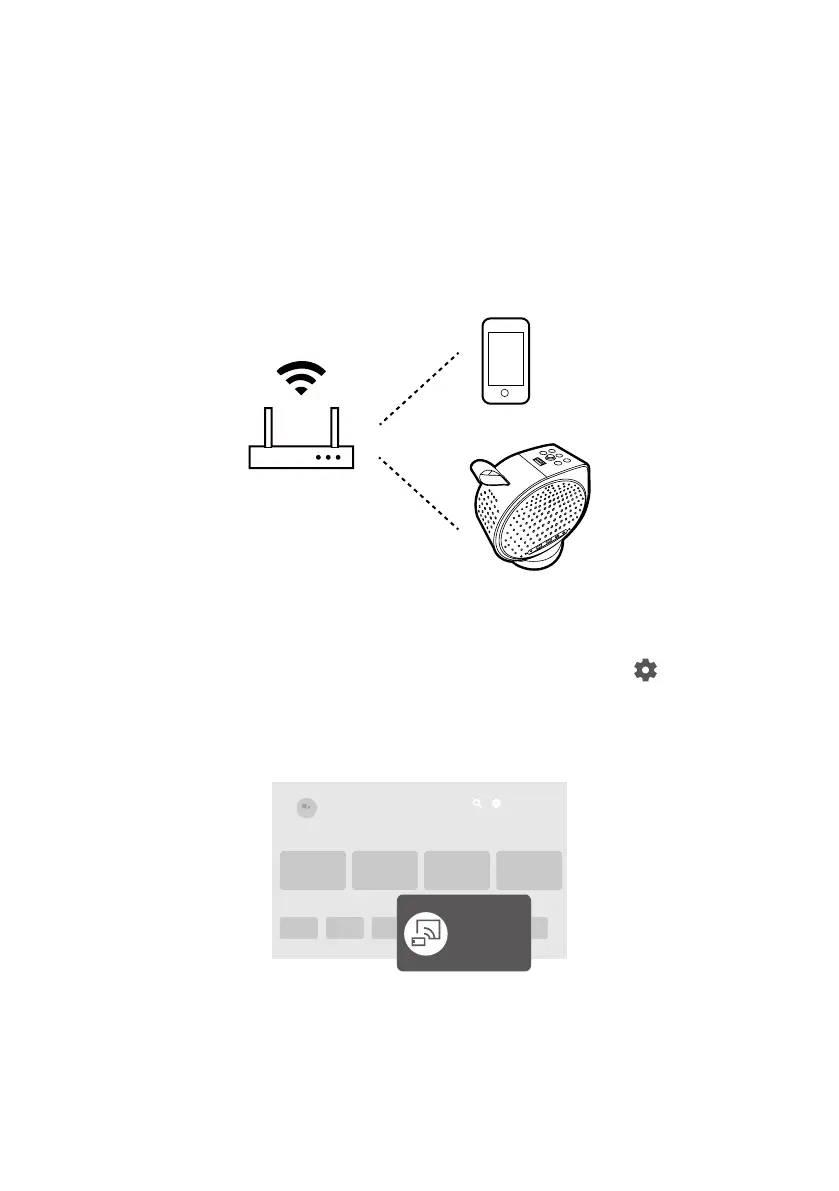
Wireless projection is available with the built-in Google TV, and the
connection of the projector and your device to the same wireless network.
Depending on your mobile device, different procedures and options are
required. Follow the instructions.
Screen casting from an iOS/macOS device
1. Install and launch the Screen Sharing for iOS app from >
All settings > Projector > Advanced Settings > Screen Sharing for iOS.
1. Go to Apps from the Google TV Home screen on the projector, and
launch the Screen Sharing for iOS app.
Google TV
Screen
Sharing
for iOS
2. Follow the on-screen instructions to grant the access right.
3. Make sure your mobile device and the projector are connected to the
same wireless network.
4. Enable the screen mirroring function from your iOS/macOS device.


 To Next Page