56
Wired projection
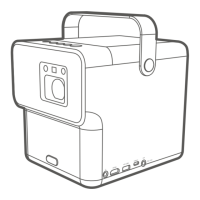
Using an HDMI or certified USB-C 3.0 cable you can connect a device that
is equipped with HDMI or DP Alt Mode capabilities to broadcast videos
and images on the projector.
Note
Not all devices with a USB-C port have DisplayPort functionality. Check your device’s documentation
for clarification.
1. Connect the device to the HDMI or USB-C port on the projector with a
certified cable.
2. Press the source key , and then select the corresponding port in the
source menu.
3. Use the source menu or press the home button
to exit and go back
to the Google TV home screen.
4. If the device remains connected and you want to project its video
again, press the source button
, and then select the corresponding
port in the source menu.
Note
• Some computers feature HDMI ports that do not transmit audio, in such cases a separate audio
cable must be connected to the projector.
• Some laptops do not turn on their external video ports when connected to a projector. Usually a
key combination like Fn + F3 or CRT/LCD key turns the external display on/off. Locate a function
key labeled CRT/LCD or a function key with a monitor symbol on the laptop. Press Fn and the la-
beled function key simultaneously. Refer to your laptop’s documentation to discover your laptop’s
key combination.
Tip
Your projector features video/audio transfer and power delivery from the USB-C port. With this
feature, you can charge your gaming console (with USB-C video output) directly during gaming
without any other docking. See "Power delivery to a USB-C device" on page 61 for details.


 To Next Page