43
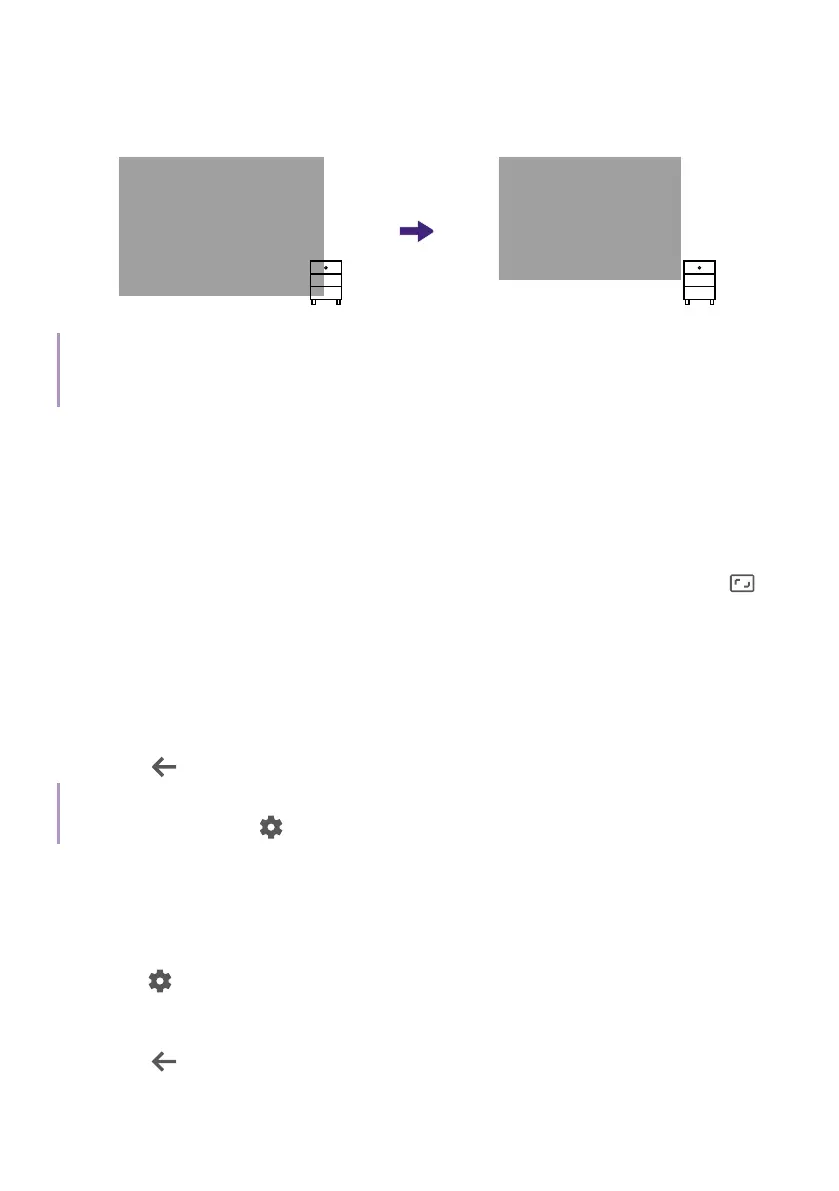
> Avoid Obstacles. The projector will automatically resize to avoid
the object shading the screen. Make sure the full keystone pattern is
completely displayed on the screen to ensure a successful correction.
Note
Auto fit to Screen and Avoid Obstacles functions cannot work together. The correction result will
base on Avoid Obstacles.
Projection size and position adjustment
(Digital zoom and image shift)
Resize and shift the projected image to fit your space with the digital zoom
and reposition functions easily.
1. To resize a image to a smaller space, move the digital zoom lever
or
the digital zoom in/out keys on the remote control. The maximum size
is the image you projected in the first place.
2. Press OK to switch to image reposition function. Use the arrow keys
on the remote control or the joystick on projector to move the image.
Follow the on-screen instructions to switch between digital zoom and
image reposition.
3. Press
to save and exit.
Tip
To access the menu, go to
> All settings > Projector > Image Correction > Zoom & Shift.
Image rotation
Use the image rotation function to fit your room layout or viewing angle as
you lie down comfortably on the bed.
1. Go to
> All settings > Projector > Image Correction >
Image Rotation.
2. Follow the on-screen instructions to rotate the image.
3. Press
to save and exit. Or press and hold OK to reset.


 To Next Page