132
PC Service Home Guide
Import/Export
2.5 Importing/Exporting
2.5.1 Importing Data
To import Outlook Contacts to PC Service Home as Name Card.
* Click “File(
F)” menu “Import and Export(I)”→ “Import Outlook Contact”;
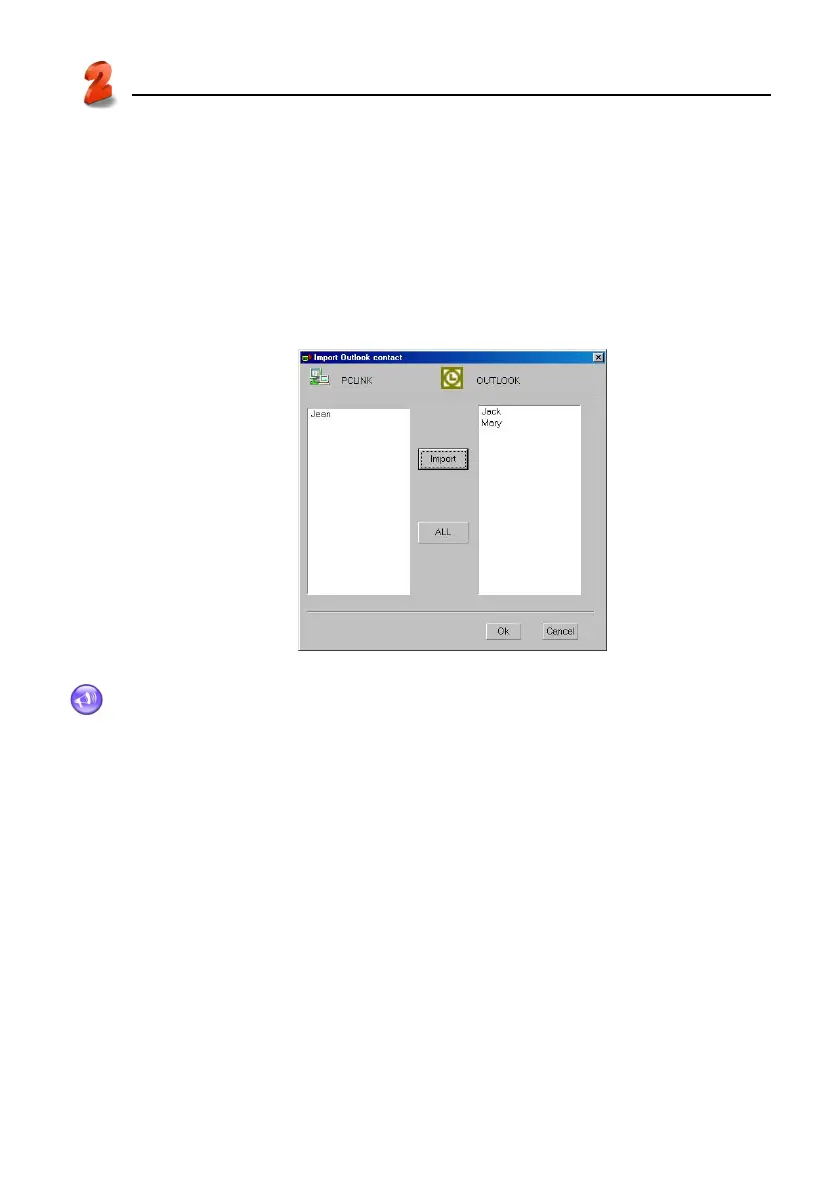
* After a while it displays “Import Outlook Contact” window, select data from the right side box to
be imported, click “Import”, then click “OK” to import, as picture 23.
23
Note:
The operation of Exporting is similar to that of Importing.
2.5.2 Importing a Name Card text file
Only such text file format as picture 24 can be imported in PC Link. The column with underline must
be contain data, and the software can only accept TXT file below, other txt files set up are invalid:
* Separate data of an entry by paragraph
* You have to enter the field information, which is at first paragraph ( the content in the frame).
Data content begins at the second paragraph.
* The field information is marked by quotation mark; data fields are separated by comma (no
space). The field containing nothing must retain.


 To Next Page