91
PIM
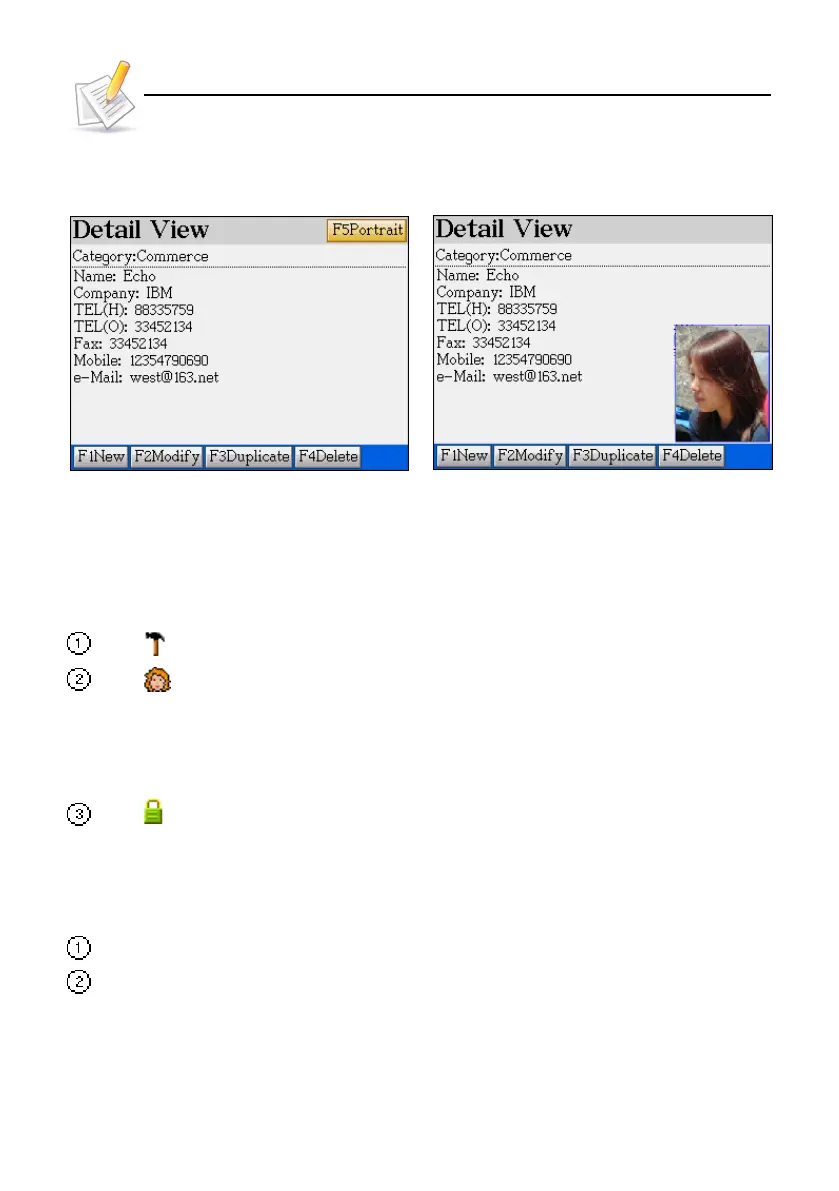
Ex. BrowName card: browsing screen:
Detail View Photo/ portrait view
If there is no portrait in the name card, [F5Portrait] will not be displayed.
1. Name Card
When appending or editing an entry:
Tap or press [F3] to set the index field and the displayed phone no.
Tap or press [F4] to import photo / portrait from “My Photo Album”, “Paint Brush”, or “Other
files”.
* My Photo Album: Select directory and then file from the index screen.
* Paint Brush: open Select directory and then file from the index screen.
* Other files: main menu directory.
Tap or press [F5]: Secure/ unlock data.
1.1 Portrait / Photo
Locate the photo to be imported.
Select a photo / picture from the corresponding index screen.
(You can access the index screen to select pictures after you select disk from My Photo
Album.)
Open the photo/ picture, and then set the range of the photo:
* The portrait range: A square of
≦≦
≦≦
≦
160*160pt160*160pt
160*160pt160*160pt
160*160pt
≧≧
≧≧
≧
32*32pt32*32pt
32*32pt32*32pt
32*32pt;
Name Card


 To Next Page