2-2 Operations
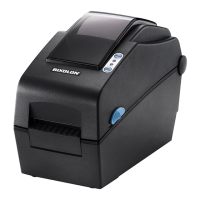
2-2-1 Using the operation panel
Feed button Paper feed or cancel the print job.
LED The current printer status can be viewed. (Refer to below)
The current printer status can be viewed via the printer’s LED display.
1) Green LED on
- The printer waits for the data from Host (PC) in normal mode.
2) Orange LED on
- It means paper gap sensing error. It becomes on when the printer fails to detect the
paper or paper jam occurred. When fails to detect the paper correctly use
Auto-Calibration function.
3) Red LED on
- The printer has stopped by pressing FEED button. It restarts printing when pressed again.
4) Green LED blinking
- TPH (Thermal Printing Head) overheated or ;
- The printers is waiting for the button input to run Auto-Calibration function.
5) Orange LED blinking
- No paper. Make sure the paper is loaded correctly.
6) Red LED blinking
- The printer cover is open.
2-2-2 Feed Button Operations
Feed Button can be used for various purposes as follows.
1) Feed Label
In Print Standby mode, pressed for shorter than 3 seconds, the printer feed one label.
2) Stand-alone Configuration Mode
In Print Standby mode, pressed for longer than 3 seconds, the printer enters into Stand-
alone Configuration Mode. Please refer to 5-1 for details.
3) Pause and Resume printing
If pressed while printing labels, Printing toggled between Pause and Resume.
Ver. 1.01
- 10 -


 To Next Page