38
1.8 7 7. 8 7 7. 2 2 6 9 BLACKBOX.COM
NEED HELP?
LEAVE THE TECH TO US
LIVE 24/7
TECHNICAL
SUPPORT
1.8 77.877.2269
CHAPTER 12: OSD FUNCTIONS
Hot-Key
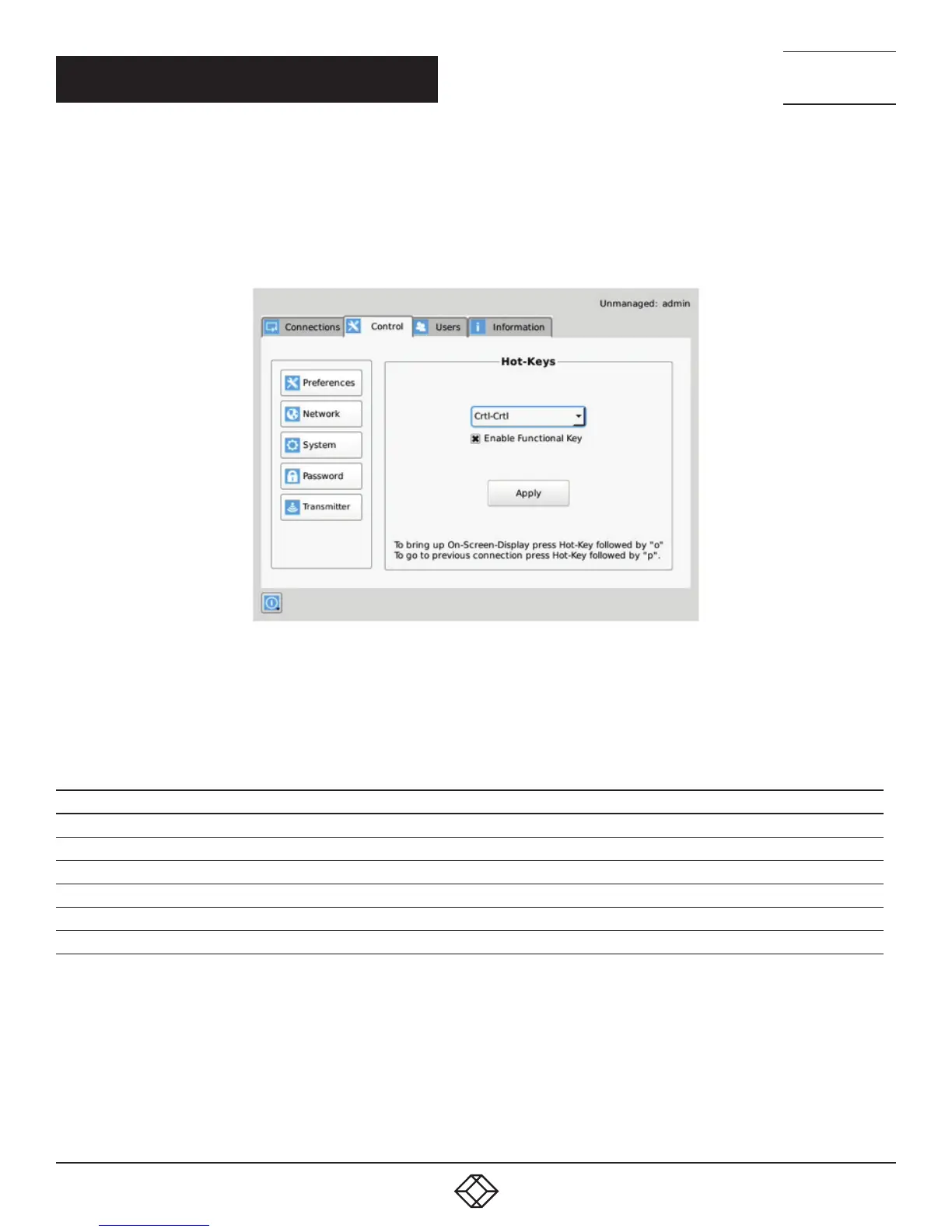
The Hot-Key button allows the administrator to change the hot-key configuration. The hot-key is used with the “o” key to terminate the
current connection and bring up the OSD. The hot-key with “p” key is used to switch to the previous connection without loading the
OSD. Example: PrtScrn, O (default).
FIGURE 12-10. HOT KEY DEFINITION
The default hot-key is Print-Screen (PrntScrn). The alternatives are shown in the table. Click the Apply button to confirm a hot-key
change.
TABLE 12-1. HOTKEY SEQUENCES
SEQUENCE ACTION
Print Screen (Default) -press Prnt Scrn key
Ctrl + Ctrl -press Ctrl key twice within 1 second
Alt + Alt -press Alt key twice within 1 second
Shift + Shift -press Shift key twice within 1 second
Open OSD: Hotkey O Switch to previous target: Hotkey P
Mouse-Left + Right -press mouse left and right buttons at the same time for 2 seconds
The “Enable Functional Key” tick-box is used to disable the use of the function keys after the hot-key. So only the Hot-Key is required
to bring up the OSD. The Enable functional Key is set by default.
Timer Settings
There are 2 timer settings available to users as shown in Figure 12-11. By default, they are turned off. If you wish to turn them on,
you have to select the desired timer, set the time you wish, and click apply. The three timer settings are:
1. OSD Inactivity Timer – This sets a limit on how long a user can be logged on to the OSD without any keyboard or mouse
activity. Once the user reaches the inactivity timer, he/she will be logged out of the OSD. The timer value can be set to a number
from 2 to 60 minutes.


 To Next Page