161
1. 8 7 7. 8 7 7. 2 26 9 BLACKBOX.COM
NEED HELP?
LEAVE THE TECH TO US
LIVE 24/7
TECHNICAL
SUPPORT
1.877.87 7.2269
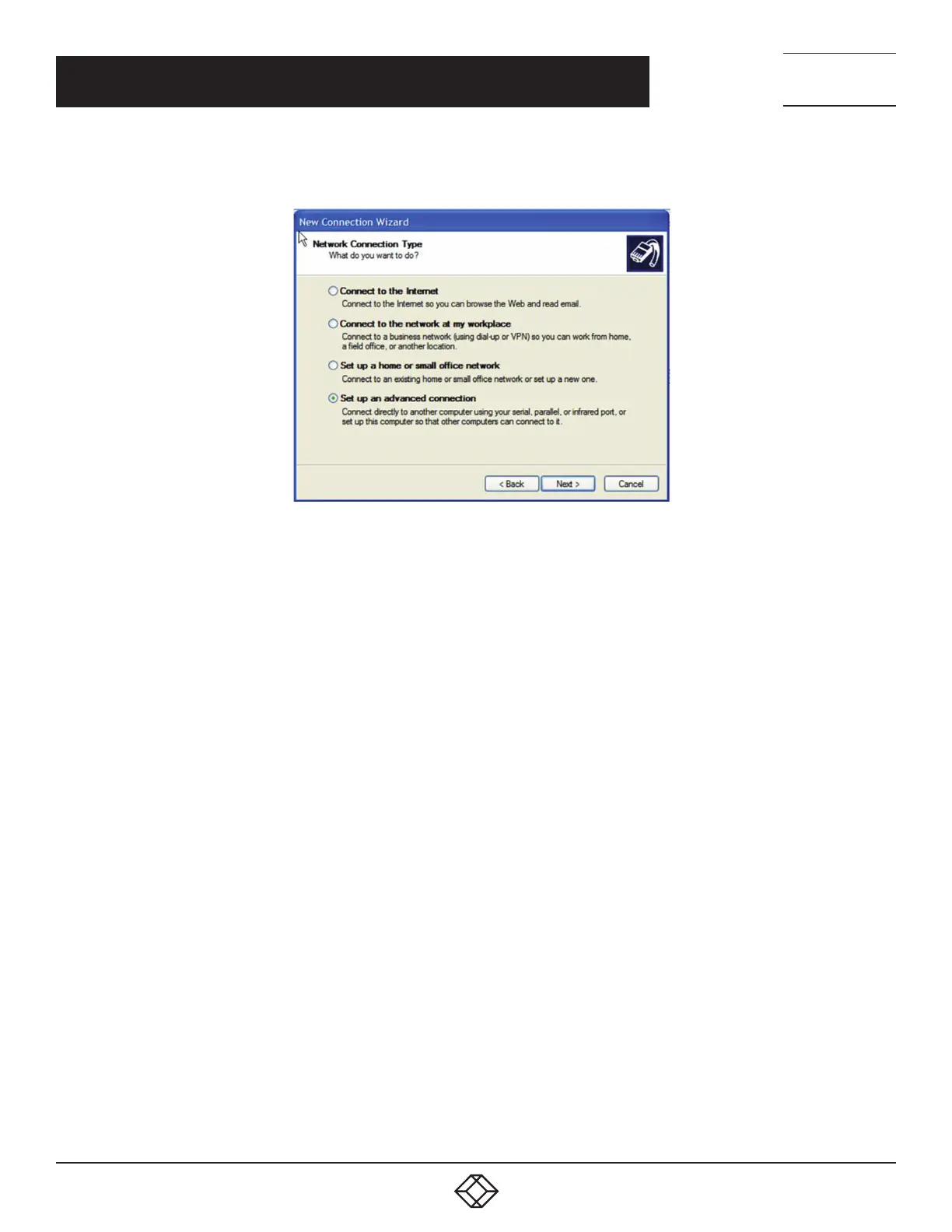
FIGURE 7-23. NEW CONNECTION WIZARD SCREEN
Select the Set up an advanced connection radio button.
Select Accept Incoming Connections in the Advanced Connection Options window.
click Next.
Select COM1 as the Connection Device (that is, the COM port on the computer that is connected to the console server’s serial port).
Set the COM port to its maximum baud rate.
Click Next.
Select Do not allow virtual private connections in the Incoming VPN Connection Options window.
Click Next.
Select which users will be allowed to use this connection.
This should be the same users given Remote Desktop access privileges in the earlier step.
Click Next.
Select TCP/IP in the Network Connections window.
Click Properties.
Select Specify TCP/IP addresses in the Incoming TCP/IP Properties window.
Enter IP addresses in the From and To fields.
Choose any TCP/IP addresses so long as they are addresses that are not used anywhere else on your network.
The From address will be assigned to the computer running Windows. The To address will be used by the console server. For
simplicity, use the IP address shown next:
From 169.13 4.13.1
To 169.134.13.2
Alternatively, set the advanced connection and access on the computer running Windows to use the console server defaults:
From 10.233.111.25 4
Allow calling computer to specify its own IP address checked.
CHAPTER 7: SSH TUNNELS AND SDT CONNECTOR



 To Next Page