56
1. 8 7 7. 8 7 7. 2 26 9 BLACKBOX.COM
NEED HELP?
LEAVE THE TECH TO US
LIVE 24/7
TECHNICAL
SUPPORT
1.877.87 7.2269
CHAPTER 4: SYSTEM CONFIGURATION
4.6.6 STATIC ROUTES
Firmware 3.4 and later support static routes that provide a quick way to route data from one subnet to different subnet. You can hard-
code a path that specifies the console server or router to get to a certain subnet by using a certain path. This may be useful for remotely
accessing various subnets at a remote site when being accessed using the cellular OOB connection.
To add a static route to the route table of the system:
Navigate to System > IP > General Settings.
Select the Route Settings tab.
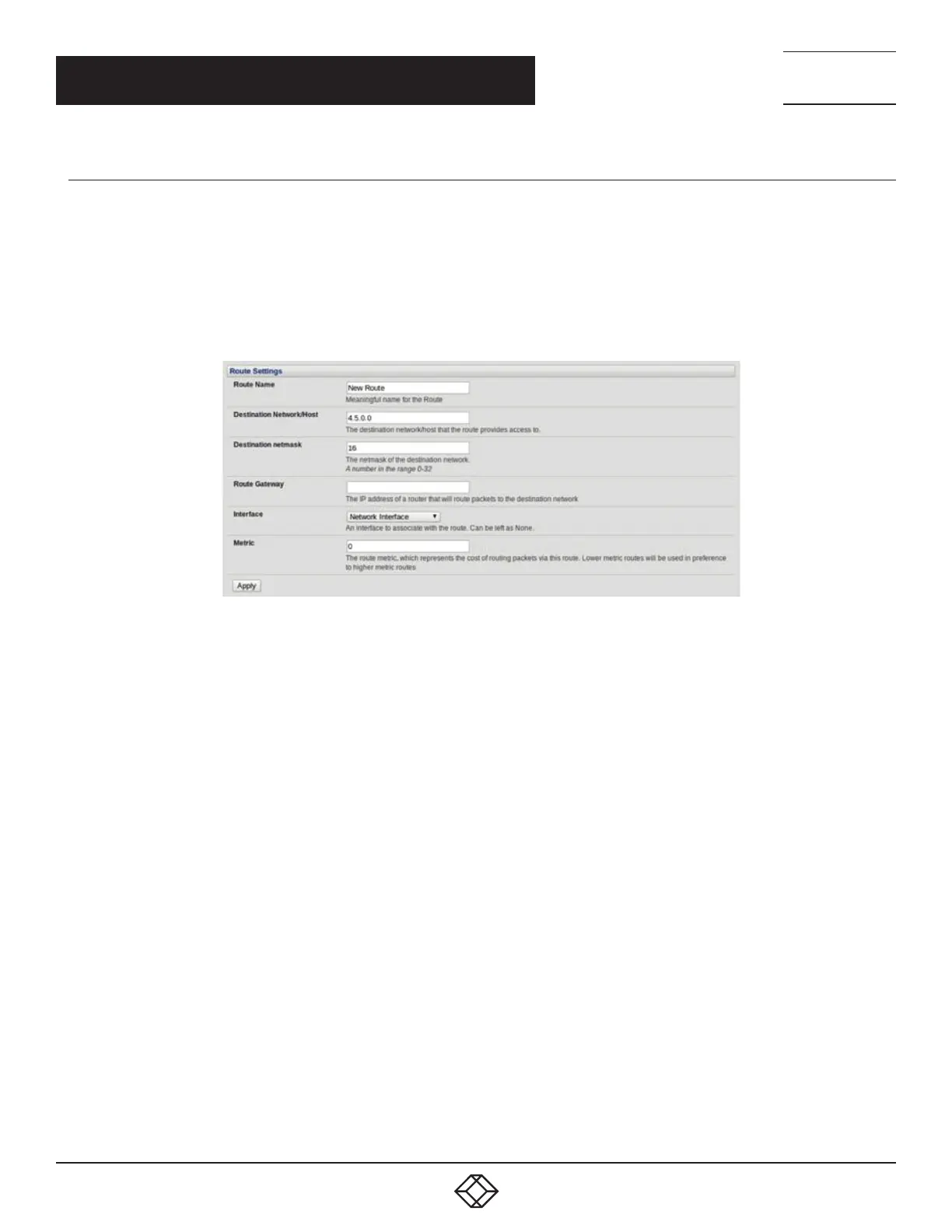
FIGURE 4-25. ROUTE SETTINGS SCREEN
Enter a meaningful Route Name for the route.
In the Destination Network/Host field, enter the IP address of the destination network or host that the route provides access to.
Enter a value in the Destination netmask field that identifies the destination network or host. Any number between 0 and 32. A
subnet mask of 32 identifies a host route.
Fill the Route Gateway field with the IP address of a router that will route packets to the destination network. This field may be left
blank, depending on your network configuration.
Select the Interface to use to reach the destination This field may be left as None.
Enter a value in the Metric field that represents the metric of this connection. This generally only has to be set if two or more routes
conflict or have overlapping targets. Any number equal to or greater than 0.
Click Apply.
NOTE: The route details page provides a list of network interfaces and modems to which a route can be bound. In the case of a
modem, the route will be attached to any dialup session that is established via that device. A route can be specified with
a gateway, an interface or both. If the specified interface is not active for whatever reason, then routes configured for that
interface will not be active.



 To Next Page