181
1. 8 7 7. 8 7 7. 2 26 9 BLACKBOX.COM
NEED HELP?
LEAVE THE TECH TO US
LIVE 24/7
TECHNICAL
SUPPORT
1.877.87 7.2269
CHAPTER 8: ALERTS, AUTO-RESPONSE AND LOGGING
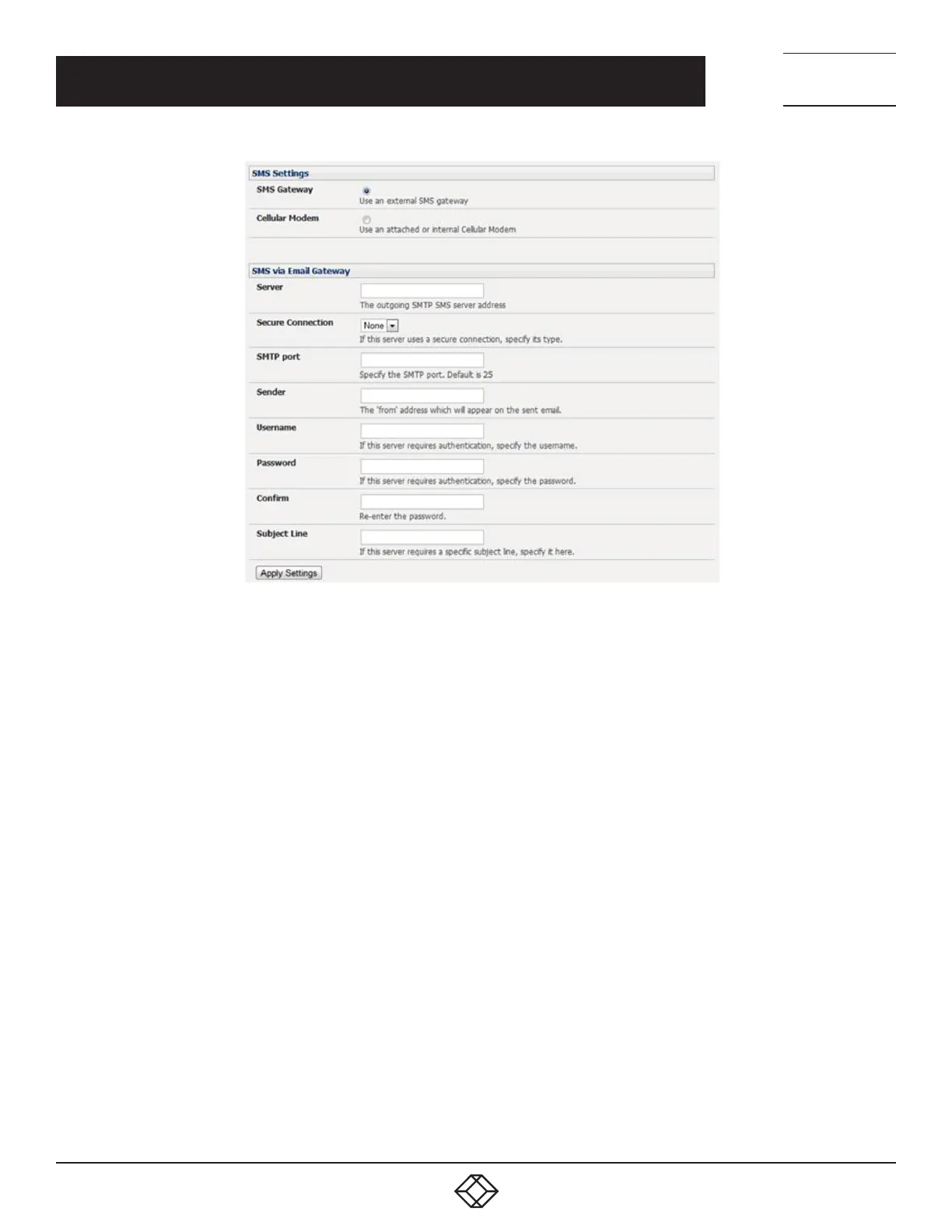
FIGURE 8-12. SMS SETTINGS SCREEN
Select a Secure Connection (if applicable).
Specify the SMTP port to be used. The default SMTP Port is 25.
Optionally enter a Sender email address. This will appear as the From address in all email notifications sent from this console server.
NOTE: Some SMS gateway service providers only forward email to SMS when the email has been received from authorized
senders. You may need to assign a specific authorized email address for the console server.
If the SMTP server requires authentication, enter the required Username and Password.
Optionally, enter a Subject Line that will be sent with all notifications.
NOTE: Generally, the email subject will contain a truncated version of the alert notification message (which is contained in full
in the body of the email). Some SMS gateway service providers require blank subjects or require specific authentication
headers to be included in the subject line.
Click Apply Settings. The SMS-SMTP connection is activated.
SMS via cellular modem
To use an attached or internal cellular modem for SMS, the Administrator must enable SMS.
Navigate to Alerts & Logging > SMTP & SMS.
Select the Cellular Modem radio button in the SMS Settings section.
Check Receive Messages to enable incoming SMS messages to be received.
A custom script will be called on receipt of incoming SMS messages.



 To Next Page