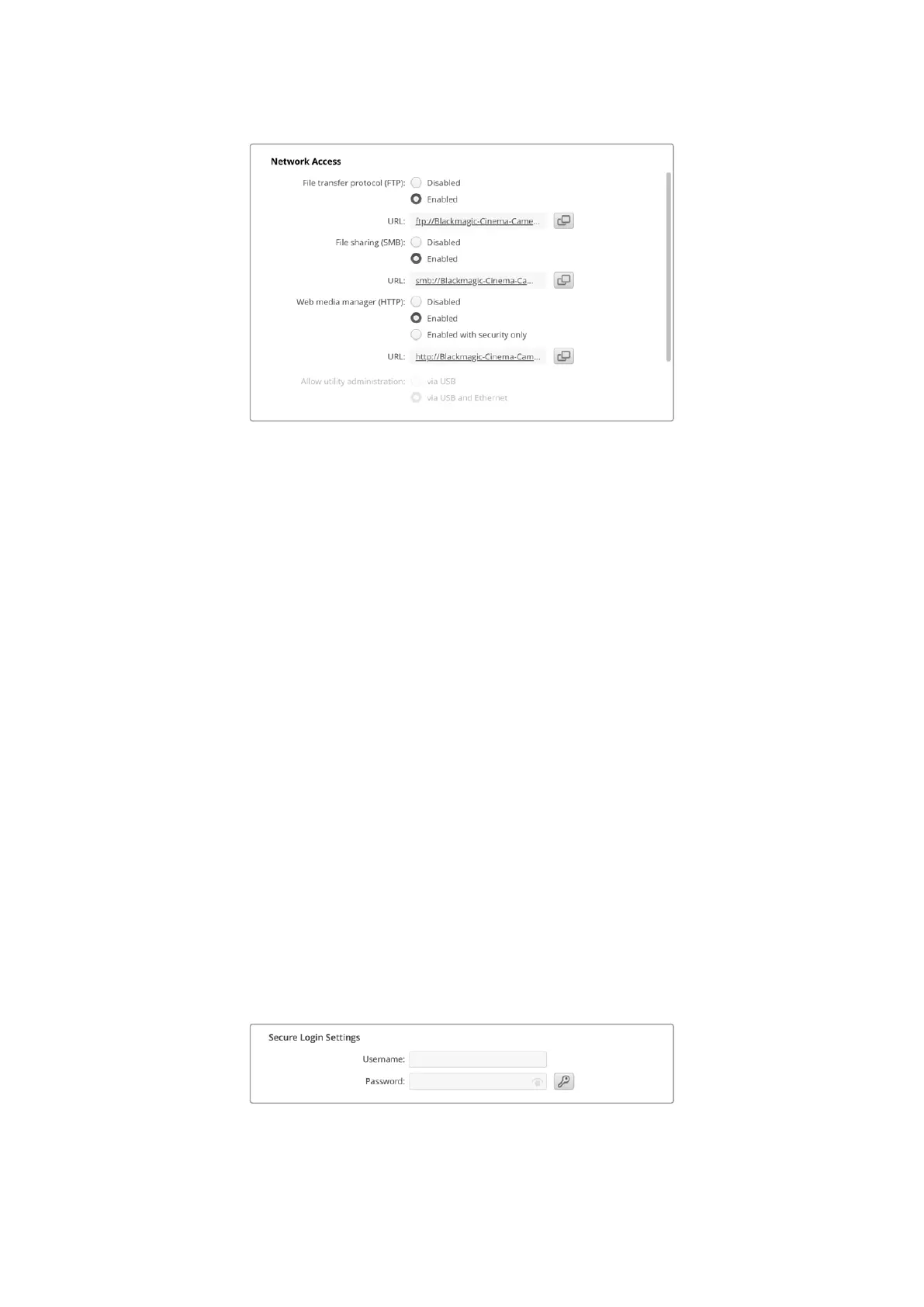
File Transfer Protocol
Enable or disable access via FTP using the checkbox. If you are supplying access via an FTP
client such as CyberDuck, click the icon to copy the FTP address. For more information, refer to
the section ‘transferring files over a network’.
File Sharing
At the bottom left corner you will notice a button named ‘Show in Finder’ on a Mac or ‘Show in
Explorer’ on Windows. This button lets you access your media files using your computer’s file
browser. All you need to do is enable ‘file sharing’ and then click on the ‘show in Finder’ button.
You can also copy the URL and paste the file path into your browser.
Your operating system may prompt you to allow access to the card.
Web Media Manager
Enabling web media manager lets you download clips from CFexpress cards over your network,
or even delete unwanted clips if you need to free up disk space. When you click on the link or
copy and paste it into your web browser a simple interface will open where you can access
the media.
Enable access via HTTP by selecting the ‘enabled’ checkbox. You can also set up a secure
certificate using the ‘enabled with security only’ option. When using a digital certificate,
connections to web media manager are encrypted via HTTPS. More information on digital
certificates is available in the ‘secure certificate’ section.
REST API also uses HTTP and this means enabling access to media via the web media manager
also enables camera control via REST API.
Allow Utility Administration
Blackmagic Camera Setup can be accessed when your camera is connected via thenetwork or
via USB. To prevent users having access via the network, select ‘via USB’.
Secure Login Settings
If you have selected ‘enabled with security’ for web media manager access you will need
to enter a username and password. Type a username and password and click ‘save’.
131Blackmagic Camera Setup



 To Next Page