Horizon
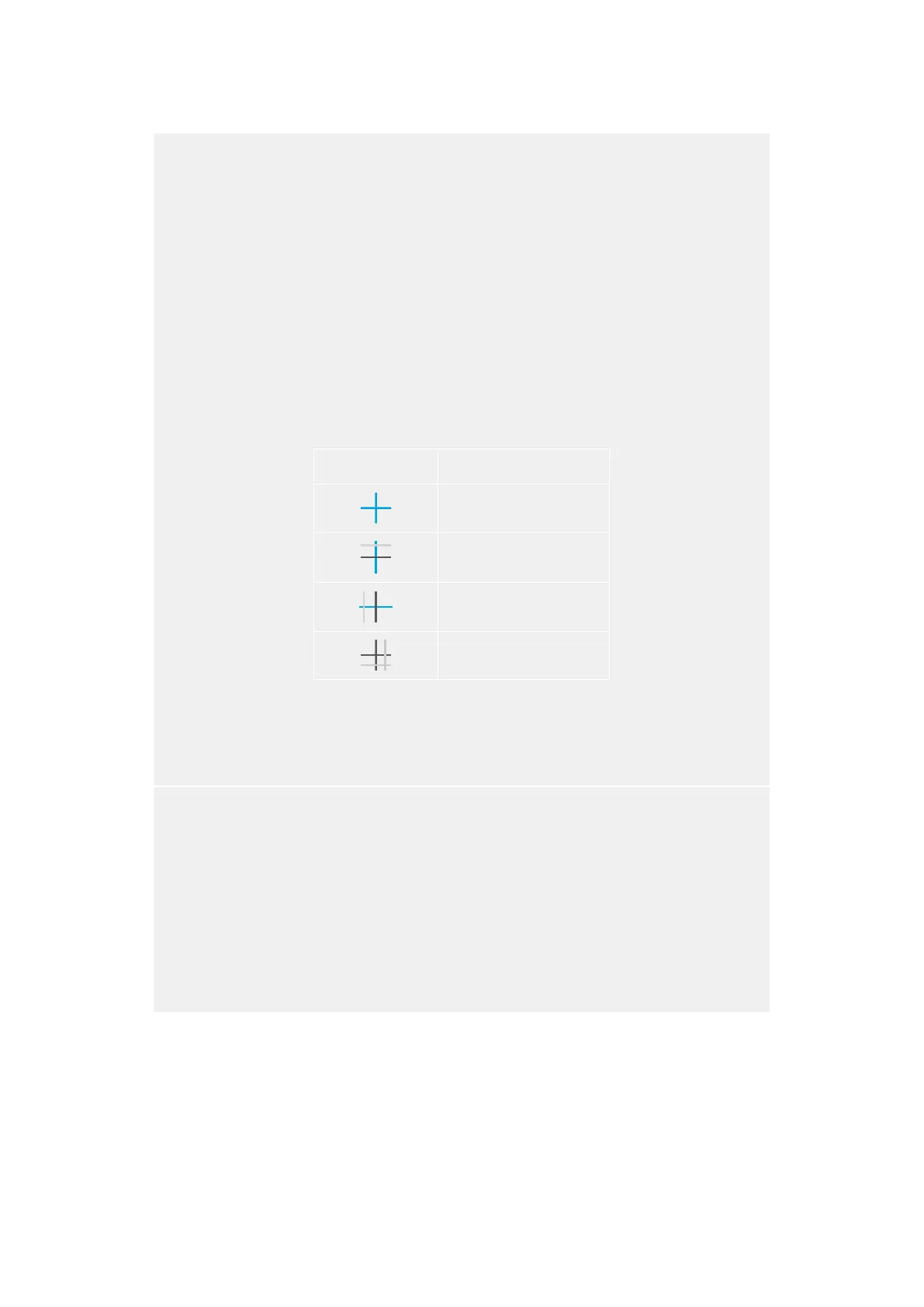
The ‘horizon’ meter indicates when your camera is rolled left or right and tilted up or down. This can
help you keep the horizon is level during handheld shots and balance the camera tilt on a gimbal.
The direction the light gray vertical line moves away from the dark gray crosshair in the middle
indicates the direction your camera is rolled. When the camera is tilted down the light gray horizontal
line moves up and when the camera is tilted up the light gray horizontal line moves down.
The distance the lines move away from the central crosshair is proportional to the amount of roll or tilt.
After you calibrate the camera’s motion sensor, the vertical line turns blue when the camera is aligned
to the roll axis and the horizontal line turns blue to indicate the camera is aligned to the tilt axis.
Note that if the camera is tilted straight down for an overhead shot or straight up, the horizon
meter takes this into account. If you roll the camera to shoot in portrait orientation, the horizon meter
rotates its axes 90 degrees.
This table shows examples of the horizon meter indicating tilt and roll of the camera.
Horizon meter Description
Straight and level
Tilted down and level
Straight and rolled left
Tilted up and rolled right
For normal use, calibrate the horizon meter for straight and level operation. If you want to use the
horizon meter to help maintain a consistent ‘dutch angle’ or a consistent tilt for a low or high shot, you
can calibrate the horizon meter at an incline. For information on how to calibrate the horizon meter,
see the ‘motion sensor calibration’ section.
Crosshair
The ‘crosshair’ setting places a crosshair in the center of the frame. Like thirds, the crosshair is a very
useful compositional tool, making it easy to frame the subject of a shot in the very center of a frame.
This is sometimes used when filming scenes that will be assembled using very fast cuts. Keeping
viewers’ eyes focused on the center of a frame can make rapid editing easier to follow.
Dot
The ‘dot’ setting places a dot in the center of the frame. This works in exactly the same way as the
‘crosshair’ setting, albeit with a smaller overlay that you may find lessintrusive.
34Touchscreen Controls



 To Next Page