Safe Area Guides
The ‘safe area guides’ setting toggles the safe area guides on or off the LCD touchscreen, as
well as setting the size of safe area guides for the HDMI output.
Safe areas can be used in broadcast production so the most important parts of a shot can be
seen by viewers. By keeping the most important parts of your shot inside a central ‘safe area,’
you can avoid cropping on some televisions, as well as leaving space for a broadcaster to
add bugs, news tickers and other overlays along the edges of the screen. Many broadcasters
require footage to be submitted with important content, such as titles and graphics, contained
inside the 90% safe area.
Safe area guides can also be used to assist with framing your shot where you know that the
shot will be stabilized in post production, which can crop the edges of the image. They can also
be used to indicate a specific crop.
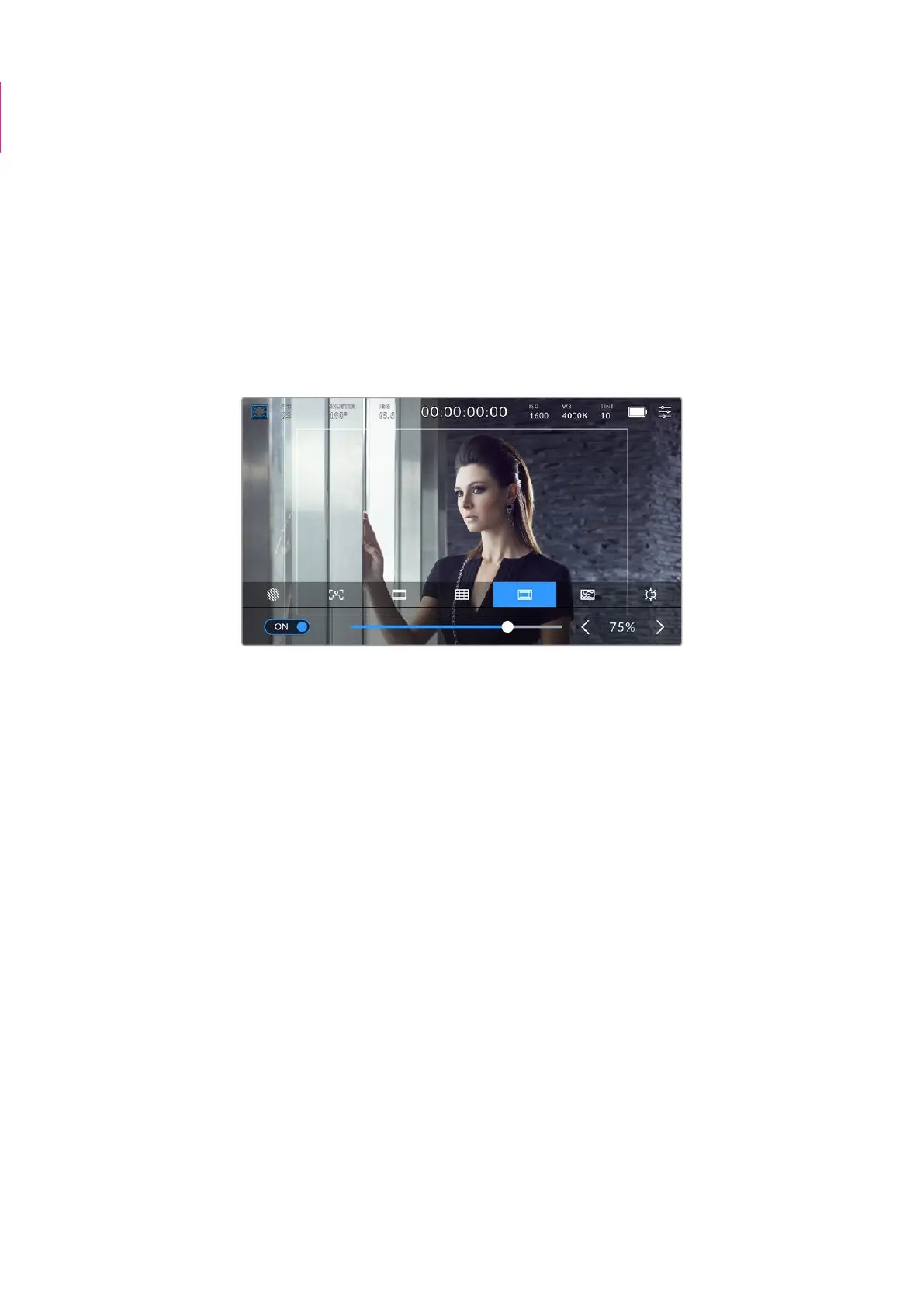
The ‘safe area’ indicator set to 75%
To toggle safe area guides for the LCD touchscreen, tap the switch icon in the bottom left of the
screen while in the ‘safe area guides’ tab. To set the level of safe area guides for your camera’s
HDMI output, tap the left or right arrows on either side of the current numerical value at the
bottom of the touchscreen. Alternatively, you can drag the slider left or right.
False Color
The ‘false color’ setting toggles the appearance of false color exposure assistance on the
LCDtouchscreen.
False color overlays different colors onto your image that represent exposure values for
different elements in your image. For example, pink represents optimum exposure for lighter
skin tones, while green is a good match to darker skin tones. By monitoring the pink or green
false color when recording people, you can maintain consistent exposure for their skin tones.
Similarly, when elements in your image change from yellow to red, that means they are now
over exposed.
TIP box deleted
35Touchscreen Controls



 To Next Page