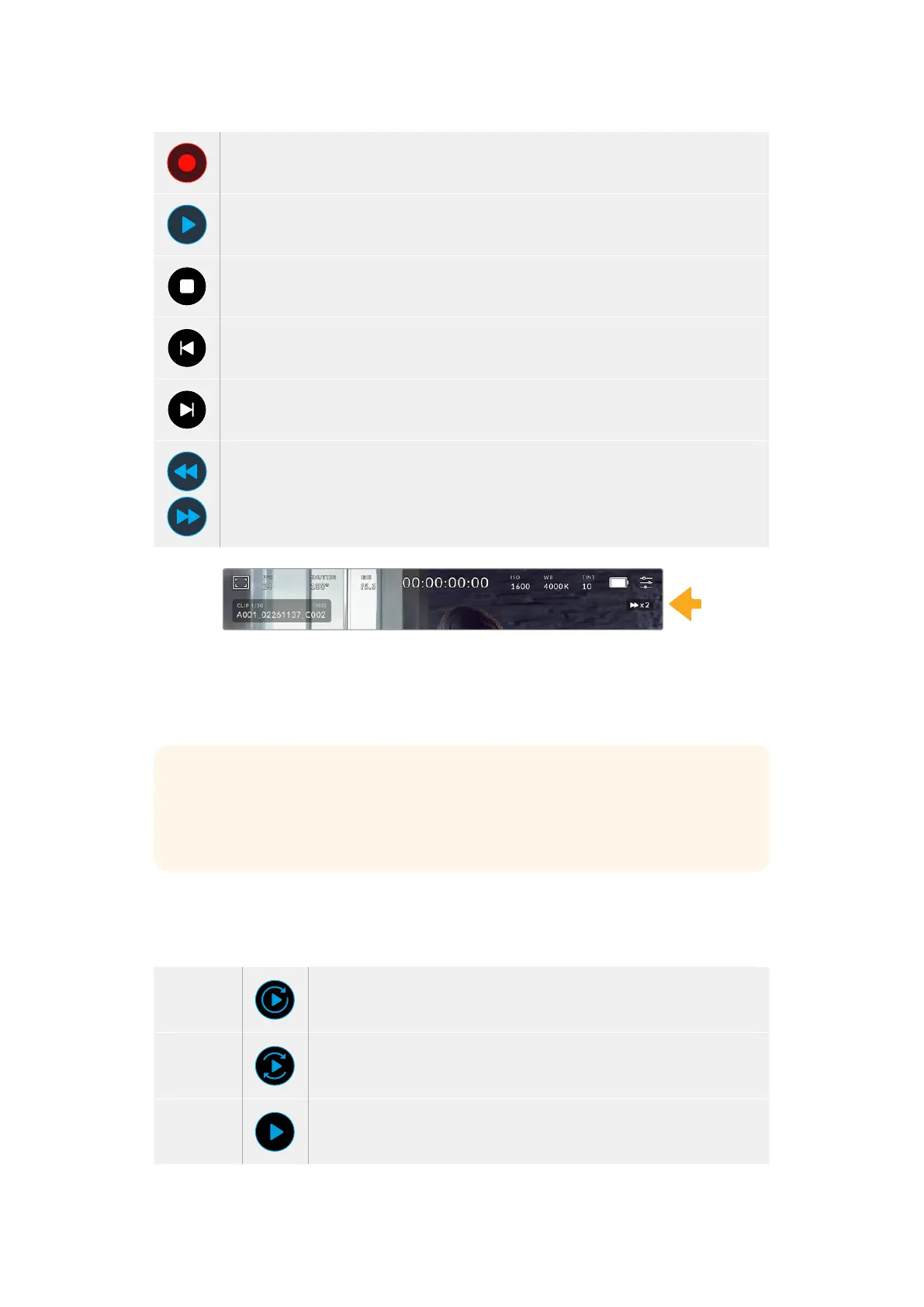
Tap the ‘record’ button in playback mode to return your camera to standby mode,
ready to record.
Tap the ‘play’ button to view your clips. You are now in ‘playback’ mode.
Press the ‘stop’ button to stop playback. Pressing the ‘stop’ button a second time will
return your camera to standby mode.
Tap the ‘skip’ back button once to move the playhead to the first frame of the current clip. If the
playhead is already on the start of a clip, it will jump to the first frame of the previous clip.
Tap the ‘skip’ forward button once to move the playhead to the last frame of the current clip. If
the playhead is already at the end of a clip, it will jump to the first frame of the next clip.
Press and hold the ‘skip’ back and ‘skip’ forward buttons to change them to ‘rewind’
and ‘forward’ shuttle buttons. Now you can use them to change the shuttle speed to
2x, 4x, 8x or 16x.
To reduce the shuttle speed, simply tap the button in the opposite direction.
The shuttle speed indicator displays the speed and direction of footage being fast
forwarded or reversed
Change the playback mode from ‘all clips’ to ‘single clip’ in the ‘setup’ menu. In ‘single clip’
mode the last recorded clip is displayed when you press ‘play’.
TIP Swipe up or down on the touchscreen to hide status text while playing back
footage. Entering the slate in playback mode will allow you to mark the current clip
‘good take’ in metadata. For more information, see the ‘entering metadata’ section in
this manual.
Looping Playback
Tapping the play button more than once enables the ‘loop’ feature. Looping can be useful if you
want to continue looping the same clip, or loop all clips on the timeline.
Loop
Once your clip is playing, press the ‘play’ button again to set your camera
to play the current clip on a continuous loop.
Loop all
Tap ‘play’ again to play all your recorded clips on a continuous loop.
Play
Tap again to return to real time playback.
Two paragraphs
removed after this
caption
51Touchscreen Controls



 To Next Page