Off Speed Recording
By default, the project and sensor frame rates are matched for a natural playback speed.
However, tapping the ‘off speed recording’ switch icon lets you set your sensor frame rate
independently.
Off Speed Frame Rate
With ‘off speed recording’ enabled, tap the arrows next to the ‘off speed frame rate’ indicator to
set your camera’s sensor frame rate.
The sensor frame rate sets how many actual frames from the sensor are recorded every
second, and frame rate will affect how fast or slow your video will play back at your set project
frame rate.
For more information on off speed frame rates, see the ‘frames per second’ section in the
‘touchscreen features’ section of this manual.
For information on the maximum frame rates available for each recording format and codec,
refer to the tables in the ‘maximum sensor frame rates’ section.
Preferred Media for Recording
When both a CFexpress card is inserted and a USB-C flash disk is attached to your camera, use
this setting to determine which disk is recorded to first. The options are ‘CFexpress’, ‘USB-C’
and ‘Fullest’. Choosing ‘CFexpress’ or ‘USB-C’ is a matter of personal preference, and when the
selected media fills up, your camera will then continue recording on the alternate CFexpress
card or USB-C flash disk. ‘Fullest’ can help group files chronologically when shooting a single
camera project.
The setting you choose is applied when a CFexpress card or a USB drive is connected. You can
override this setting at any time by entering the storage manager and tapping the card name
to set it as active. It’s important to note that ejecting and reconnecting a card or drive reverts to
the current ‘preferred card for recording’ setting.
The ‘fullest’ setting is based on the percentage that your recording media is filled, rather than
their sizes or the amount of data used.
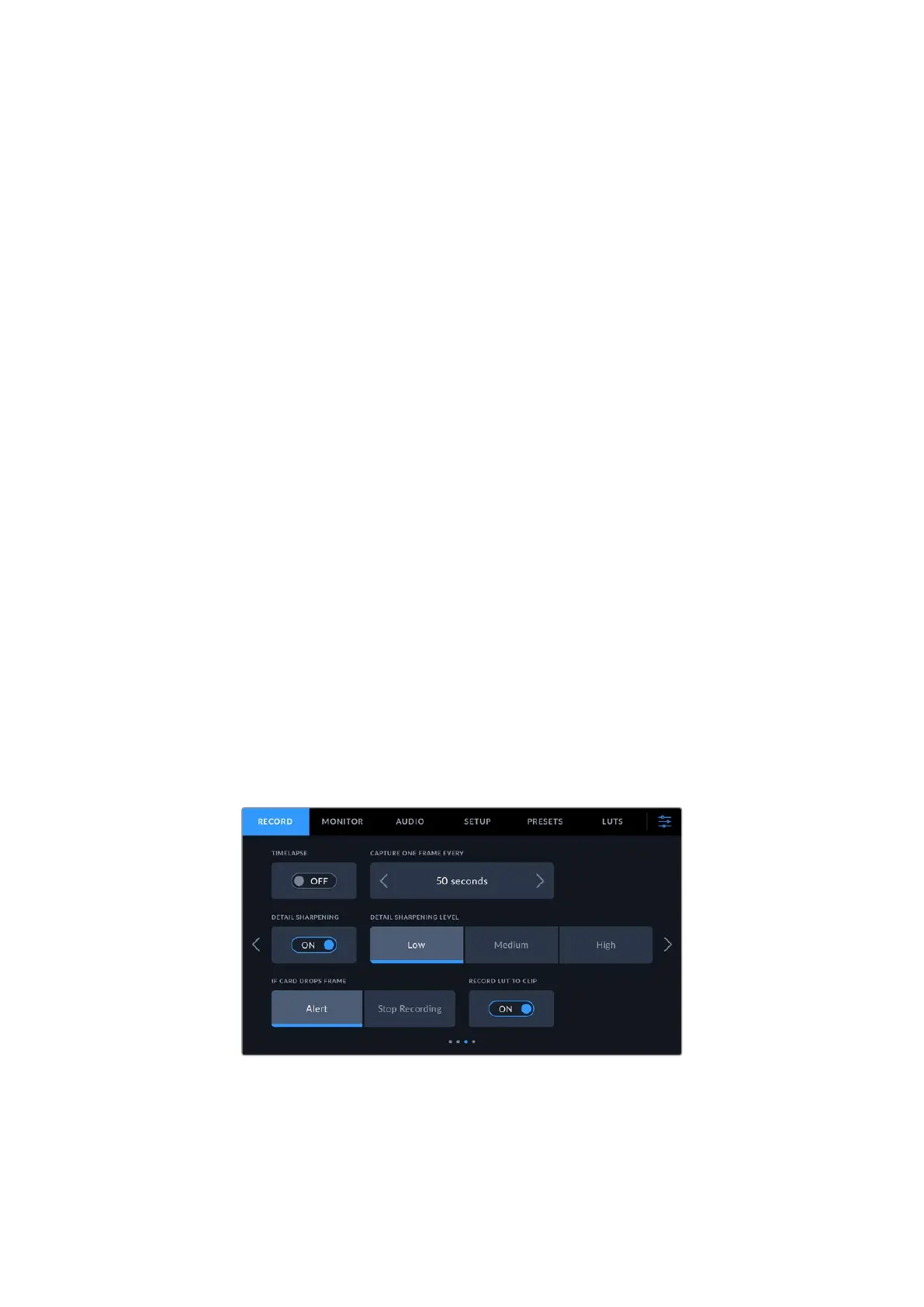
Record Settings 3
The third page of the ‘record’ settings tab contains the following settings.
55Settings



 To Next Page