Frame Guide
Tap the ‘frame guide’ switch to enable frame guide overlays. For more information on frame
guides and choosing different guides, see the ‘touchscreen features’ section in this manual.
Grid
Tap the ‘grid’ switch to enable a rule of thirds grid. For more information on the rule of thirds
grid, see the ‘touchscreen features’ section in this manual.
Safe Area Guide
Tap the ‘safe area’ switch to enable the safe area overlay. For more information on the safe area
guide, see the ‘touchscreen features’ section in this manual.
False Color
Tap the ‘false color’ switch to enable false color exposure assistance. For more information on
using false color, see the ‘touchscreen features’ section in this manual.
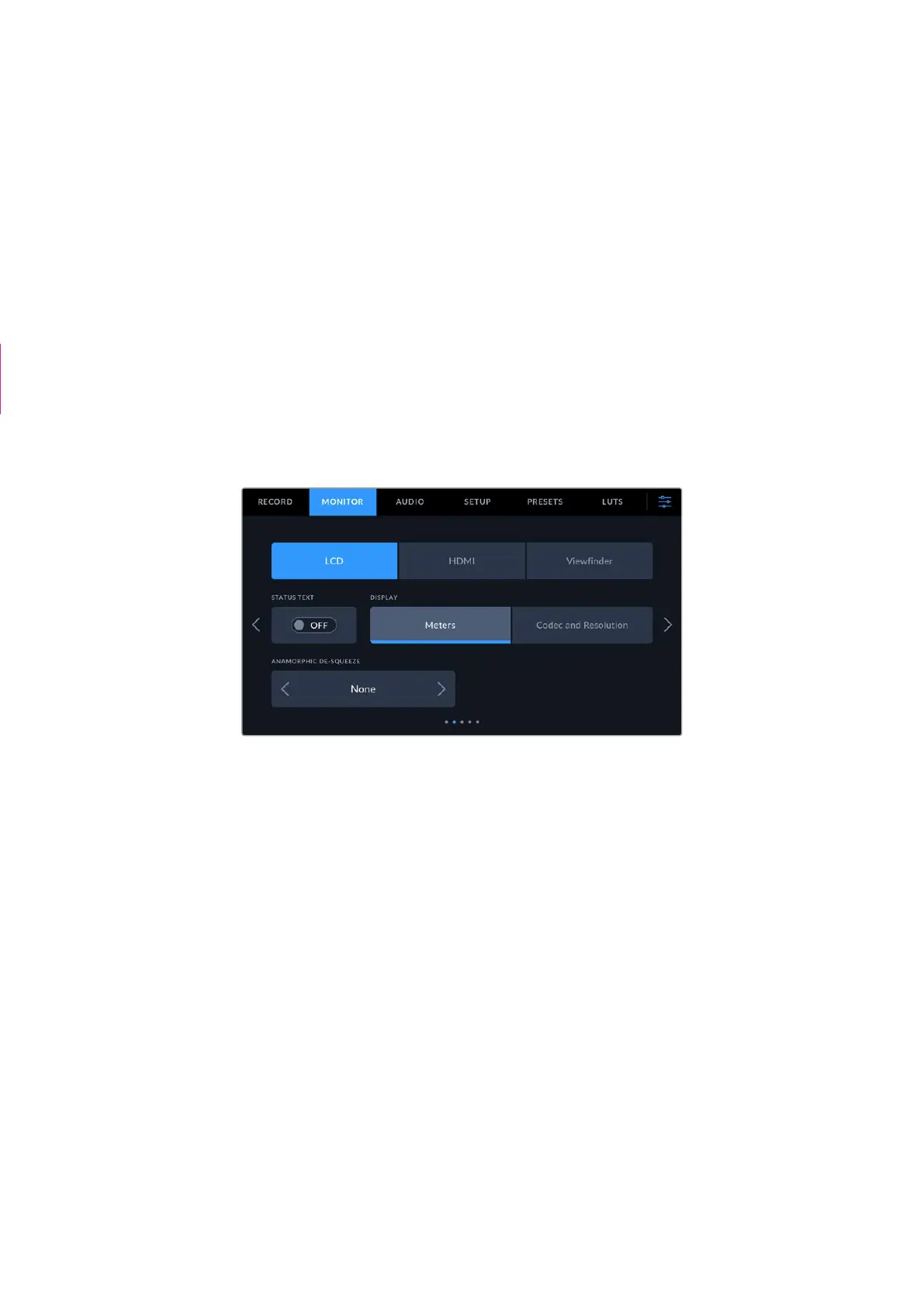
Monitor Settings 2
The second page of the monitor tab contains the following settings.
LCD, HDMI and Viewfinder
Status Text
This setting can be useful to hide the status text and meters on your camera’s LCD
touchscreen, HDMI output or viewfinder, leaving only the information necessary to
compose or direct a shot. Tap the ‘status text’ switch icon to toggle the appearance of
status text and meters. Overlays such as frame guides, grids, focus assist and zebra remain
visible, if enabled. Swiping up or down on the LCD touchscreen has the same effect.
Anamorphic Desqueeze
When shooting with anamorphic lenses, the image will appear horizontally ‘squeezed’ on
your Cinema Camera 6k’s preview outputs and in recorded files. Select an ‘anamorphic
desqueeze’ option to correct the preview image on your Cinema Camera 6K as well as
recording the desqueeze amount used in the clip metadata for easy correction in post
production.
The available desqueeze options will vary depending on the resolution your Blackmagic
Cinema Camera 6K is set to.
NOTE box deleted
60Settings



 To Next Page