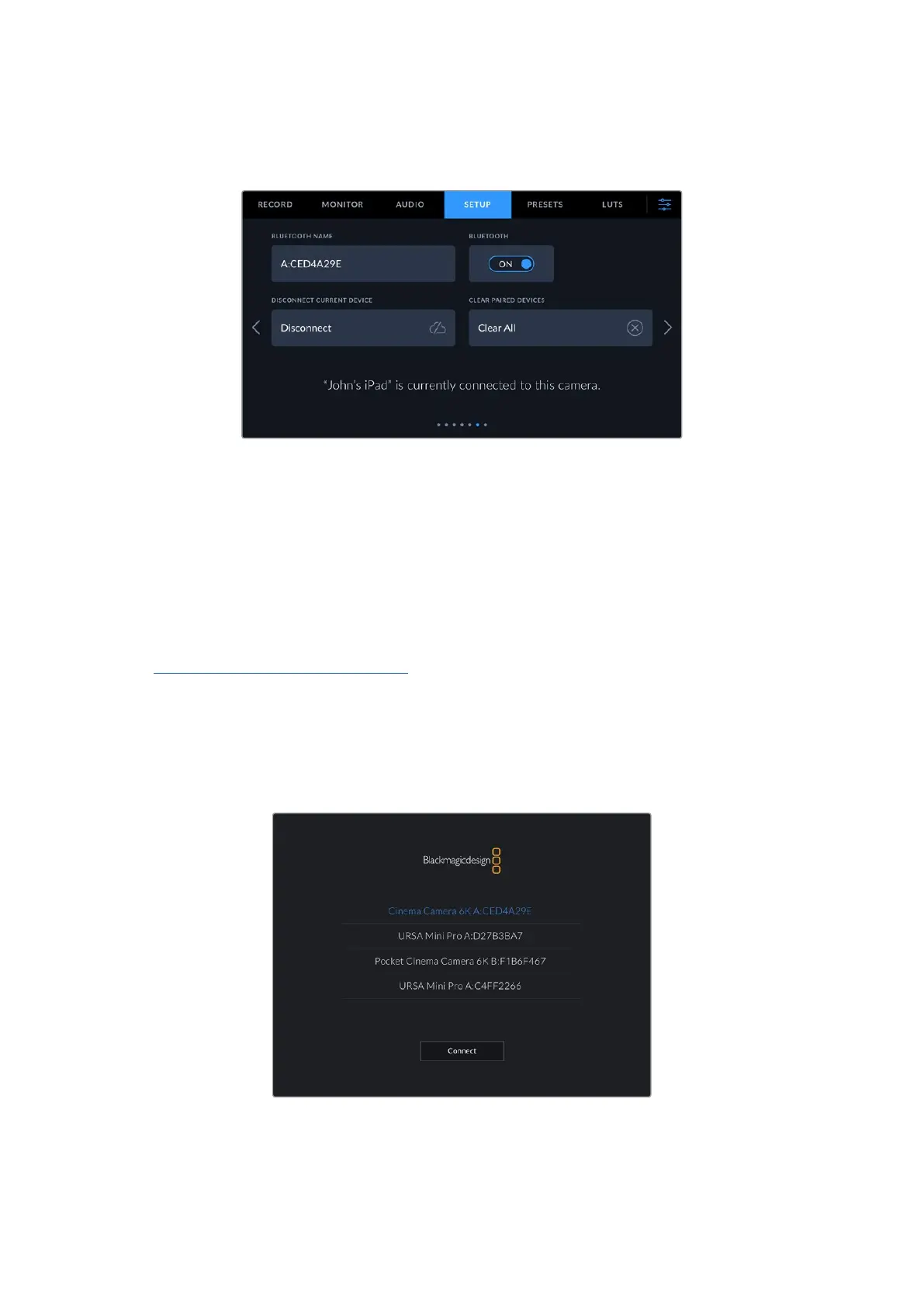
Setup Settings 6
The sixth page of your camera’s ‘setup’ tab contain the Bluetooth settings.
Bluetooth®
Bluetooth control lets you control your camera wirelessly from portable devices. Using the
‘Blackmagic Camera Control App’ you can change settings, adjust metadata and trigger record
remotely from an iPad. Enable or disable Bluetooth by tapping the ‘Bluetooth’ switch icon in the
‘setup’ menu. When Bluetooth is enabled, the camera can be detected by Bluetooth devices
up to 30 feet away. Your camera uses the same set of commands for Bluetooth control as it
does for ‘Blackmagic SDI Camera Control Protocol’, so you can write your own applications to
control almost every setting in the camera remotely. For example, monitoring options and audio
settings, to the camera’s inbuilt DaVinci Resolve color corrector or even lens control.
For more information see the ‘Blackmagic Camera Control’ document available at
www.blackmagicdesign.com/developer
To pair your camera with an iPad for the first time:
1 Enable Bluetooth by tapping the ‘Bluetooth’ switch icon in the ‘setup’ menu.
2 Open the ‘Blackmagic Camera Control App’ and select the camera you would like to pair it
with. Available cameras are listed by a camera letter, followed by a unique hardware ID. For
example A:A0974BEA.
Select the Blackmagic camera you would like to pair with
74Settings



 To Next Page