Motion Sensor Calibration
To calibrate the horizon meter tap the ‘calibrate motion sensor’ button. It is essential that
you keep the camera stable during calibration. This is to ensure that the recorded motion
sensor metadata in the Blackmagic RAW files during filming is accurate. The process takes
approximately five seconds to complete.
The horizon can be set off center if needed. For example, if you want to set the tilt at a
consistent angle, calibrate the motion sensor with the camera at the angle you want, then use
the horizon meter to maintain the same angle.
The motion sensor data can be used in DaVinci Resolve to stabilize clips. Refer to the ‘gyro
stabilization’ section for more information.
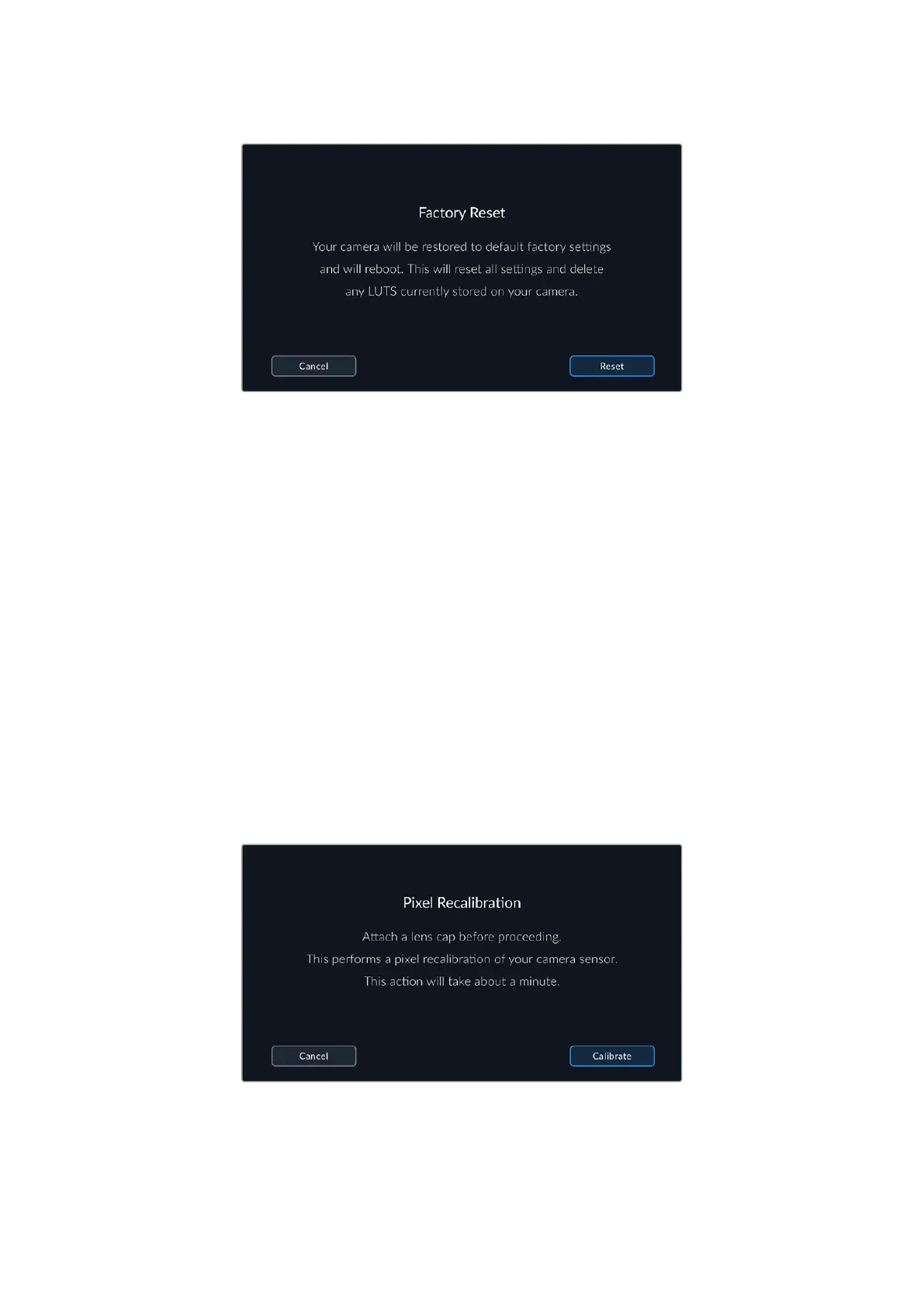
Pixel Recalibration
The CMOS sensor used in your Blackmagc Cinema Camera 6K is made up of millions of
pixels that respond to light. Some pixels can change in brightness over time following sensor
calibration in the factory. As a result, they become more visible and become what is known
commonly as hot pixels. All camera sensors, regardless of manufacturer, will develop hot pixels.
To solve this, we have a calibration feature built into the camera which you can run if you see
any hot pixels in the image.
To begin this process, simply put on the lens cap and run the pixel remapping feature by
tapping the ‘calibrate’ button. The process takes approximately one minute to complete.
LCD White Balance Calibration
To perform LCD white balance calibration, adjust the ‘LCD temperature’ and ‘LCD tint’ controls
so that the two reference patches look neutral. After you change the settings, you can use the
‘reset’ button to return the controls to the factory calibration. The ‘restore’ button brings back
78Settings



 To Next Page