SETTING UP
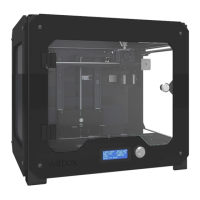
Once you have plugged the Witbox in, it’s ready to be switched on. The LCD screen
will light up and display the name of the current rmware version.
Control panel
When you switch the Witbox on, the LCD screen will display information regarding
the status of the device, such as its temperature, name, etc. Next to the LCD screen is
a control wheel that you can press in order to display the main menu. Turn the wheel
to left or right to scroll through the various options, and press it to select one of them.
Below are details of the options available via this menu:
Main information screen
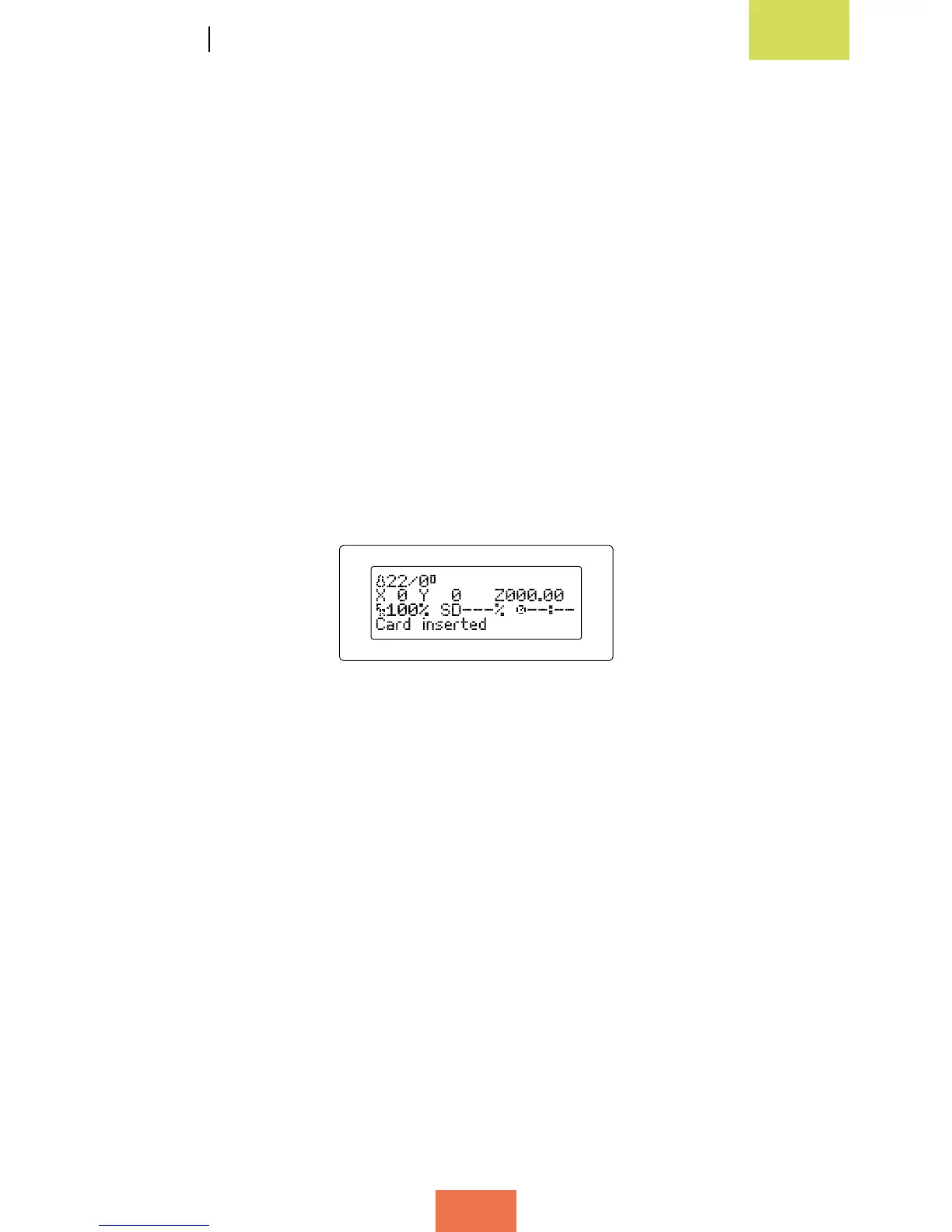
The main information screen displays information on the status of the printer (g. 3.1).
The first line of the screen shows information regarding the temperature. In this
example, the gure of 22 °C corresponds to the current temperature of the Hot-End,
while the gure of 0 °C corresponds to the temperature we wish to reach when printing
begins (it is 0 °C because nothing is currently being printed).
The second line shows information regarding the position of the extruder in terms of
the X, Y and Z coordinates. As nothing is being printed, the coordinates are all 0. If the
printer was printing, the values for these coordinates would change as the extruder
moved.
The third line shows information regarding several different parameters. The rst
gure shows us at which percentage of its maximum speed the printer is operating.
In this example, it is operating at 100% of its maximum speed. The second parameter
(SD---%) shows us how much of the object (in percentage terms) has been printed,
while the third parameter shows us how long the printing operation has been going on.
The last line on the display tells us that the printer is ready to be used: bq Witbox
Ready.
Figura 3.1Maininformationscreen


 To Next Page