• Compatible Apple
®
or Android personal electronic devices including phones and tablets (the mobile device)
• The Butterfly iQ Application (App), downloaded and installed on the compatible mobile device
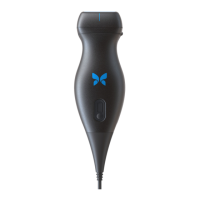
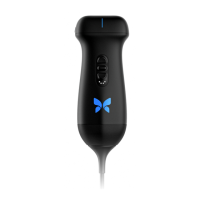
• The Butterfly iQ/ iQ+/ iQ3 Probe that connects to the mobile device to generate and receive ultrasound signals
NOTE
The mobile device is not included with the Butterfly iQ/ iQ+/ iQ3 Ultrasound System; you must
purchase it separately.
3.1.1. Modes
Butterfly iQ/ iQ+/ iQ3 provides the following modes:
Mode Butterfly iQ Butterfly iQ+ Butterfly iQ3
B-Mode ✓ ✓ ✓
B-Mode + M-Mode ✓ ✓ ✓
B-Mode + Color Doppler ✓ ✓ ✓
B-Mode + Power Doppler ✓ ✓ ✓
Spectral Pulsed Wave Doppler
a.
✓ ✓ ✓
Fetal Heart Sounds
a.
- ✓ ✓
B-Mode + Biplane - ✓ ✓
B-Mode + Needle Viz Tool - ✓ ✓
B-Mode + Biplane + Needle Viz Tool - ✓ ✓
B-Mode + iQ Slice - - ✓
B-Mode + iQ Fan - - ✓
a.
Not available in all countries.
3.1.2. Measurements
Butterfly iQ/ iQ+/ iQ3 lets you perform clinical measurements in each available mode. Measurements available
include, but are not limited to distance, time, area and heart rate.
3.1.3. Probe Types
Butterfly iQ/ iQ+/ iQ3 provides a single probe that is capable of performing all indicated clinical applications.
3.1.4. Patient Data Protection
CAUTION!
It is required that you protect patient data by encrypting your mobile device with a password or
passcode. You cannot use the Butterfly iQ App if your mobile device does not have a passcode
enabled and configured. Consult with your IT/Security department to ensure that security and
patient data protection is in accordance with the policy of your institution.
Butterfly recommends setting an auto-lock period within the mobile device’s settings to prevent unauthorized access.
For more information, consult your mobile device’s instructions for Auto-Lock settings.
Please contact your organization's IT or Security teams if you suspect you were the target or victim of a phishing
attempt or other cybersecurity attacks or if you have any concerns regarding the safety and integrity of your
device. Security issues within the Butterfly product can be reported to our support team via email. See Getting
Support [91] for more information. Security issues identified within the Butterfly probe and application, as well as
their remediation guidelines, will be communicated through email to users that have an active account, and will also
be published on the Butterfly support portal at support.butterflynetwork.com.
Overview
System Overview 19


 To Next Page