9. Using the Needle Viz
TM
(in-plane) Tool
WARNING!
When used alone, the Needle Viz (in-plane) tool will NOT enhance the visualization of needles
inserted out-of-plane.
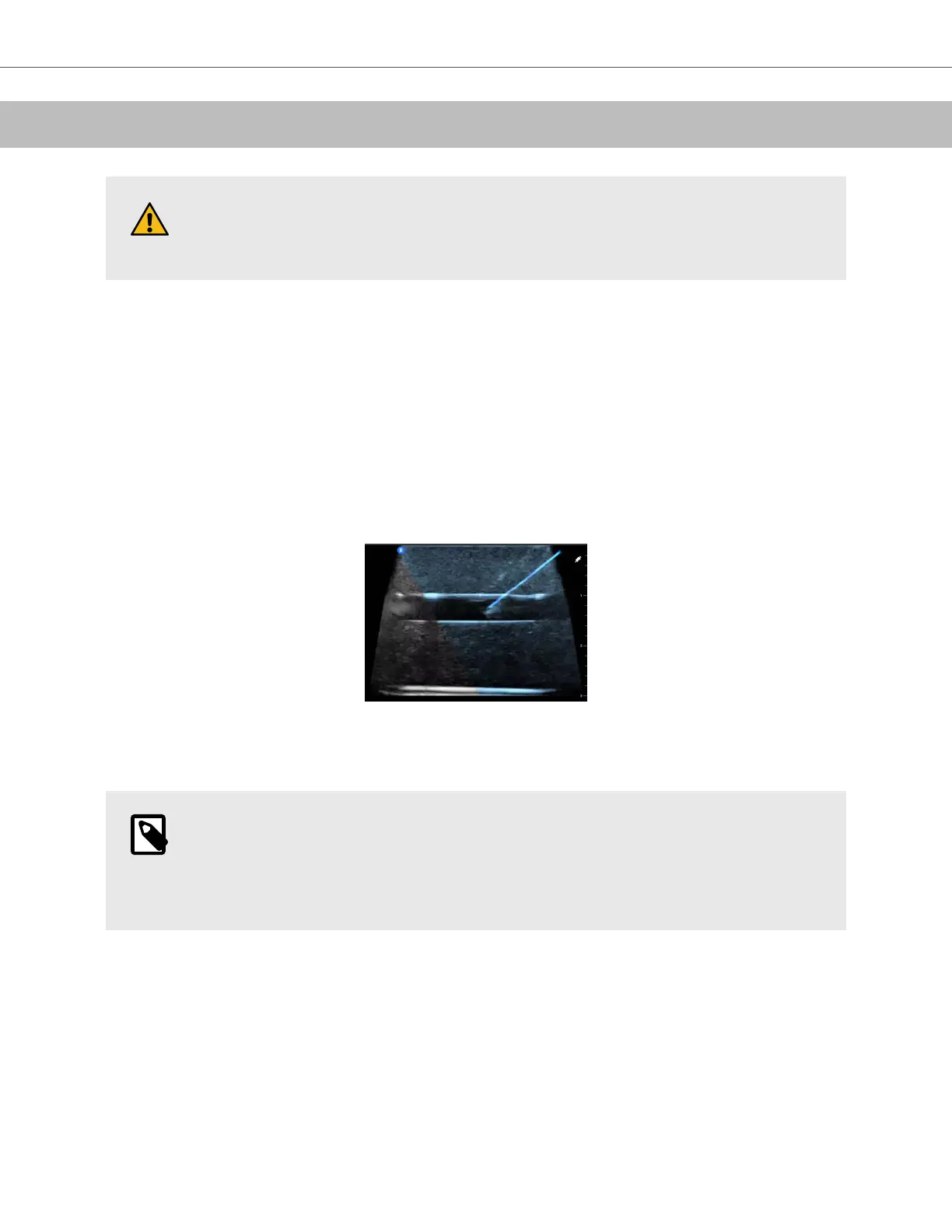
Needle Viz (in-plane) is a tool that overlays a B-mode image optimized for visualizing needles inserted at a 20-40
degree angle on top of regular B-mode. A region of interest in which the needle may be visualized is represented
with a blue-tint, and the location of the region of interest (ROI) may be adjusted using the flip button.
Needle Viz (in-plane) is available in the Musculoskeletal, MSK-Soft Tissue, Nerve, and Vascular: Access presets.
When using Needle Viz (in-plane), you can:
• Adjust the needle approach depth and gain
• Adjust scan depth
• Customize needle gain
• Activate Biplane Imaging
Using Needle Viz (in-plane)
In order to start using Needle Viz (in-plane):
NOTE
When using Needle Viz (in-plane) with Biplane Imaging, the position of the needle in the
perpendicular plane is only highlighted if the needle is visible in-plane in the reference plane, and
therefore in the midline of the perpendicular plane. The needle will be visible in the perpendicular
plane, but the appearance will not be enhanced if the needle is not visible in the reference plane.
1. From the scan screen, select the Musculoskeletal, MSK-Soft Tissue, Nerve, or Vascular: Access preset.
2. Select the Actions button on the bottom right corner of the screen.
3. Under the “Tools” heading, select Needle Viz (in-plane).
4. At the bottom of the screen, select "From left" or "From right" to indicate the direction of needle approach.
5. At the bottom of the screen, select 40°, 30°, or 20° to adjust the angle based on the angle of the needle
approach.
6. To adjust the gain of the needle, swipe right or left on the screen. If you need to adjust the gain of the image,
exit Needle Viz, adjust the gain to your satisfaction, then reactivate Needle Viz.
Using the Needle Viz
TM
(in-plane) Tool
Using the Needle Viz
TM
(in-plane) Tool 48


 To Next Page