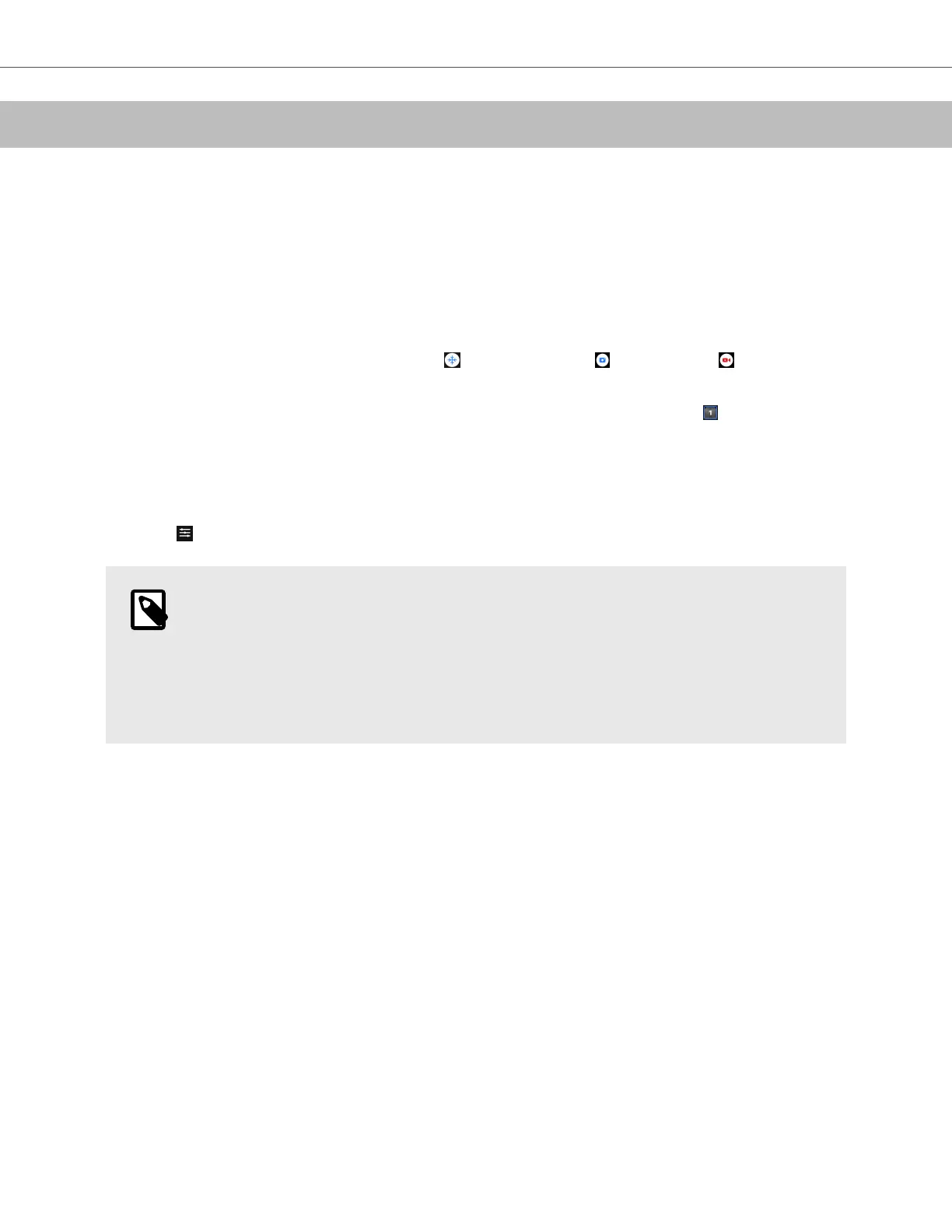
5. Using the System
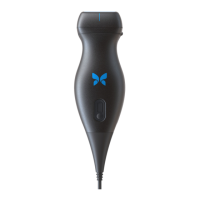
This chapter provides information and instructions for using Butterfly iQ/ iQ+/ iQ3 to begin and end studies. It also
provides information and instructions for freezing and unfreezing during live imaging, for performing measurements,
and other imaging tools.
5.1. Performing a Study
Once the probe is connected to your mobile device follow the prompts on the screen to begin a new study. It is not
required to enter patient information to begin a study.
From the main scan screen you can freeze an image , capture still images and record clips using the toolbar
at the bottom of the screen. The live image must be frozen in order to capture a still image.
Captures may be reviewed from the Capture Reel located in the top right corner of the screen
before the study is
completed.
To conclude a patient encounter, click on the capture reel and follow the steps on screen to upload the study.
During scanning, you may swipe horizontally to adjust the gain and swipe vertically to adjust the depth. The Time
Gain Compensation (TGC) control button is surfaced upon tapping the screen under the additional controls on the
bottom left .
NOTE
• You can use the pinch and double-tap gestures to zoom in on an image, and to zoom out on an
image. When the image is in a zoomed state, you can use your finger to pan the image (move it
around on the screen).
• The ability to rotate from portrait mode to landscape mode while scanning is only available on
Tablet devices.
If you do choose to enter patient data in the study, you may do so from the Capture Reel. Depending on your
configuration, you may add patient data manually, from a worklist, or by scanning a barcode.
To add or view additional details about the study, such as calculations outputs, utilize the notes field in the Capture
Reel.
For additional information on performing a study please visit support.butterflynetwork.com.
Using the System
Using the System 29


 To Next Page