NOTE
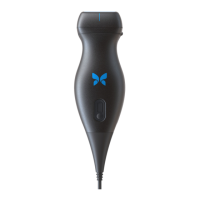
It is normal that the probe may feel warm to the touch while charging. If you remove the probe
from the charging pad before or immediately after charging is complete, it is recommended that
you allow the probe to cool down before use. Since the system limits patient contact temperature
and will not scan at or above 43°C (109°F), allowing the probe to cool down before use will
optimize scan time performance.
4.4.1. Checking Probe Battery Level
Use the Battery Indicator Button and Battery Indicator Lights on the probe to check the battery level. For reference,
see Probe [22]
Table 6. Probe Battery Level Indicators
Light Pattern Approximate Battery Level
All 4 lights on 87.5% - 100%
3 lights on 67.5% - 87.4%
2 lights on 37.5% - 67.4%
1 light on 12.5% - 37.4%
1st light flashing <12%
To check the probe battery level using the probe:
1. Press the Battery Indicator Button to view the Battery Indicator Lights.
2. If the first button flashes, it indicates that the probe battery charge is too low to perform the study.
3. If the lights do not flash at all:
a. Open the Butterfly iQ App.
b. Navigate to the scan screen.
c. Wait 10 seconds until the “Run troubleshooting” button appears.
d. Follow the troubleshooting steps.
To check the probe battery level using the Butterfly iQ App:
• The probe battery status is displayed in the upper portion of the imaging screen.
• If the battery charge is too low, you may not be able to perform a study until the battery is recharged. Keep the
battery fully charged whenever possible.
Charging the Probe
Setting Up the System 28


 To Next Page