5.2. Uploading to Butterfly Cloud
NOTES
• Depending on your platform, hardware, country and membership type, certain presets, modes
and features may not be available.
• The Butterfly iQ/ iQ+/ iQ3 and its accessories may be used multiple times on multiple patients.
To archive a study:
1. When you finish capturing ultrasound images, tap the Capture Reel in the upper right corner of the screen. The
Study screen is displayed.
2. OPTIONAL: Associate patient information
3. Tap Save to initiate an upload.
4. Select an archive and press Upload.
5. To delete all of the items from the Capture Reel, tap Clear images. The system prompts you to confirm the
deletion. Clearing the series removes all of the images and clips from the Capture Reel.
5.3. Using the Probe Button Functionality
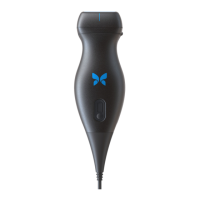
When using a Butterfly iQ+ probe, pressing the probe button can result in one of the following actions: capture a still,
capture a cine, or unfreeze the image. The probe button push feature is on by default and it could be adjusted from
the preferences menu in the Butterfly iQ app.
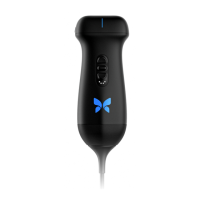
The Butterfly iQ3 probe has three buttons: the center (middle) button, the up button and the down button. Pressing
the center button will behave in the same way as the button press on the Butterfly iQ/ iQ+, i.e. it will either capture
a still, start-stop recording, or unfreeze an image. The other two buttons (the up and down buttons) will either adjust
depth, adjust gain, or change modes. This setting can be configured from the preferences menu. To adjust the
setting, go to Preferences, then select "Probe button actions", then under the "Button actions" menu, select the
setting for "UP & DOWN BUTTON ACTION".
5.3.1. Using the Probe Button Push capture functionality:
In order to adjust the actions associated with the Button Push for capturing:
1. Plug in the Butterfly iQ/ iQ+/ iQ3 probe and enter the Profile menu at the bottom right of the screen by clicking
the initials, or your avatar.
2. Select the item “Probe button actions”.
3. The capture functionality is enabled by default, to turn it off, toggle "Enable button actions" to the left to
deactivate it, or toggle back to the right to activate it again.
4. From the same page you can choose the action associated with pressing the probe button on Butterfly iQ/
iQ+ or the center button on Butterfly iQ3 during live imaging: the available options are “Capture image” and
“Start/stop cine”.
5. Return to the scan screen, and start or resume scanning.
6. In order to use the functionality on the Butterfly iQ/ iQ+ probe, press the button on the probe, while to use it on
the Butterfly iQ3 probe, press the center button.
5.3.2. Using the Probe Button Push unfreeze functionality:
In order to adjust the actions associated with the Button Push (center button push on the Butterfly iQ3) for
unfreezing an image:
Uploading to Butterfly Cloud
Using the System 30


 To Next Page