2. Turn on the iPad.
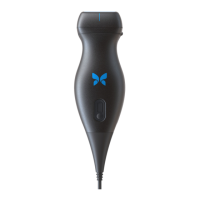
3. Select the Butterfly iQ app; if the Butterfly iQ+ Bladder probe is connected, the system will start loading.
4. Once the system loads you will be presented with a quick tips card. On this screen you will be able to start
scanning by tapping on “Start Scanning” or start scanning with tips by tapping on “More help”.
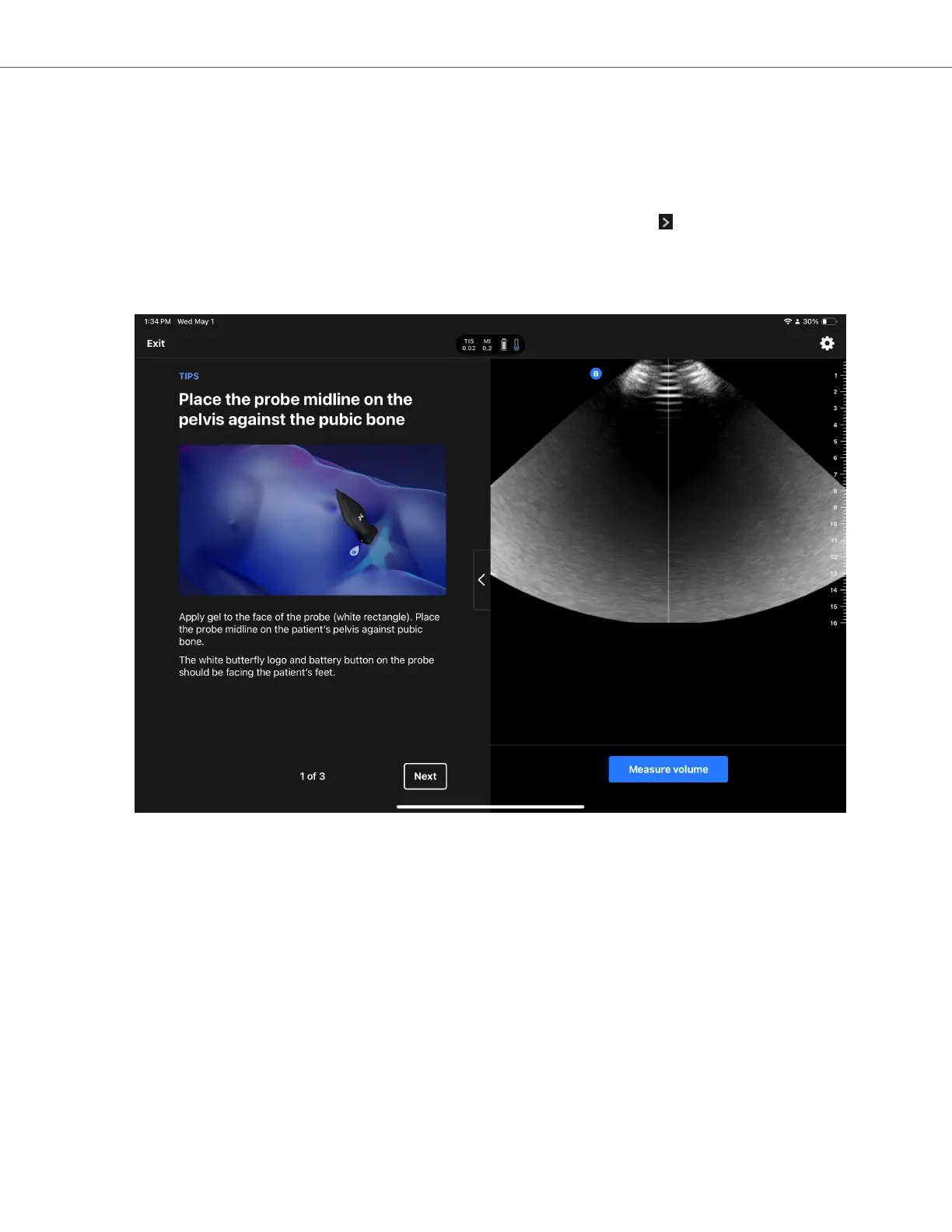
5. On the scan screen you will have a live image which utilizes the Auto Bladder Volume tool for segmenting the
bladder. Moreover, you can enable tips on the left side of the screen by tapping on , when the tips are enabled
you will be able to scan the bladder alongside useful tips on best practices when it comes to scanning a bladder.
6. Within the live view, you can adjust the depth by swiping your finger up and down on the screen. It is
recommended that you center the bladder in the field of view before you start scanning. See also the chapter on
Auto Bladder Volume [61].
7. Once you find the bladder, you can initiate a measurement either by pressing on “
Measure volume” or by
pressing on the probe battery button. The app performs a 3D sweep and utilizes the Auto Bladder Volume [61].
8. Once you acquire a volume, you will be presented with a screen showing the volume, as well as a 3D rendering
of the volume for review.
Acquiring a Bladder Volume
Using Butterfly iQ+ Bladder System 73


 To Next Page