Recording ,e_®
manually. To play back on a TV with normal
aspect ratio (4:3) change the [TV TYPE] setting
accordingly (C[3 41).
TakingPhotos
(C_312)
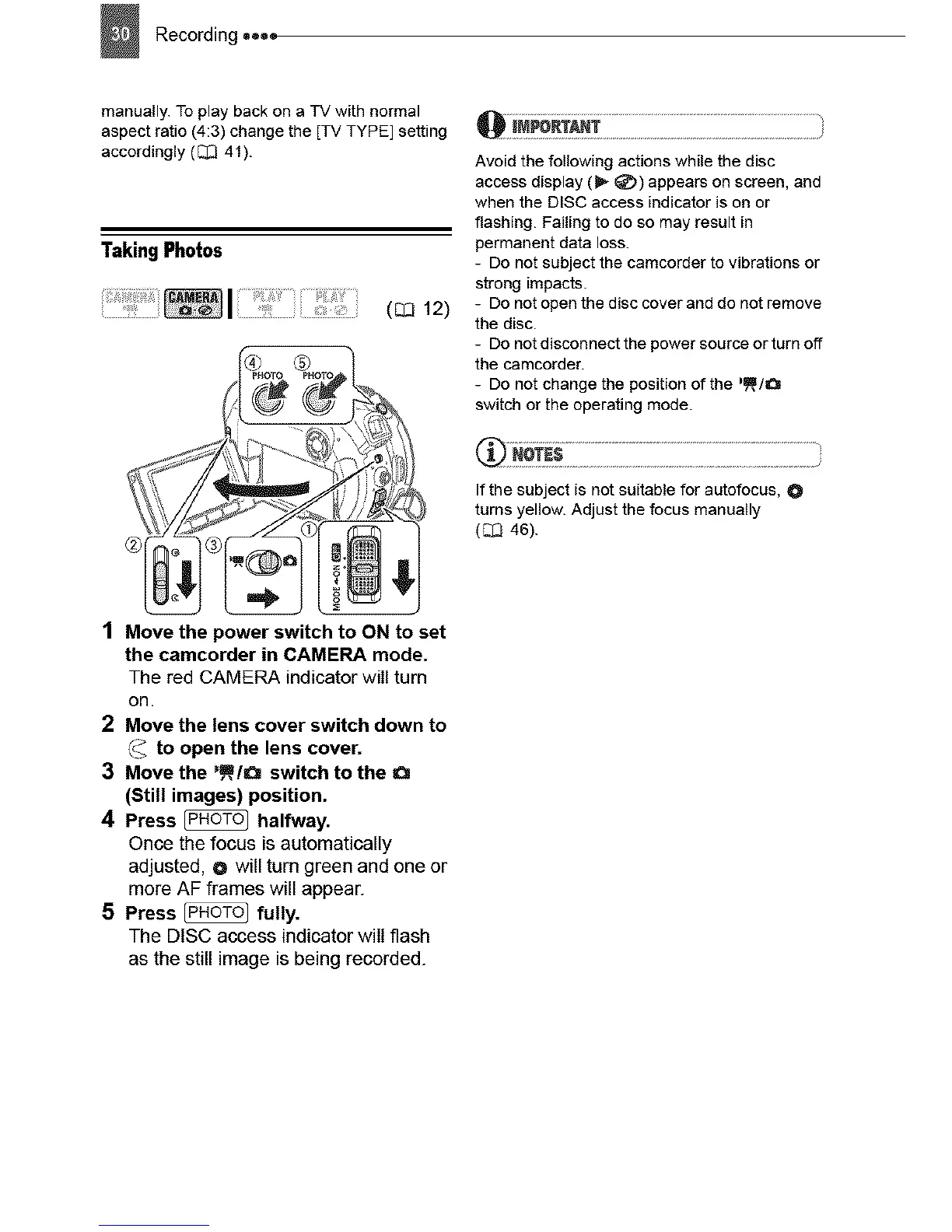
1 Move the )ower switch to ON to set
the camcorder in CAMERA mode.
The red CAMERA indicator will turn
on.
2 Move the lens cover switch down to
_ to open the lens cover.
3 Move the _,_,/a switch to the a
(Still images) position.
4 Press _ halfway.
Once the focus is automatically
adjusted, O will turn green and one or
more AF frames will appear.
5 Press _ fully.
The DISC access indicator will flash
as the still image is being recorded.
Avoid the following actions while the disc
access display (_ _)) appears on screen, and
when the DISC access indicator is on or
flashing. Failing to do so may result in
permanent data loss.
- Do not subject the camcorder to vibrations or
strong impacts.
- Do not open the disc cover and do not remove
the disc.
- Do not disconnect the power source or turn off
the camcorder.
- Do not change the position of the "_,/O
switch or the operating mode.
If the subject is not suitable for autofocus, O
turns yellow. Adjust the focus manually
(_ 46).



 To Next Page