You
can press IFUNC·I to close the
menu at any time.
Selecting
an
Option
from
the
Setup
Menus
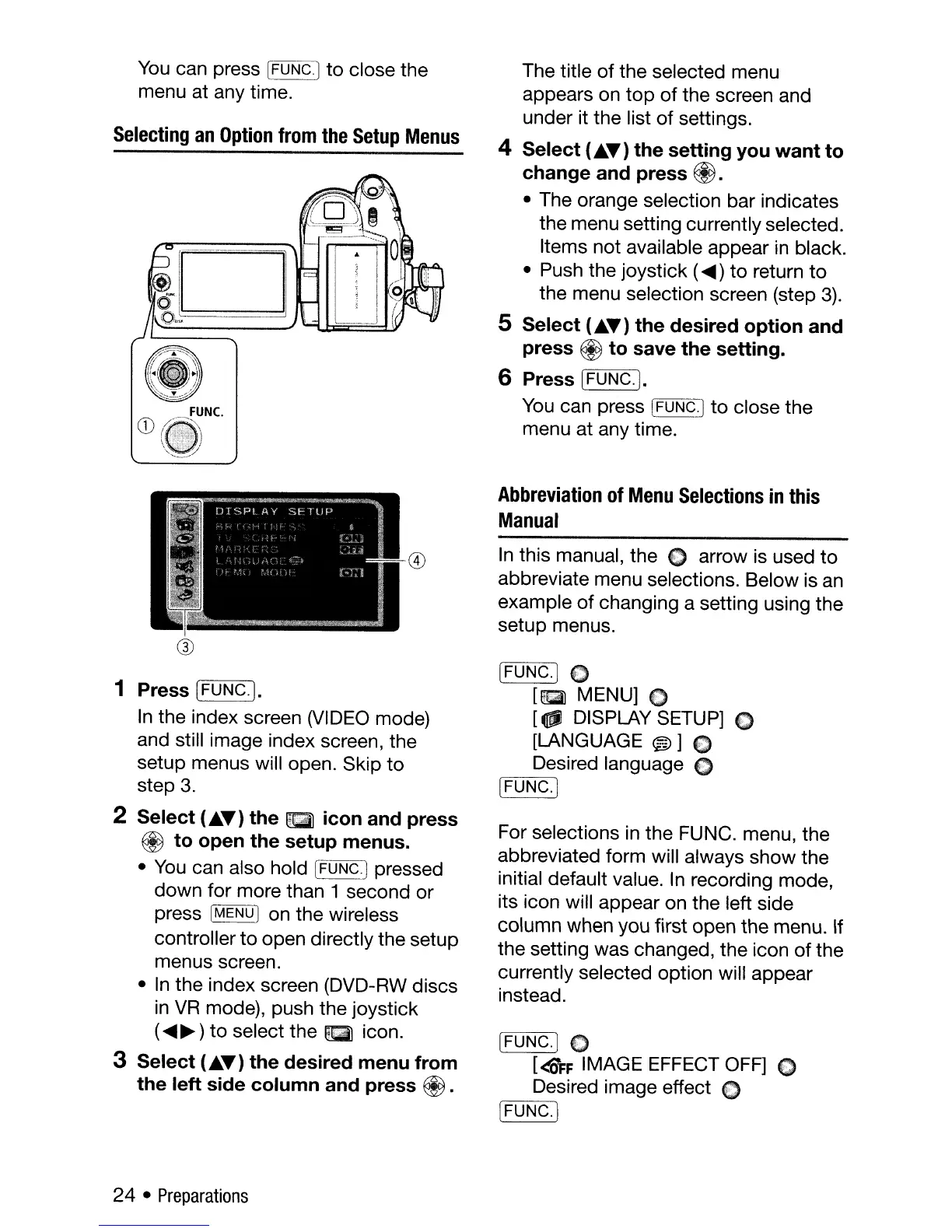
The title of the selected menu
appears on
top
of
the screen and
under it the list
of
settings.
4
Select
(AT)
the
setting
you
want
to
change
and
press
@.
• The orange selection bar indicates
the menu setting currently selected.
Items not available appear
in
black.
• Push the joystick (
.....
) to return
to
the menu selection screen (step
3).
5
Select
(AT)
the
desired
option
and
press
@
to
save
the
setting.
6 Press [FUNC.].
You
can press
~=FU~N~C'-'J
to
close the
menu at any time.
Abbreviation
of
Menu
Selections
in
this
Manual
®
In
this manual, the C arrow is used to
abbreviate menu selections. Below is
an
example of changing a setting using the
setup menus.
®
1 Press [FUNC.).
In
the index screen
(VIDEO
mode)
and still image index screen, the
setup menus will open. Skip to
step
3.
2
Select
(AT)
the
f[jil
icon
and
press
@
to
open
the
setup
menus.
•
You
can also hold
[FONC]
pressed
down for more than
1 second or
press
[MENU] on the wireless
controller to open directly the setup
menus screen.
•
In
the index screen (DVD-RW discs
in
VR
mode), push the joystick
(
.....
~ ) to select the
Qt'i
icon.
3
Select
(AT)
the
desired
menu
from
the
left
side
column
and
press
@ .
24 •
Preparations
[FUNC.]
C
[g
MENU] 0
[_
DISPLAY SETUP] C
[LANGUAGE
®]
€I
Desired language C
[=-FU:-:-:N-:-:OC;:---'.j
For selections in the FUNC. menu, the
abbreviated form will always show the
initial default value.
In
recording mode,
its icon will appear on the left side
column when you first open the menu.
If
the setting was changed, the icon
of
the
currently selected option will appear
instead.
[FUNC.]
C
[<OFF
IMAGE EFFECT OFF] 0
Desired image effect 0
Ir-
F
-
UN
-
C
=----.]



 To Next Page