Manual
Exposure
Adjustment
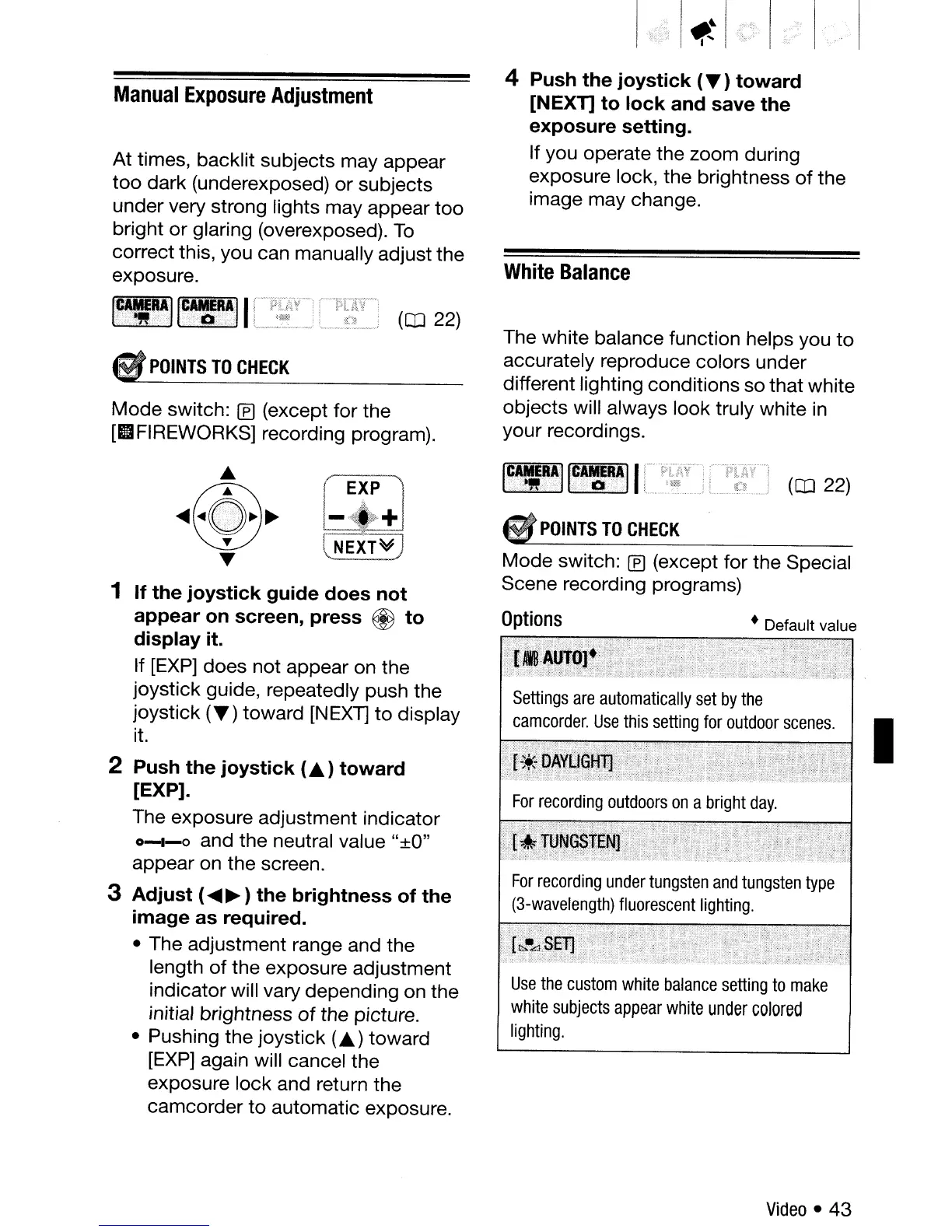
At times, backlit subjects may appear
too
dark
(underexposed)
or
subjects
under very strong lights may appear
too
bright
or
glaring (overexposed).
To
correct this, you can manually adjust
the
exposure.
4
Push
the
joystick
(T)
toward
[NEXn
to
lock
and
save
the
exposure
setting.
If you operate
the
zoom during
exposure lock, the brightness
of
the
image may change.
White
Balance
Mode
switch:
[fJ
(except for the Special
Scene recording programs)
I
(aJ 22)
• Default value
IF.
I
.•..
,
•.•.
E~lltA.....
M.~.R
.....
1
.•
·
...•..
·
.•.•.
11
•·
..
"'.0
POINTS
TO
CHECK
Use
the
custom
white
balance
setting
to
make
white
subjects
appear
white
under
colored
lighting.
Options
The white balance function helps you
to
accurately reproduce colors under
different lighting conditions so
that
white
objects
will always look truly white in
your recordings.
Mode
switch:
[E)
(except for
the
[II
FIREWORKS] recording program).
...
~@~
T
1
If
the
joystick
guide
does
not
appear
on
screen,
press
@
to
display
it.
If [EXP]
does
not appear on the
joystick guide, repeatedly push the
joystick
(T)
toward [NEXT]
to
display
it.
2
Push
the
joystick
(.&)
toward
[EXP).
The exposure adjustment indicator
0-1-0
and the neutral value "±O"
appear on the screen.
3
Adjust
(
....
~
)
the
brightness
of
the
image
as
required.
• The adjustment range and the
length
of
the exposure adjustment
indicator will vary depending on the
initial brightness
of
the picture.
• Pushing
the
joystick (.&)
toward
[EXP] again will cancel the
exposure
lock
and return the
camcorder
to
automatic exposure.
S
POINTS
TO
CHECK
Video·
43



 To Next Page