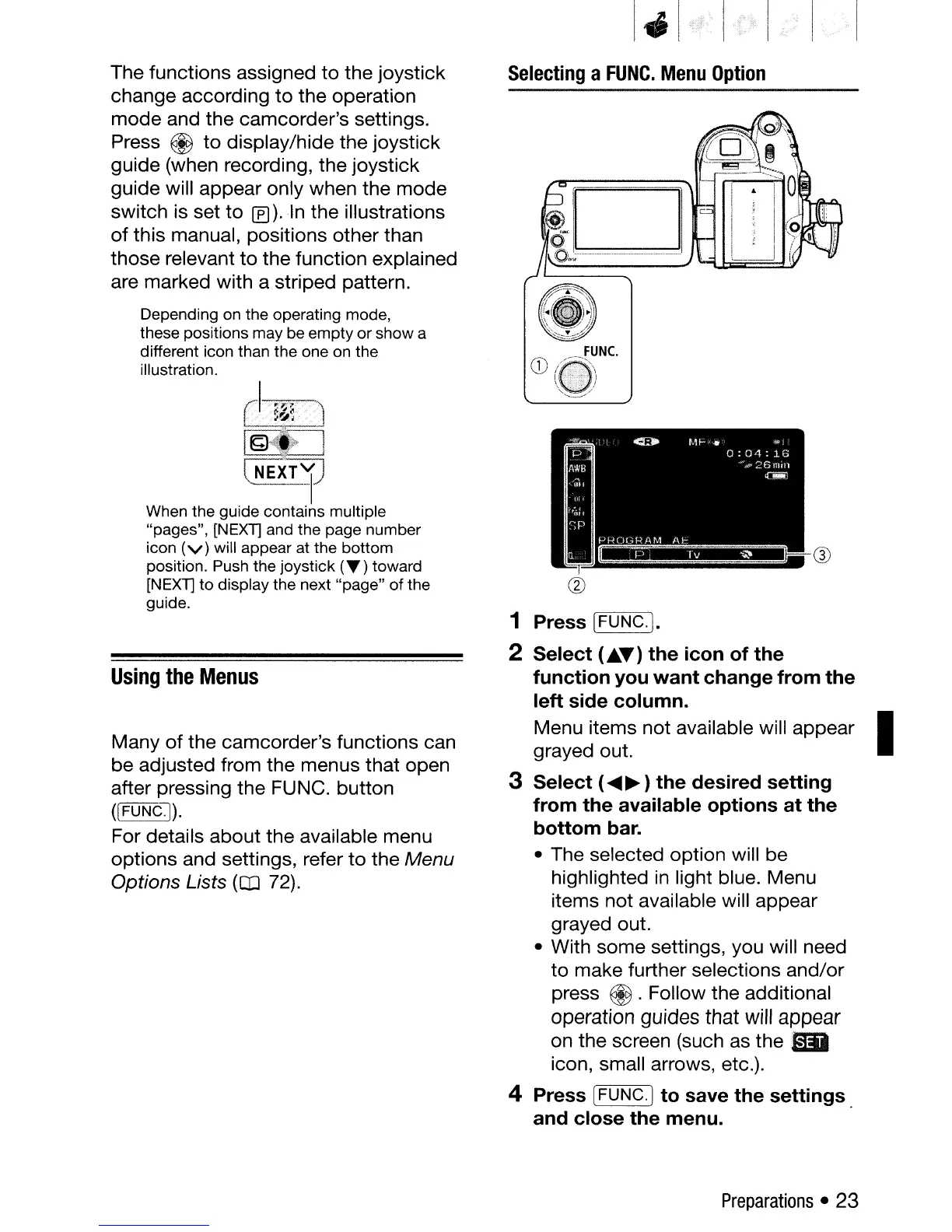
Selecting
a
FUNC.
Menu
Option
®
@
1 Press [FUNC.).
2 Select
(Ji..
T)
the icon of the
function you want change from the
left side column.
Menu items not available will appear I
grayed out.
3 Select (
.....
~
) the desired setting
from the available options at the
bottom bar.
• The selected option will be
highlighted in light blue. Menu
items not available will appear
grayed out.
• With some settings, you will need
to
make further selections and/or
press
®.
Follow the additional
operation guides that will appear
on the screen (such as the
IliI
icon, small arrows, etc.).
4 Press [FUNC.] to save the settings
and close the menu.
[}!
EXT
1)
When the guide contains multiple
"pages", [NEXT] and the page number
icon
(v)
will appear at the bottom
position. Push the joystick
(T)
toward
[NEXT] to display the next "page"
of
the
guide.
Depending on the operating mode,
these positions may be empty or show a
different icon than the one on the
illustration.
The functions assigned
to
the joystick
change according
to
the operation
mode and the camcorder's settings.
Press
@
to
display/hide the joystick
guide (when recording, the joystick
guide will appear only when the mode
switch is set
to
If)
).In
the illustrations
of
this manual, positions other than
those relevant
to
the function explained
are marked with a striped pattern.
Using
the
Menus
Many
of
the camcorder's functions can
be adjusted from the menus that open
after pressing the FUNC. button
([FUNC.j).
For details about the available menu
options and settings, refer
to
the Menu
Options Lists
(OJ
72).
Preparations
•
23



 To Next Page