Digital
Effects
Setting
Mode
switch: (f)
(CAMERl:;·Q)
:
[III
BLK&WHT],
[IE
SEPIA]
only.
[FUNC.] C
[~F
D.EFFECT OFF] 0
Desired option* E)
['"=F:-":"":U
N--:-::C""'.]
**
*
You
can
preview
the
effect
on
the
screen.
**
The
icon
of
the
selected effect
appears.
FUNC.
rff&
'W
FUNC.
(CD
23)
(CD
22)
POINTS
TO
CHECK
~
..
,
·.:~···RAI
.......•••..
'''.'
cc"_"':
..
-._;."':."
..
:-.'''''
i
Options
•
Default
value
Applying
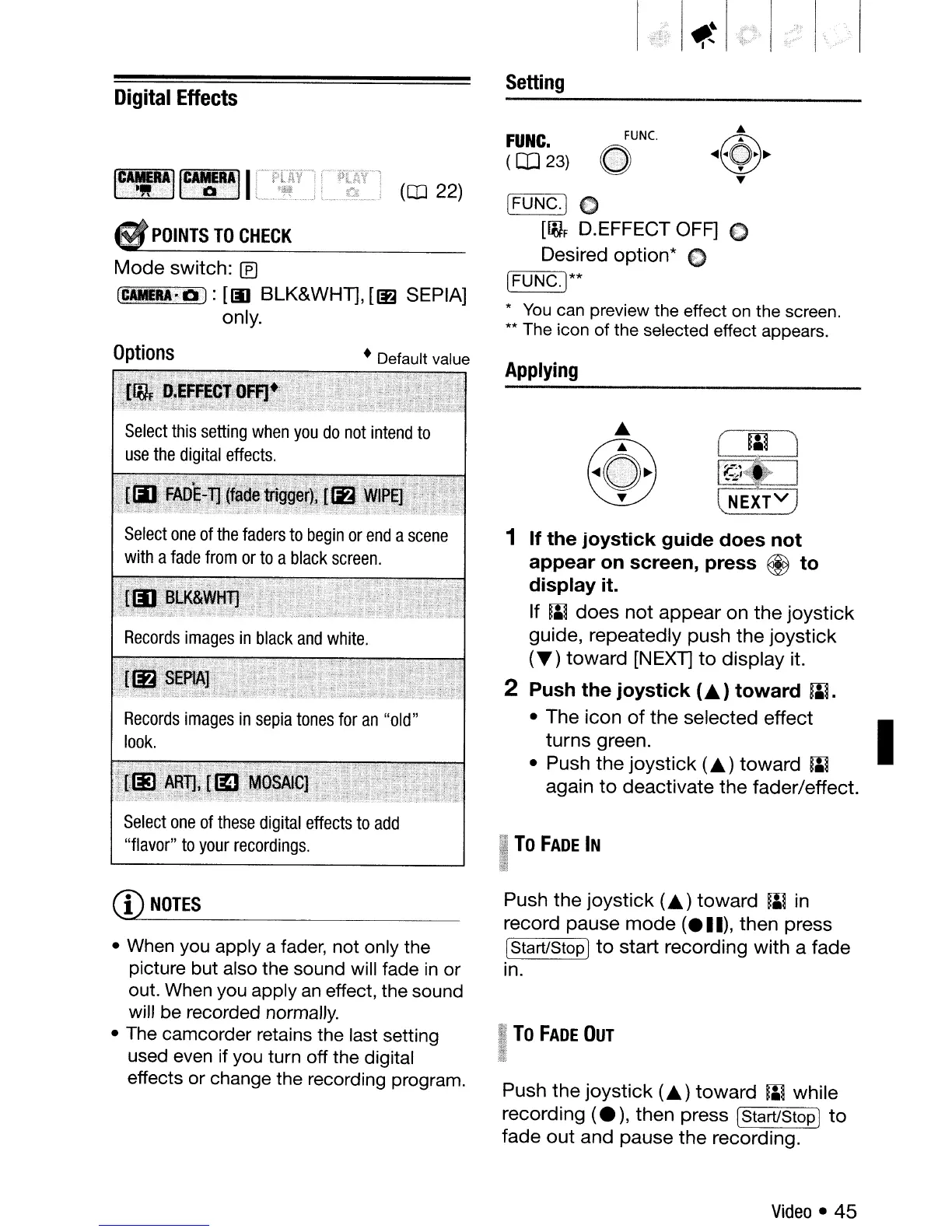
1
If
the
joystick
guide
does
not
appear
on
screen,
press
@
to
display
it.
If W
does
not
appear on
the
joystick
guide, repeatedly push
the
joystick
(T)
toward
[NEXT]
to
display it.
2
Push
the
joystick
(
..
)
toward
W.
• The icon
of
the selected effect
turns green.
I
• Push the
joystick
(
..
)
toward
W
again
to
deactivate
the
fader/effect.
Select
one
of
these
digital
effects
to
add
"flavor"
to
your
recordings.
I
To
FADE
IN
ill!
(1)
NOTES
• When you apply a fader, not only the
picture but also the sound will fade
in
or
out. When you apply
an
effect, the sound
will be recorded normally.
• The camcorder retains the last setting
used even if you turn off the digital
effects or change the recording program.
Push
the
joystick
(
..
)
toward
W
in
record pause
mode
(ell),
then press
[Start/Stop
1
to
start recording with a fade
in.
II
To
FADE
OUT
fa
ii
Push
the
joystick
(
..
)
toward
W while
recording
(e),
then press
[Start/Stop]
to
fade
out
and pause
the
recording.
Video
•
45



 To Next Page