Protecting
Photos
I I
p~y
I
(CO
22)
FUNC.
o
You can
protect
still images recorded on
the
memory
card from accidental
erasure.
• All displays
off
1
However,
the
markers
and
the 0
icon
and
AF
frames
when
the autofocus
is
locked will
still appear
on
the
screen.
[FUNC.] 0
[0."
PROTECT] 0 Press @
[.
PROTECT]: The image selection
screen appears.
FUNC.
(CO
23)
-
c:
~
o
c...:>
Q3
x
0:::
Shadows
<~~>
Highlights
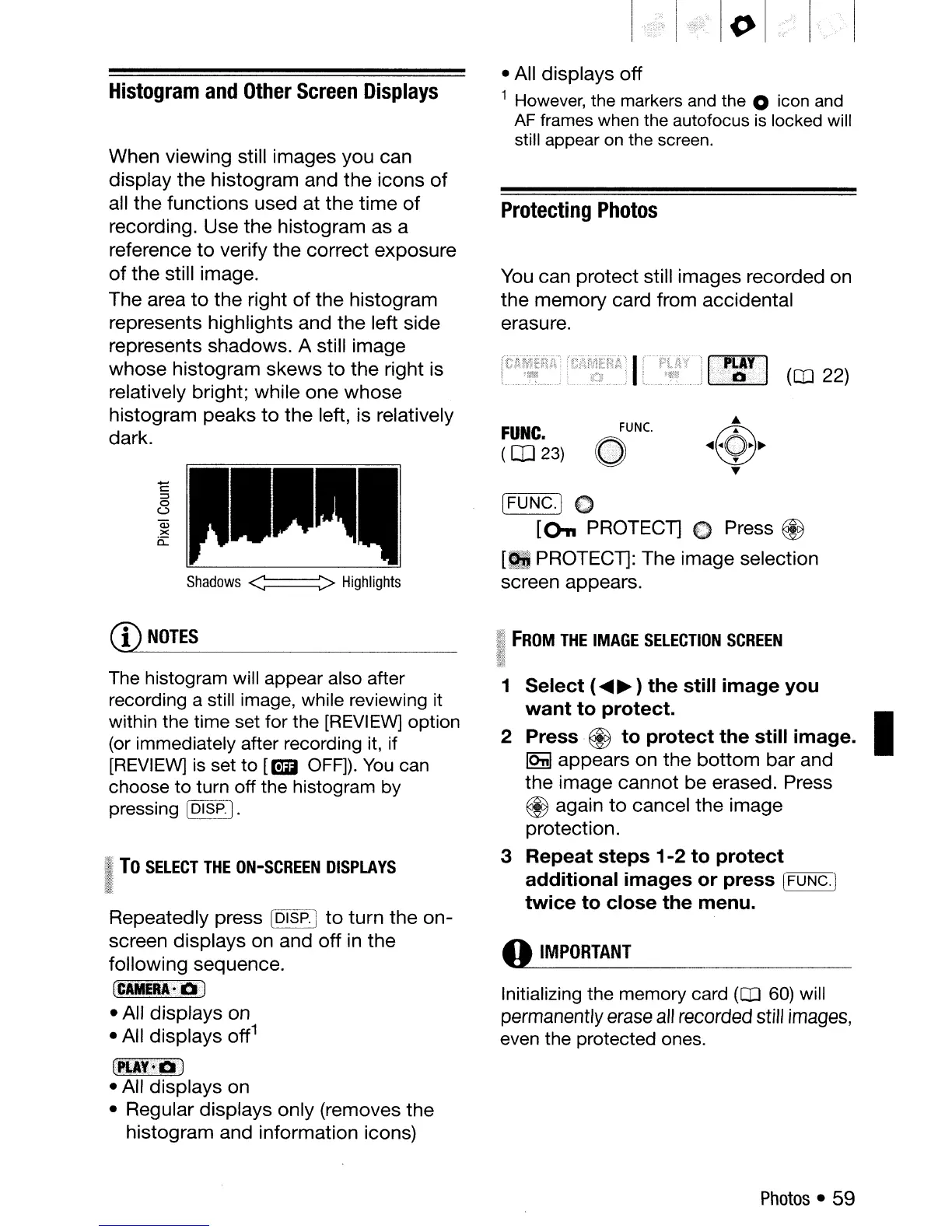
When viewing still images you can
display
the
histogram and
the
icons
of
all
the
functions
used
at
the
time
of
recording. Use
the
histogram as a
reference
to
verify
the
correct
exposure
of
the
still image.
The area
to
the
right
of
the
histogram
represents highlights
and
the
left side
represents shadows. A still image
whose
histogram
skews
to
the
right is
relatively bright; while
one
whose
histogram peaks
to
the
left, is relatively
dark.
Histogram
and
Other
Screen
Displays
(1)
NOTES
FROM
THE
IMAGE
SELECTION
SCREEN
The histogram will appear also after
recording a still image, while reviewing it
within the time set for the
[REVIEW]
option
(or immediately after recording it, if
[REVIEW]
is
set
to
[mil OFF]).
You
can
choose to turn off the histogram by
pressing
IDISP. ] .
II
To
SELECT
THE
ON-SCREEN
DISPLAYS
~~
~m
Repeatedly press IDISP.]
to
turn
the
on-
screen displays on and
off
in
the
following sequence.
(CAMERI-
••
al
• All displays on
• All
displays
off
1
CU~pa)
• All
displays
on
• Regular
displays
only (removes
the
histogram and information icons)
1 Select (
~ ~
) the still image you
want
to protect.
2 Press @ to protect the still image. I
IOnI
appears
on
the
bottom
bar
and
the
image
cannot
be
erased. Press
@ again
to
cancel
the
image
protection.
3 Repeat steps
1-2
to
protect
additional images or press
['=FU:-:-:NC:-::Co-.)
twice to close the menu.
o
IMPORTANT
Initializing the memory card
(CO
60)
will
permanently
erase
all
recorded
still
images,
even the protected ones.
Photos
• 59



 To Next Page