•
Playing
back
a
widescreen
recording:
TV
sets compatible with the Video
ID-1
system will
automatically switch to wide (16:9) mode. Otherwise, change the aspect ratio
of
the TV
manually.
To
play back on a
TV
with normal aspect ratio (4:3) change the
[TV
TYPE]
setting accordingly
(CD
77).
[WIND SCREEN]: The camcorder automatically reduces the background sound
of
wind
when recording outdoors.
• The wind screen cannot be turned off when the mode switch is set to
~.
• Some low-frequency sounds will be suppressed along with the sound
of
wind. When
recording
in
surroundings unaffected by wind or if you want
to
record low-frequency
sounds, we recommend setting the wind screen
to
[mD OFF
~J~].
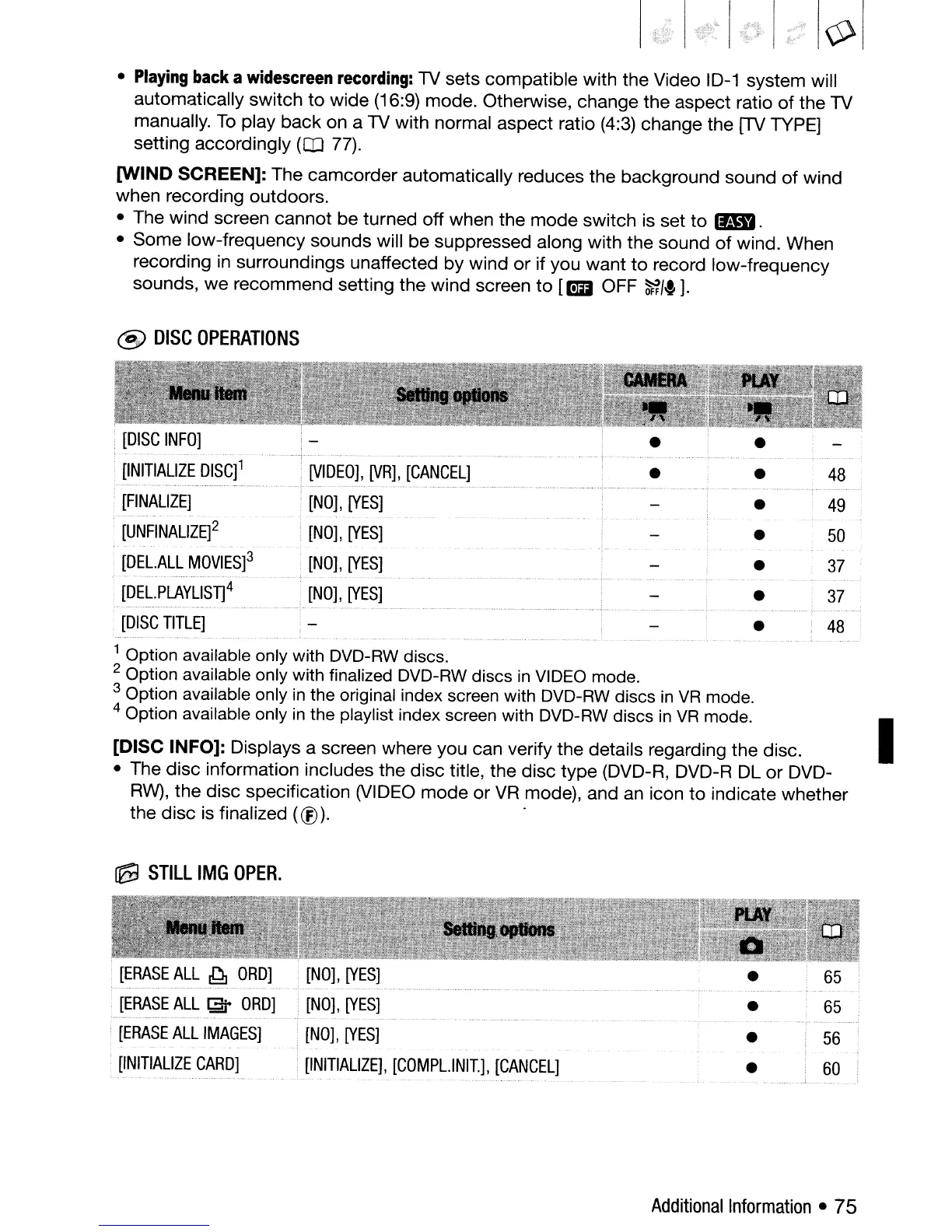
@
DISC
OPERATIONS
[DISC
INFO]
.....
,
..
,
.....
j
. .
•
[INITIALIZE
DISC]1
[VIDEO],
[VR),
[CANCEL]
•
•
48
[FINALIZE]
[NO],
[YES]
•
49
[UNFINALlZE]2
[NO],
[YES]
•
50
[DEL.ALL
MOVIES]3
•
[NO],
[YES]
•
37
[DEL.PLAYLlST]4
[NO],
[YES]
•
37
[DISC
TITLE]
•
48
1 Option available only with DVD-RW discs.
2 Option available only with finalized DVD-RW discs
in
VIDEO mode.
3 Option available only
in
the original index screen with DVD-RW discs
in
VR
mode.
4 Option available only
in
the playlist index screen with DVD-RW discs
in
VR
mode.
[DISC INFO]: Displays a screen where you can verify the details regarding the disc.
• The disc information includes the disc title, the disc type (DVD-R, DVD-R DL
or
DVD-
RW),
the disc specification (VIDEO mode or
VR
mode), and
an
icon
to
indicate whether
the disc is finalized
(®).
.
a::9
STILL
IMG
OPER.
I
[ERASE
ALL
~
ORO]
[ERASE
ALL
~
ORO]
[ERASE
ALL
IMAGES]
[INITIALIZE
CARD]
[NO],
[YES]
...................................................
[NO],
[YES]
[NO],
[YES]
[INITIALIZE],
[COMPL.lNIT),
[CANCEL]
•
•
•
Additional
Information
• 75



 To Next Page