Basic
Playback
If
[9
does not appear on the joystick
guide, repeatedly push the joystick
(T)
toward [NEXT]
to
display it.
2 Push
the
joystick
(
.....
)
toward
(~).
• The camcorder plays
back
the last
scene (but without sound) and
returns
to
record pause mode.
• While reviewing the scene, select
the
.;l
icon and press @
to
return
to
the recording mode.
Deleting
a
Scene
After
Recording
It
Playing
Back
the
Video
,
il~
(OJ
22)
POINTS
TO
CHECK
Disc type: @ DVD-RW
After recording a scene:
1
Review
the
scene
as
described
in
the
previous
section.
2
While
reviewing
the
scene,
select
(
~)
ITii
and
press
@.
3
Select
(
~
) [YES]
and
press
00.
CD
NOTES
• Avoid any other operations
on
the
camcorder while the scene
is
being
deleted.
•
You
will not
be
able to delete the last
scene if after the scene was recorded
you changed the operating mode, turned
off the camcorder or removed the disc.
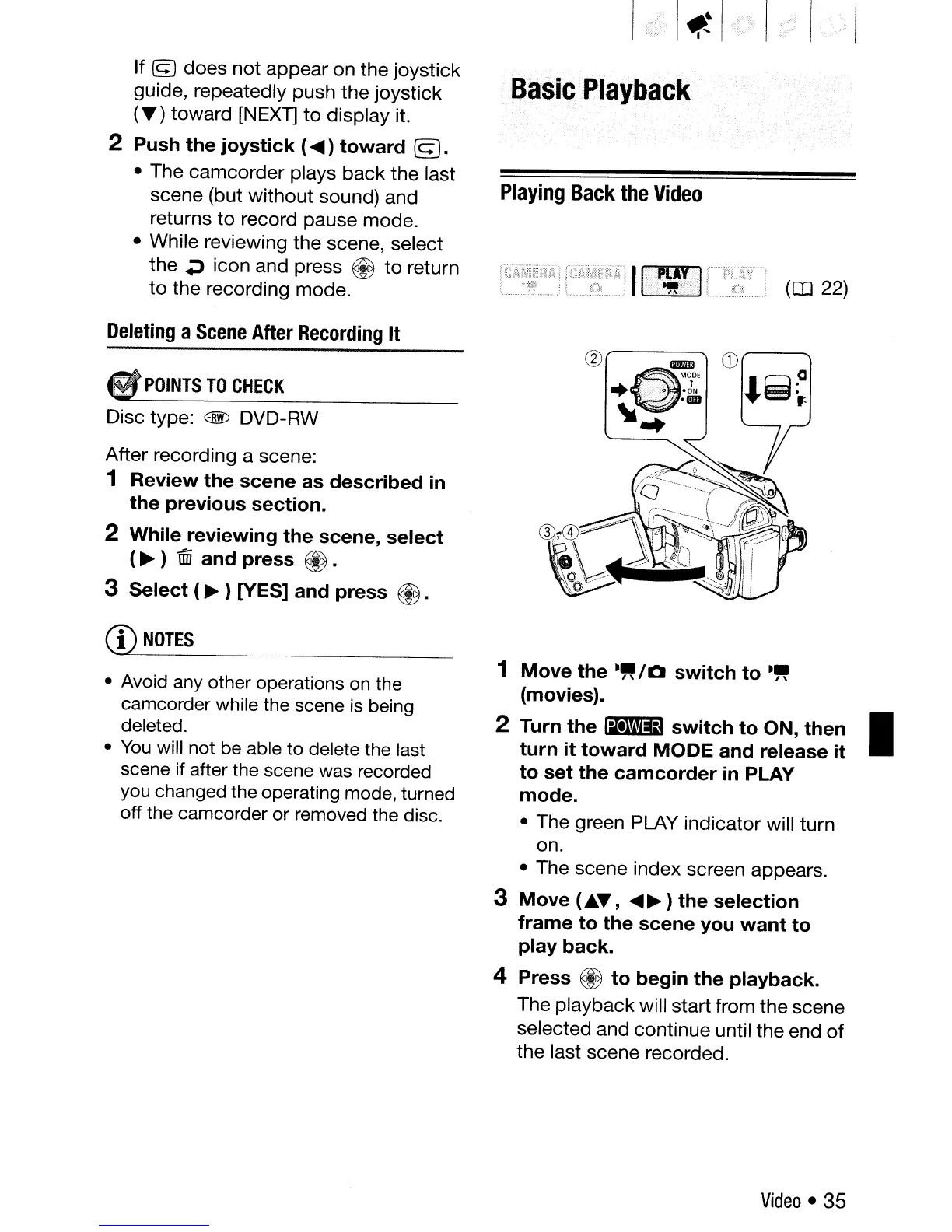
1
Move
the
."
/ 0
switch
to
."
(movies).
2 Turn
the
Ii1ilIi9
switch
to
ON,
then
•
turn
it
toward
MODE
and
release
it
to
set
the
camcorder
in PLAY
mode.
• The green PLAY indicator will turn
on.
• The scene index screen appears.
3
Move
(• ..-,
....
~)
the
selection
frame
to
the
scene
you
want
to
play
back.
4
Press
@
to
begin
the
playback.
The playback will start from the scene
selected and continue until the end
of
the last scene recorded.
Video. 35



 To Next Page