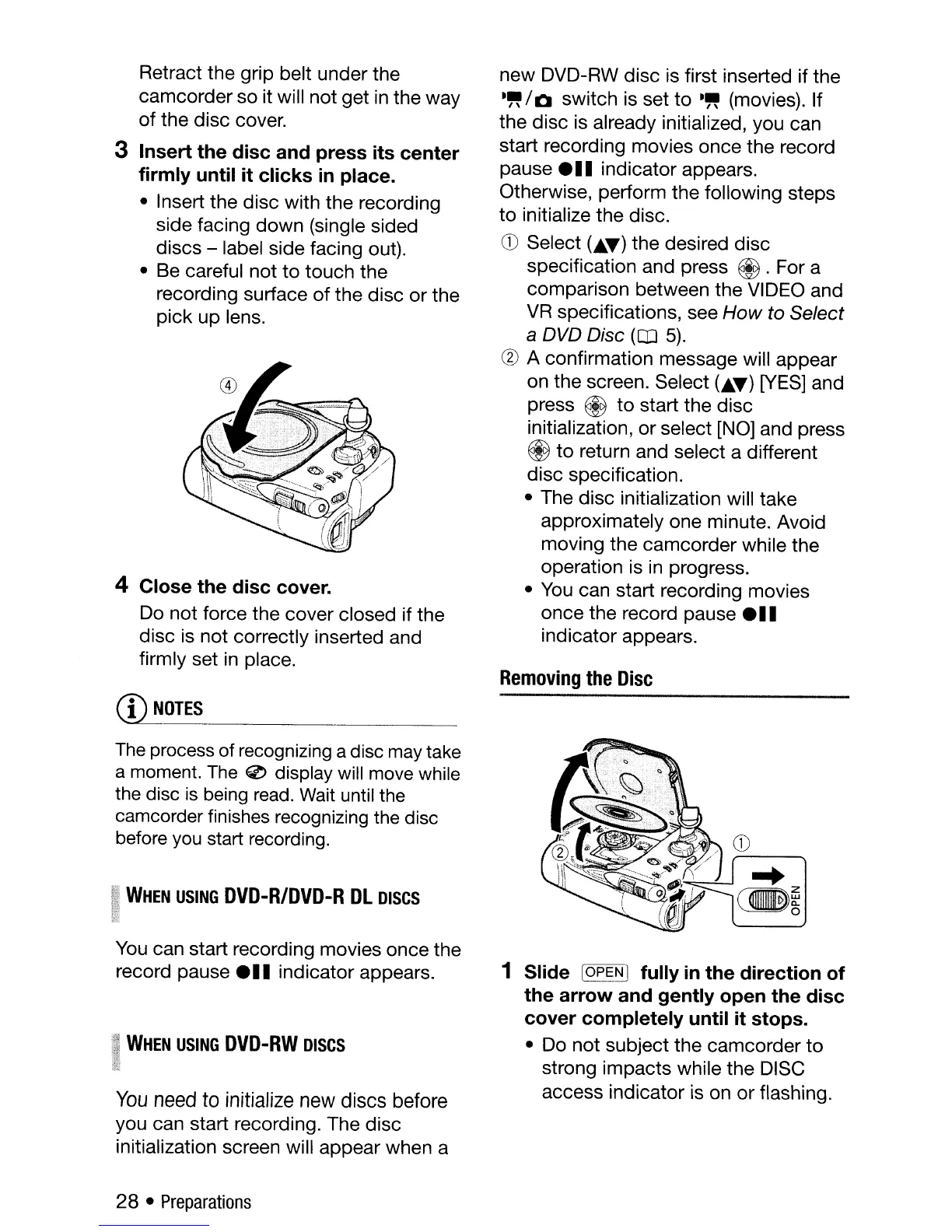
Retract the grip belt under the
camcorder so it will not get
in
the way
of the disc cover.
3 Insert the disc and press its center
firmly until it clicks
in
place.
• Insert the disc with the recording
side facing down (single sided
discs - label side facing out).
• Be careful not
to
touch the
recording surface of the disc or the
pick up lens.
4 Close the disc cover.
Do not force the cover closed if the
disc
is
not correctly inserted and
firmly set
in
place.
CD
NOTES
The
process of recognizing a disc
may
take
a moment.
The
0 display will move while
the disc
is
being
read.
Wait
until the
camcorder finishes recognizing the disc
before
you
start recording.
~~
WHEN
USING
DVD-R/DVD-R
DL
DISCS
~{
You
can start recording movies once the
record pause e
••
indicator appears.
~I
WHEN
USING
DVD-RW
DISCS
;
You
need
to
initialize
new
discs
before
you can start recording. The disc
initialization screen will appear when a
28 •
Preparations
new DVD-RW disc is first inserted if the
-"
/ 0 switch is set
to
-"
(movies). If
the disc is already initialized, you can
start recording movies once the record
pause e
..
indicator appears.
Otherwise, perform the following steps
to
initialize the disc.
G)
Select (
..
T)
the desired disc
specification and press
~.
For a
comparison between the VIDEO and
VR
specifications, see
How
to Select
a DVD Disc
(CD
5).
(g)
A confirmation message will appear
on the screen. Select (
..
T)
[YES] and
press @
to
start the disc
initialization, or select [NO] and press
@
to
return and select a different
disc specification.
• The disc initialization will take
approximately one minute. Avoid
moving the camcorder while the
operation is
in
progress.
•
You
can start recording movies
once the record pause e
..
indicator appears.
Removing
the
Disc
1 Slide [OPEN I fully
in
the direction of
the arrow and gently open the disc
cover completely until it stops.
• Do not subject the camcorder
to
strong impacts while the DISC
access indicator is on
or
flashing.



 To Next Page