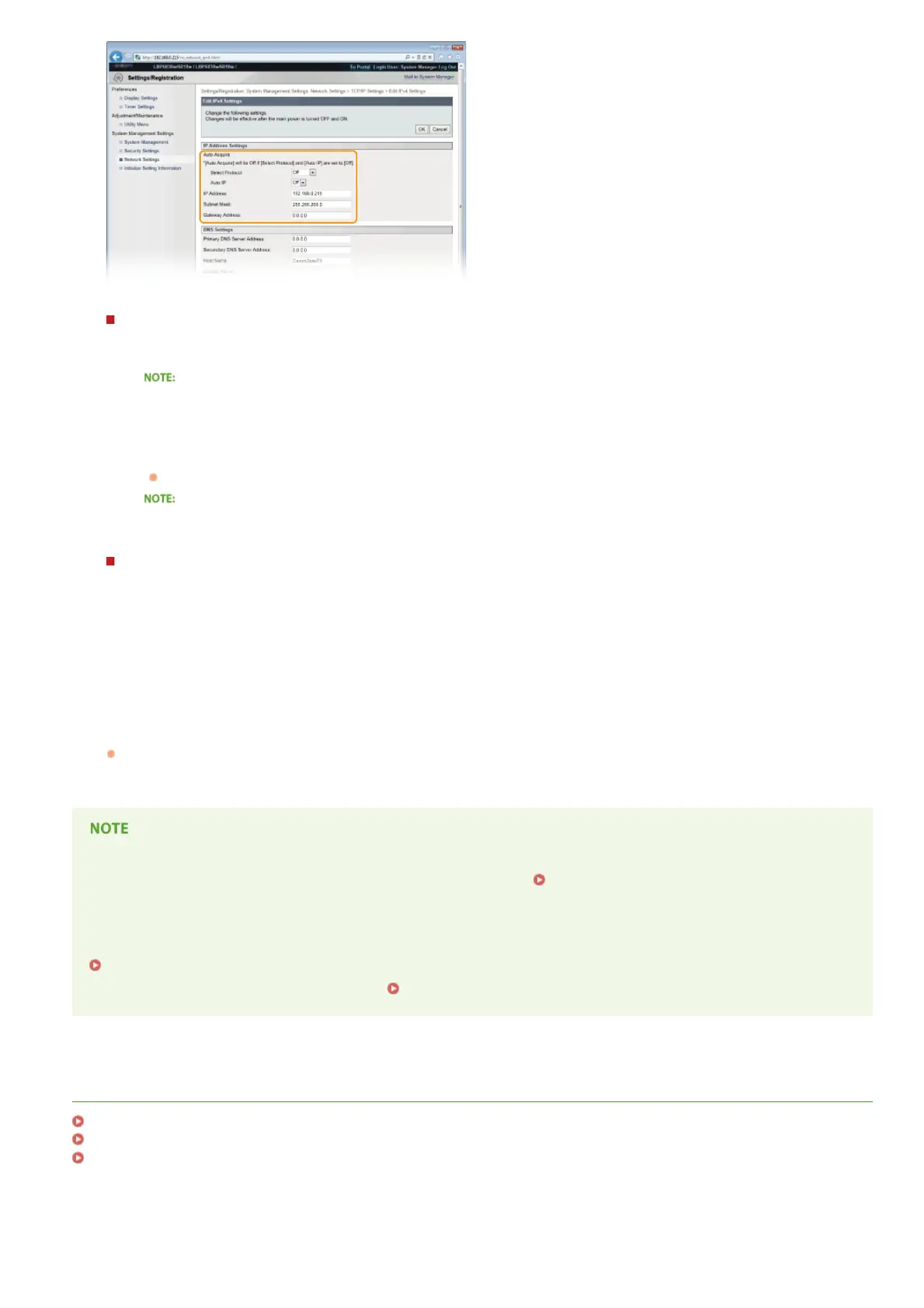
Automatically assigning an IP address
1
In the [Select Protocol] list, select [DHCP], [BOOTP], or [RARP].
If you do not want to use DHCP/BOOTP/RARP to assign an IP address automatically
Select [Off]. If you select the [DHCP], [BOOTP], or [RARP] protocol when these services are unavailable, the machine will
waste time and communications resources searching the network for these services.
2
Check that [Auto IP] is set to [On].
If [Off] is selected, change the setting to [On].
Even if Auto IP is enabled, IP addresses assigned via DHCP/BOOTP/RARP override an address obtained via Auto IP.
Manually entering an IP address
1
Select [Off] for [Select Protocol] and [Auto IP].
2
Set the [IP Address], [Subnet Mask], and [Gateway Address] fields.
Click [OK].
Restart the machine.
Turn OFF the machine, wait for at least 10 seconds, and turn it back ON.
Checking whether the settings are correct
Make sure that the Remote UI screen can be displayed with your computer. Starting the Remote UI
If you change the IP address after installing the printer driver
If you are using an MFNP port, and the machine and the computer are in the same subnet, then the connection will be
maintained. You do not need to add a new port. If you are using a standard TCP/IP port, then you need to add a new port.
Configuring Printer Ports
If you are not sure which type of port you are using, see Checking the Printer Port.
LINKS
Setting IPv6 Addresses
Viewing Network Settings
Configuring WINS
*
6
7
㻢㻡㻌㻛㻌㻞㻝㻥






 To Next Page