0HWJ-03C
Clearing Paper Jams
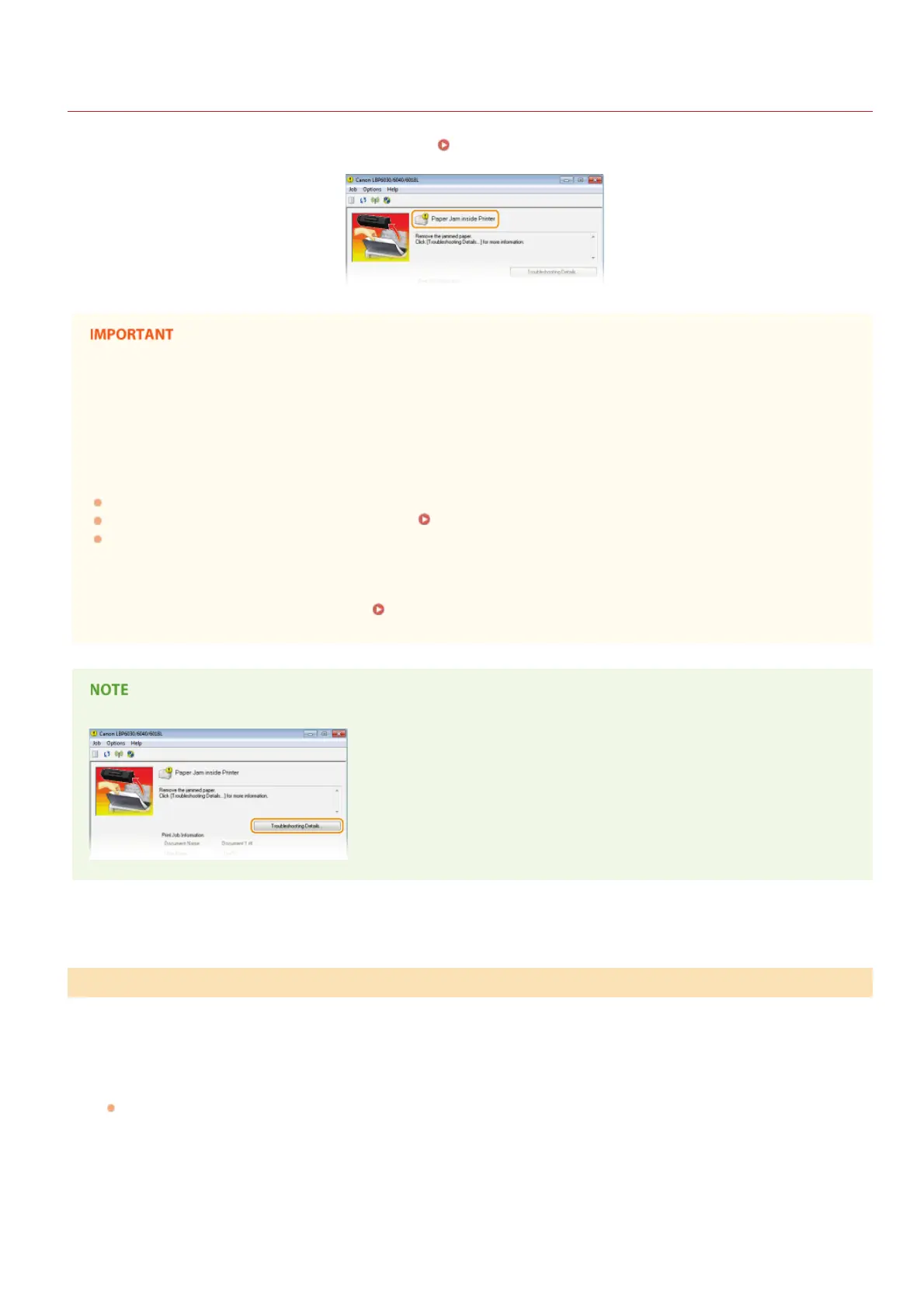
If paper jams, <Paper Jam inside Printer> is displayed in the Printer Status Window. Use the following procedure to remove the jammed
paper. Before starting, carefully read the safety instructions in
Important Safety Instructions.
When removing the jammed paper, do not turn OFF the machine
Turning OFF the machine deletes the data that is being printed.
If paper tears
Remove all the paper fragments to prevent them from becoming jammed.
If paper jams repeatedly
Tap the paper stack on a flat surface to even the edges of the paper before loading it into the machine.
Check that the paper is appropriate for the machine.
Paper
Check that no jammed paper fragments remain in the machine.
Do not forcibly remove jammed paper from the machine
Forcibly removing the paper may damage parts in the machine. If you are not able to remove the paper, contact your local
authorized Canon dealer or the Canon help line.
When a Problem Cannot Be Solved
If you click [Troubleshooting Details], you can display the same troubleshooting methods that are described in this manual.
If there is paper loaded in the multi-purpose tray, remove it first. If the jammed paper cannot be removed easily, do not try to pull it
out forcibly. Proceed to the next step.
Gently pull out the paper.
Pull the paper straight out.
How to Clear Paper Jams
1
㻝㻠㻝㻌㻛㻌㻞㻝㻥



 To Next Page