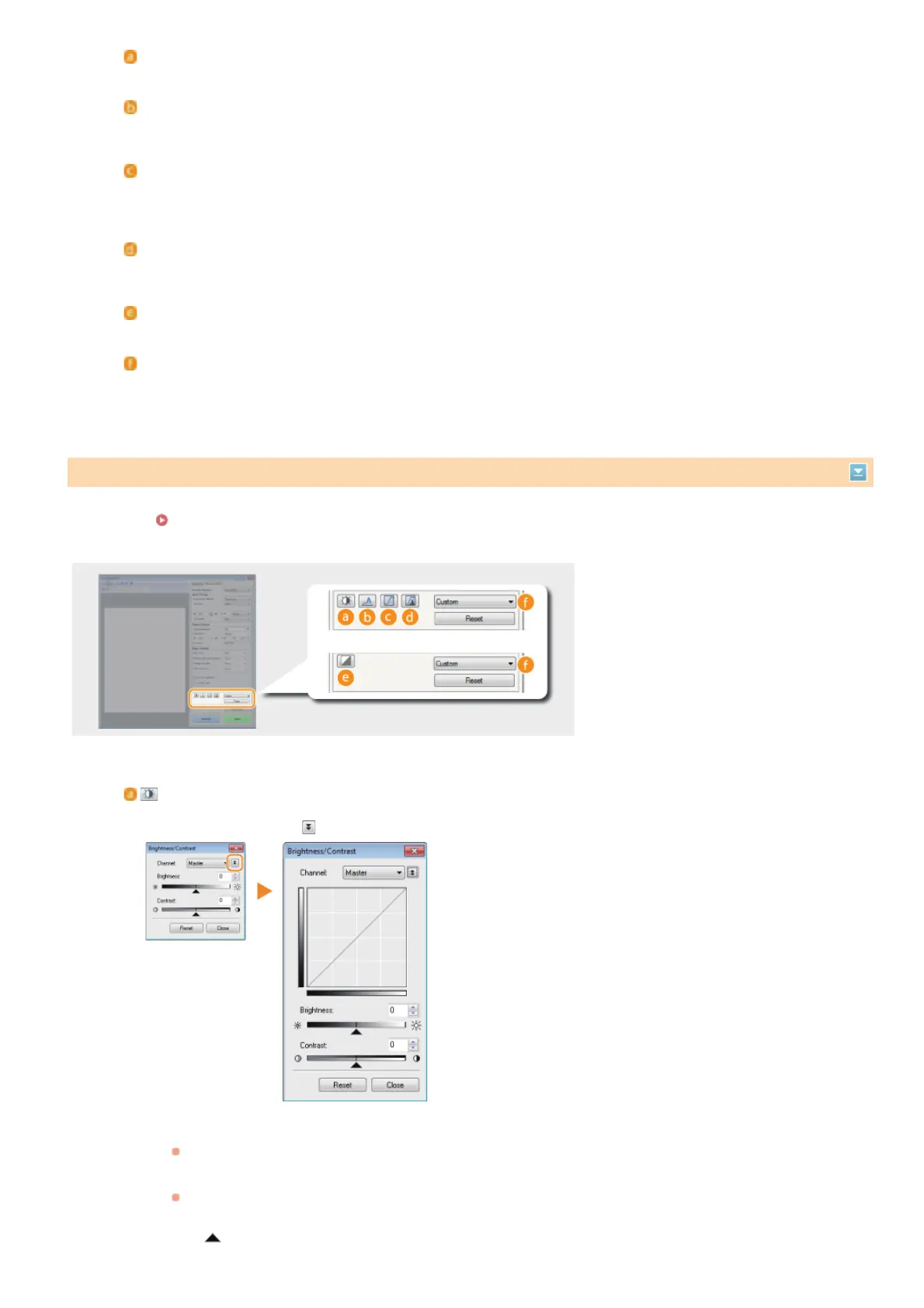
Configure color settings such as brightness, contrast, and color tone. The displayed items vary depending on the settings selected for
[Color Mode] (
Specifying Settings for Documents and Color Mode). When [Text Enhanced] is selected, you cannot configure these
settings.
[Auto Tone]
Automatically adjusts the color tone of the image.
[Reduce Dust and Scratches]
Makes dust or scratches on the document less noticeable. [High] makes large scratches and dust less noticeable, but
may ruin details on the image.
[Fading Correction]
The setting is available if you select [Color] for [Color Mode]. Corrects faded colors on the document or enhances the
color saturation of dull-colored documents. [High] dramatically corrects the faded colors, but may change the color
tone of the entire image.
[Grain Correction]
Reduces graininess to create a smooth color tone when scanning photographs taken with high-speed film. [High]
dramatically reduces graininess, but may also reduce image sharpness or degrade image quality.
[Use Unsharp Mask]
Emphasizes the edges and lines in the image, creating a sharper appearance.
[Use Descreen]
Reduces the color unevenness and moire that occur when scanning printed images.
Adjusting Brightness and Color
(Brightness/Contrast)
Adjusts the brightness and contrast (the difference between the light and dark parts) of the image. To adjust while
checking on a graph, click
on the upper-right of the screen.
[Channel]
If you select [Color] for [Color Mode], you can adjust the [Red], [Green] and [Blue] color channels separately.
To adjust all three colors at the same time, select [Master]. You can combine the adjustments made in [Master]
and those made in the individual color channels.
If you select [Grayscale] for [Color Mode], only [Grayscale] is displayed.
[Brightness]
Slide
or enter a value.
㻝㻟㻤㻌㻛㻌㻟㻟㻢


 To Next Page
 Loading...