IP addresses assigned via DHCP/BOOTP/RARP override the address obtained via Auto IP.
Manually entering an IP address
1
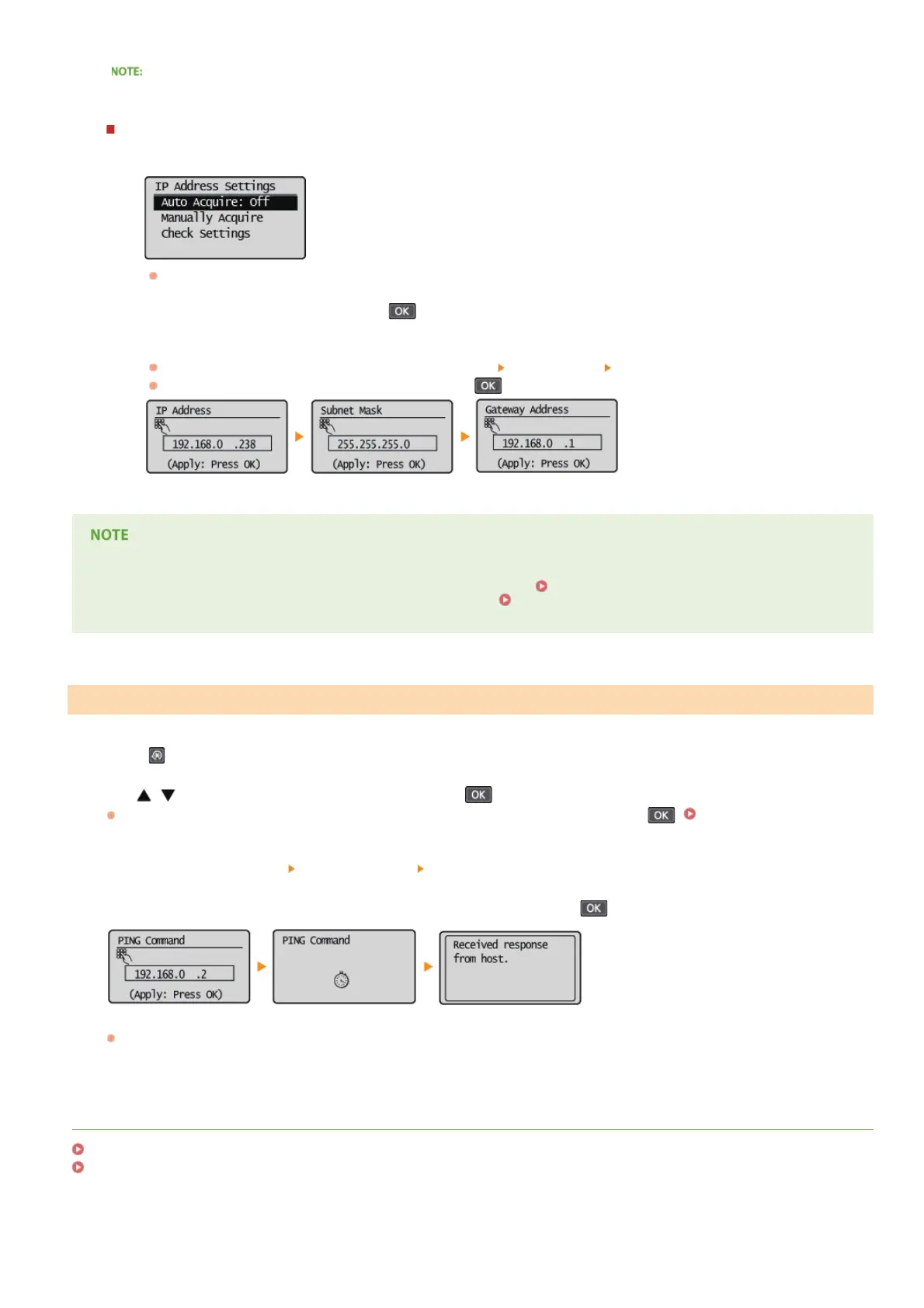
Check that <Auto Acquire> is set to <Off>.
If <On> is displayed, select <Auto Acquire>, and set both <Select Protocol> and <Auto IP> to <Off>.
2
Select <Manually Acquire>, and press .
3
Specify the IP address, subnet mask, and gateway address (or default gateway).
Specify the settings in the following order: <IP Address>
<Subnet Mask> <Gateway Address>.
Enter each setting using the numeric keys, and press
on each screen.
Checking whether the settings are correct
Make sure that the Remote UI screen can be displayed with your computer ( Starting Remote UI). If a computer is not
available, you can check the connection by using the operation panel (
Testing the Network Connection).
Press .
Use / to select <Network Settings>, and press .
If a screen for entering a PIN is displayed, enter the PIN with the numeric keys and press . Setting the System
Manager PIN
Select <TCP/IP Settings> <IPv4 Settings> <PING Command>.
Enter the IPv4 address of another device on the network, and press .
If a proper connection has been established, the result is displayed as shown above.
LINKS
Setting IPv6 Addresses
Viewing Network Settings
Testing the Network Connection
1
2
3
4
㻝㻢㻡㻌㻛㻌㻟㻟㻢





 To Next Page