132
Contents
Preparation/
Setup
Print Using a
Computer
Appendix
IndexPrint/SaveInput/Edit
Names of
Components
Maintenance/
Printer Settings
Trouble-
shooting
Input and Edit
Entering Text
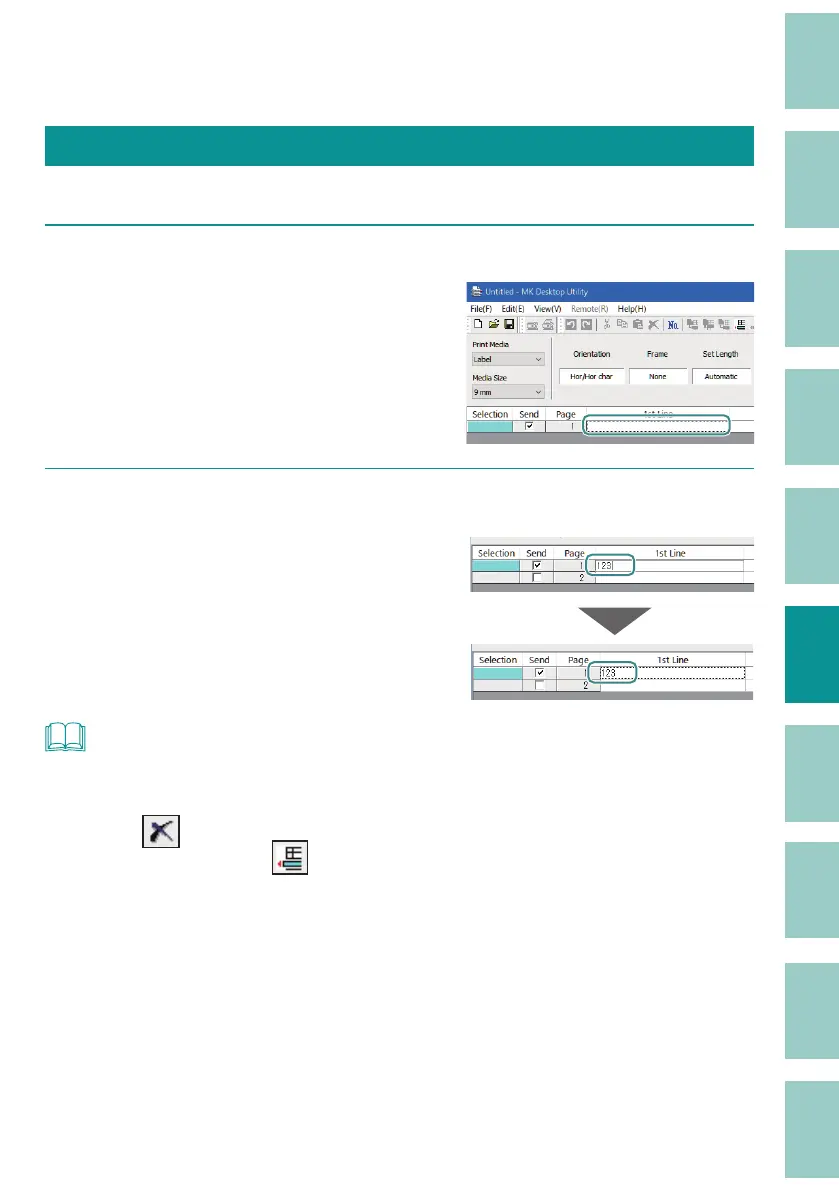
Enter text in the data list.
1
Click (or double-click) on the location where you want to enter text.
2
Enter the text and then press the [Enter] key (or click on another position).
NOT
• You may not be able to enter text depending on the format setting, such as when a set length is
speci ed. For more information on format setting, refer to
"Con gure the Format Setting (P.133)"
.
• If you press
(Delete) to delete the input, the data will be cleared, but the page itself will not be
deleted. To delete a page, click
(Page Delete).
• The font used in the preview of the MK Desktop Utility is di erent from the font of the printer, so the
font style may di er between the preview and the printed result.



 To Next Page